


SharePoint Dragons

Nikander & Margriet on SharePoint

Category Archives: Uncategorized

Referencing the SharePoint DLL

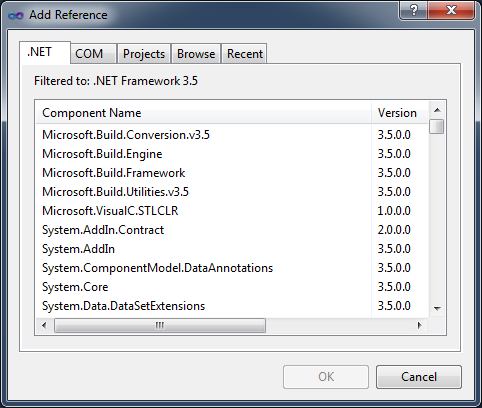
Using Visual Studio 2010 and SharePoint 2010 you will notice that the SharePoint DLLs are not listed in the Add Reference > NET tab.

image

Follow the next steps to add a SharePoint DL reference:

  1. In Visual Studio 2010, right click your project and select Properties
  2. Go to the Application tab and set the Target framework to 3.5
  3. Go to the Build tab and set the Platform to x64
  4. Go to your project in the Solution Explorer and select Add Reference.
  5. Browse to the ISAPI folder in the SharePoint root to add the SharePoint DLL.

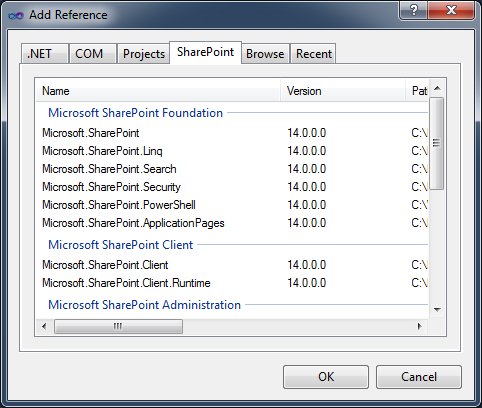
But, instead of these 5 steps above you could also install CKS Development Tools Edition (http://cksdev.codeplex.com/) to make this a lot easier. You can install the CKS Development Tools via Tools > Extension Manager. After installing you will notice a new SharePoint tab in Add Reference which makes it very easy to add a reference to the SharePoint DLL.

image

Forms authentication using the Client Object Model

A question that is asked regularly is how to do forms authentication when you’re using the SharePoint client object model. We have blogged about this before at https://sharepointdragons.com/2012/04/20/authentication-when-using-the-sharepoint-client-object-model/ , but the solution below is clean and well worth to mention (it uses the managed client object model):

using System;
using System.Collections.Generic;
using System.Linq;
using System.Text;
using System.Net;
using Microsoft.SharePoint.Client;

namespace ConsoleApplication2
{
    class Program
    {
        static void Main(string[] args)
        {
            try
            {               
                using (var context = new ClientContext(“http://astro:46454″))
                {
                    context.AuthenticationMode = ClientAuthenticationMode.FormsAuthentication;
                    FormsAuthenticationLoginInfo formsAuthInfo = new FormsAuthenticationLoginInfo(“anton”, “anton!0”);
                    context.FormsAuthenticationLoginInfo = formsAuthInfo;

                   
                    var site = context.Site;
                    context.Load(site);
                    context.ExecuteQuery();
                    Console.WriteLine(site.Url);
                }
            }
            catch (Exception err)
            {
                var errMsg = err.Message;
            }
        }
    }
}

Application Pages: Auto Activate to Central Admin

Application pages are a special type of ASP.NET pages. An application page is designed to be used in a SharePoint site and uses a SharePoint master page. Using a master page you ensure that the application pages have the same look and feel as the other SharePoint pages. It is also possible to use an application page in SharePoint Central Administration.

The following MSDN article is a guideline for building application pages for SharePoint Central Administration: http://msdn.microsoft.com/en-us/library/ff798467.aspx.

Let’s take a look at the following Note:

image

There is another way to make sure that your feature is activated on the Central Administration Web site, just follow the next steps:

  1. Go to your Visual Studio project.
  2. In Solution Explorer, expand Features and expand your custom feature.
  3. Double click the .feature file.
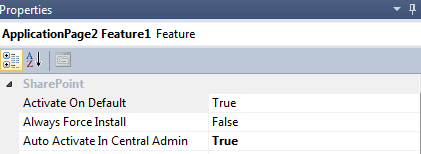
  4. Take a look at the properties and set the Auto Activate in Central Admin property to True

    image

  5. Press F5 to deploy and test your solution

Note: You cannot set the local site to the URL of your Central Administration Web site and the Auto Activate in Central Admin property to True. You have to choose which solution you want to use.

SharePoint Max Dragon – checks for capacity planning limits

The TechNet Wiki interview with Margriet

How about Documents and Metadata using SharePoint 2010?

What do I do with Metadata and Documents? Is it possible to inherit Metadata?  Do I use Folders or Document Sets? This blog post provides the answers to these questions.

Folders & Metadata

It is possible to set default Metadata for every folder in your Document Library. You can set defaults on all of the subfolders from the root, by default this will be inherited.

Follow the next steps to do this:

  1. First you have to create the folders  and columns you want.
  2. Go to the Document Library
  3. Go to Library Settings
  4. Click Column default value settings (General settings)
  5. Select the folder (left) where you want to set a default
  6. Select the column that you want to use
  7. Set the default value for the column > click OK

image

That’s all! If you upload a document in the folder where you have set a default Metadata value, this value will be automatically filled.

Note: More information about SharePoint 2010 Best Practices Folders can be found at  https://sharepointdragons.com/2012/03/27/sharepoint-2010-best-practices-folders-not-necessarily-considered-evil/

Document Sets & Metadata

If you have multiple documents that are part of a single project or tasks you can use a Document Set. With Document Sets you can group ,multiple documents and share the Metadata en versioning. In a Document Set you can pass Metadata from the Document Set to the documents in the Document Set.

Follow the next steps if you want to use Document Sets. First you have to enable Documents Sets in the site collection:

  1. Go to Site Actions
  2. Go to Site Settings
  3. Go to Site Collection Features
  4. Click Document Sets

Note: Take a look at the following page if you want more information about which feature you need to activate: https://sharepointdragons.com/tag/features/

After activating the Documents Sets site collection feature you can use Documents Sets in your Document Libraries

  1. Create a Document Library
  2. Go to Library Settings
  3. Go to Advanced Settings
  4. Allow management of content types > click OK
  5. Go to Add from existing site content types
  6. Add Document Set > click OK
  7. Go the the Document Library
  8. Click Documents
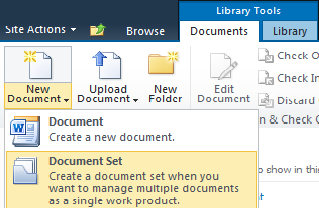
  9. Click New Document Set

image

Via the Document Set Settings page you can select which column values from the Document Set  should be automatically synchronized to all documents in the Document Set.

  1. Go to the Document Library
  2. Go to Library Settings
  3. Click Document Set (Content Types)
  4. Click Document Set settings

image

If you upload a document (or multiple) into the Document Set you will notice that the column values are synchronized.

Why is SPListItemCollection.Count so slow?

There are situations where people experience disastrous response times when trying to count the number of items in a collection or folder. Why does this happen? A long time ago, we wrote about this at http://www.loisandclark.eu/Pages/Velocity.aspx . Basically, looping thru a collection and calling the Count property leads to a huge amount of SQL queries that are fired, resulting in a disappointing performance.

The best thing you can do in such a situation is establish what happens under the covers, and take actions accordingly. Usually, people advise to do this using SQL Server Profiler, which works fine for dev scenarios, but isn’t recommendable (because of performance reasons) in a production environment. Instead, you’d be better of executing a SQL DMV query that identifies the currently running SQL queries. Such as this one:

SET TRANSACTION ISOLATION LEVEL READ UNCOMMITTED

SELECT er.session_Id AS [Spid] , sp.ecid , DB_NAME(sp.dbid) AS [Database] , sp.nt_username , er.status , er.wait_type , SUBSTRING (qt.text, (er.statement_start_offset/2) + 1, ((CASE WHEN er.statement_end_offset = -1 THEN LEN(CONVERT(NVARCHAR(MAX), qt.text)) * 2 ELSE er.statement_end_offset END – er.statement_start_offset)/2) + 1) AS [Individual Query] , qt.text AS [Parent Query] , sp.program_name , sp.Hostname , sp.nt_domain , er.start_time

FROM sys.dm_exec_requests er

INNER JOIN sys.sysprocesses sp ON er.session_id = sp.spid

CROSS APPLY sys.dm_exec_sql_text(er.sql_handle)as qt

WHERE session_Id > 50

AND session_Id NOT IN (@@SPID)

ORDER BY session_Id, ecid

SQL DMV query techniques are discussed in the excellent book http://www.amazon.com/SQL-Server-DMVs-Action-Management/dp/1935182730/ref=sr_1_1?ie=UTF8&qid=1338967190&sr=8-1 . We were technical reviewers for this book, and will devote a separate blog post to this book, but if you’re interested, check it out.

The Wiki Ninjette

The Top 10 TN Wiki ninja’s page is always great fun: http://blogs.technet.com/b/wikininjas/archive/2012/06/03/top-10-wiki-ninjas-margriet-bruggeman-s-sharepoint-2012-best-practices.aspx. Margriet’s activities of last week led to the one and only TN Wiki Ninja stick figure:

SQL Server MVP Deep Dives

Frequently, we act as technical reviewers for IT books. Now and then we devote a blog post to discuss one of these books. Today, we’re discussing SQL Server MVP Deep Dives Volume 2: http://www.amazon.com/SQL-Server-Deep-Dives-Volume/dp/1617290475/ref=sr_1_2?ie=UTF8&qid=1338292364&sr=8-2 It’s the most congenial IT book we ever saw, since the authors donate their proceeds to http://www.operationsmile.org/. The book is written by an impressive number of SQL Server MVPs (we believe approx. 60 of them) and each one donates a chapter of around 10 pages long. Therefore, it reads more like a bundled collection of blog posts than a book, but you’re bound to learn something from it. One comment we’ve heard quite often that it is a very good read while travelling (a result of the diverse and short chapters).

Enabling the workflow DSL for a custom acitivity

Here’s a small trick for enabling the workflow DSL for a custom activity:

  1. First, create a new empty SharePoint project.
  2. Add a  reference to the System.Workflow.Activities assembly. It’s located in the GAC, and therefore it may be a bit of a hassle to reference it. For cases like these, we like to use Muse.VSExtensions ( http://visualstudiogallery.msdn.microsoft.com/36a6eb45-a7b1-47c3-9e85-09f0aef6e879 ) from the Visual Studio gallery. It adds a new menu option called Add GAC Reference that allows you to search for and reference assemblies in the GAC directly. If that’s not enough, it also adds a menu option that removes unused references. It’s a great tool, that works like a charm.
  3. Also add a reference to System.Workflow.ComponentModel.dll, also located in the GAC.
  4. Add a new class: 

using System;
using System.Collections.Generic;
using System.Linq;
using System.Text;
using System.Workflow.Activities;

namespace SharePointProject1
{
    public partial class Class1 : SequenceActivity
    {
        public Class1()
        {
            InitializeComponent();
        }
    }
}

Finally, add another class called class1.designer.cs:
 
using System;
using System.Collections.Generic;
using System.Linq;
using System.Text;

namespace SharePointProject1
{
    public partial class Class1
    {
        private void InitializeComponent()
        { }
    }
}

Now, when you click class1, you’ll find that now you can drag n drop activities. See http://social.technet.microsoft.com/Forums/en-US/sharepoint2010programming/thread/23f11f0f-d50d-4f99-a409-90f582b19442 for more info.