SharePoint Dragons

Nikander & Margriet on SharePoint

Tag Archives: sharepoint2010

SharePoint/Outlook integration

Probably you recognize this situation… A customer comes up to you and says in an accusing and demanding tone: why doesn’t SharePoint have feature X, it’s absolutely ridiculous that it doesn’t have it! They then look at us as if it’s our fault and then, later, whenever you meet ‘em at the coffee machine, they bring up the subject again – and again – and again (okay, this experience pales to whatever happens when you meet a Java developer/Linux guy/Mac adept, but that’s a different story).

Note that on the flip side, we’ve also experienced that customers thank us at the bottom of their hearts for ootb SharePoint functionality for which we had to do close to nothing. We’re a bit embarrassed when that happens, but we’ll take it as change for the negative stuff.

The things we get bashed about most is this:

  • Search functionality (lots of confusion there).
  • Lacking Intra-document security.
  • SharePoint/Outlook integration.
  • Social features.

As you may have guessed from the title, we need to say something about the SharePoint/Outlook integration. Nowadays, there are lots of commercial products offer solutions in this area. Today, our eyes rested upon a new one we didn’t know before and best of all (okay, that depends on the context) is that it is free: http://harmon.ie/SharePoint/OutlookAddOn/harmon.ieLPform_en?ad_id=23678&gclid=CNW7nOnb7a8CFcSIDgodAmci1w

Print friendly list items

We often see requests where people want to print multiple SharePoint list items and get stuck trying to accomplish it. It was bound to happen that one of our customers was going to ask us about this topic. Now that that’s happened, here’s our take on the subject.

Always consider your options

As has become tradition, for every new version of SharePoint Scot Hillier builds a set of useful SharePoint features. He has done the same for 2010, and it can be found here: http://sandbox.codeplex.com/documentation. Among the list of sandboxed solutions, you will find the Print List solution. It, cleverly, works like this:

  • It adds a Print button in the ribbon for several types of lists, such as custom lists, tasks, and announcements.
  • It adds a printer-friendly master page. Later on in this article, we’ll talk about the meaning of printer-friendly, but basically this master page skips what we’d call the “SharePoint hoopla”.
  • It adds a SharePoint application page that is called via the Print button that gets access to the current site, list, and view.
  • Finally, it opens this view, and renders it to HTML, like so:

string siteUrl = Page.Request.QueryString[“site”];
string listId = Page.Request.QueryString[“list”];
string viewId = Page.Request.QueryString[“view”];

using (SPSite siteCollection = new SPSite(siteUrl))
{
    using (SPWeb site = siteCollection.OpenWeb())
    {
        SPList list = site.Lists[new Guid(listId)];
        SPView view = list.Views[new Guid(viewId)];
        writer.Write(view.RenderAsHtml());
    }
}

This results in a generic printer-friendly page. It’s a very nice solution, but it has a major drawback. Typically, it won’t take long before your customers says that he only wants to print out a specific selection of items within a view. When that happens, the Print List solution won’t cut it anymore.

This article: http://tomaszrabinski.pl/wordpress/2012/02/25/get-selected-list-items-sharepoint-2010/ will get you further towards solving the problem. It uses the client object model to get the items that were selected in a list and passes that selection to a dialog window created using the SharePoint dialog framework.

We’ve implemented it in a different way. A way that can be reused for making all your web parts and lists printer-friendly, although it will require custom code each and every time.

Please note: In general, it’s recommended to use CSS to turn a page into a printer-friendly page without opening a new one. The approaches mentioned (including ours) don’t follow this general best practice. We feel that it can be complicated to do in SharePoint. Take a web part, for example, excluding the myriad of default SharePoint styles and navigation items that will be available and have to be unmantled, there’s no telling which other web parts will be available on a given page. Therefore, we prefer to open a new page containing only the info of a specific web part. If you do wanna go for the “same page CSS” approach, you’ve got to use the media=”print” attribute”:

<link rel=”stylesheet” type=”text/css” href=”print.css” media=”print”>

About the printer-friendly web part

In our example, we’ve built a custom web part that displays list items (but could show any type of content), allows end users to make a selection, and then opens a printer-friendly page that gets printed automatically. As always, a SharePoint developer needs to have at least an average understanding of a broad range of topics, and this example is no different. It leverages several techniques including:

  • A visual web part,
  • A SharePoint application page,
  • jQuery,
  • The SharePoint Dialog framework,
  • SPMetal/Linq.

What is printer-friendly?

Before diving into the code, let’s take some moments to discuss what printer-friendly means. Here are some good links:

Summarizing, if you want to print something, the basic rules you need to stick to are this:

  • Change colors to black on white.
  • Change the font to a serif face.
  • Watch the font size.12pt text or larger.
  • Underline all links.
  • Remove non-essential images.
  • Remove navigation.
  • Remove advertising.
  • Include a by-line. The by-line refers to the person(s) responsible for creating the content.
  • Include the original URL at the bottom of the print out.

Some CSS rules that are useful to apply when doing printing are the following:

body {
color : #000000;
background : #ffffff;
font-family : "Times New Roman", Times, serif;
font-size : 12pt;
}

Or, a bit bigger and a bit more explicit, you can do:

body {
font-family: Georgia, “Times New Roman”, Times, serif;
font-size: 14px;
color: #000000;
background-color: #FFFFFF;
}

If you want to make sure all links are underlined (it also makes links blue to make it stand out on color printers), you can do:

a {
text-decoration : underline;
color : #0000ff;
}


If we want to print a page programmatically, it can be accomplished using the following simple JavaScript:

<a href=”#” onClick=” window.print(); return false”>Print this page</a>

In addition to the basic rules, there are some other things to consider…

In our case, we want to make sure that every single list item is printed on a separate page. This can be controlled by the page-break-inside property. It supports the following settings:

  • autobr, never forces a page break after a piece of HTML.
  • always, always forces a page break after a piece of HTML.
  • left, forces 1 or 2 page breaks so that the next page is a left page.
  • right, forces 1 or 2 page breaks so that the next page is a right page.
  • inherit, uses it’s parent setting.

If you try out the next example, you’ll see how it works:

<html>

<body>

<DIV style=”page-break-after:always”>

Part 1</DIV>

<DIV style=”page-break-after:always”>

Part 2

</DIV>

Last Part

</body>

</html>

If you’re printing to A4 format, a page width of 750px would be nice. Also, keep margins to a minimum using:

#mycontainer { width: 100%; margin: 0; float: none; }

Implementing our example

For our example, we’ve created three site content types:

  • MyPrintBaseType. It inherits from List Content Types > Item and has an added MyDate (date and time) column.
  • MyPrintChildTypeA inherits from MyPrintBaseType and has an added DescriptionA (single line of text) column.
  • MyPrintChildTypeB inherits from MyPrintBaseType and has an added DescriptionB (single line of text) column.

Then, we’ve created a list called MyPrintList, removed the default Item content type and added our three custom content types. We’ve added some test values so that the list looks like this:

image

Then, we’ve created an empty SharePoint project, a visual web part and added a reference to jQuery. This is explained in detail in https://sharepointdragons.com/2012/04/18/adding-jquery-to-a-visual-web-part-and-then-implement-parentchild-radio-buttons/.

We’ve used spmetal to generate an object model that matches our SharePoint environment, as discussed in: https://sharepointdragons.com/2012/04/21/how-to-check-if-the-current-user-has-already-created-a-list-item-of-a-certain-content-type/.

After that, we’ve followed http://blogs.msdn.com/b/vesku/archive/2010/02/25/how-to-sharepoint-2010-js-client-object-model-and-ui-advancements.aspx to be able to use the SharePoint Dialog Framework to display our printer-friendly version of the web part.

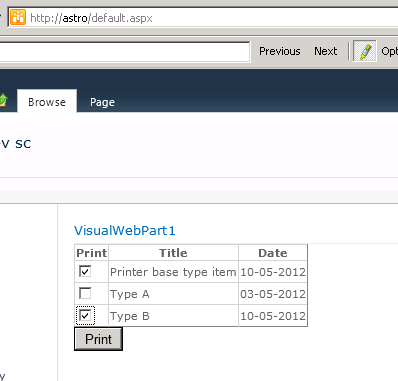
The end result was a visual web part that uses the object model generated by SPMetal to display the contents of our MyPrintList list in an SPGridView, and adds checkboxes so that end users are able to select which of those items will be printed: image
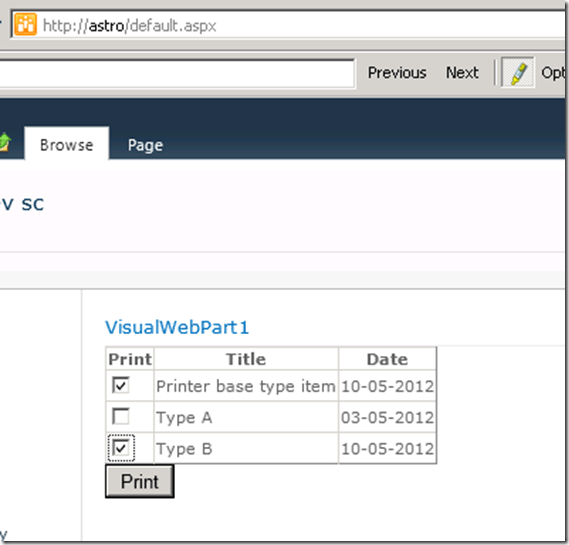
It’s a bit tricky to add a checkbox that in itself isn’t related to the values found in the SharePoint list, and tie it to the list items at the same time. We’ve done it by using the normal HTML checkbox element, that contrary to the ASP.NET checkbox server control has a value attribute which we can use to store the list item id’s, like so:

<div id=”divPrintData”>
    <asp:GridView runat=”server” ID=”gvOverview” AllowPaging=”False”>
        <Columns>
            <asp:TemplateField HeaderText=”Print”>
                <ItemTemplate>
                    <input type=”checkbox” id=’chkAvail<%#DataBinder.Eval(Container.DataItem, “Id”)%>’
                        value='<%#DataBinder.Eval(Container.DataItem, “Id”)%>’ />
                </ItemTemplate>
            </asp:TemplateField>
            <asp:BoundField HeaderText=”Title” DataField=”Title” />
            <asp:TemplateField HeaderText=”Date”>
                <ItemTemplate>
                    <asp:Label ID=”Label1″ Text='<%#DataBinder.Eval(Container.DataItem, “MyDate”,”{0:dd-MM-yyyy}”)%>’
                        runat=”server” />
                </ItemTemplate>
            </asp:TemplateField>
        </Columns>
    </asp:GridView>
</div>

We’re also using jQuery to establish which items were selected by the end user:

var arrItems = [];
$(“#divPrintData input:checked”).each(function () {           
    arrItems.push(this.value);
});

if (arrItems.length == 0) {
  alert(“No items to print”);
  return false;
}

Once we have that information, we can pass it to a function that opens the printer-friendly page:

//Dialog opening
function OpenDialog(arrItems) {
    var max = arrItems.length;
    var itemValue = getItemQueryStringValue(arrItems);

    var options = SP.UI.$create_DialogOptions();
    options.url = “/_layouts/VisualWebPartProject1/PrintPage.aspx?max=” + max + “&items=” + itemValue;
    options.width = 750;
    options.height = 400;
    options.dialogReturnValueCallback = Function.createDelegate(null, CloseCallback);
    SP.UI.ModalDialog.showModalDialog(options);
}

// Converts selected items to string that can be passed to the querystring.
function getItemQueryStringValue(arrItems) {
    var qsValue = “”;

    for (i in arrItems) {
        qsValue += ‘|’ + arrItems[i];
    }

    return qsValue;
}

The complete code for our .ascx file looks like this:

<%@ Assembly Name=”$SharePoint.Project.AssemblyFullName$” %>
<%@ Assembly Name=”Microsoft.Web.CommandUI, Version=14.0.0.0, Culture=neutral, PublicKeyToken=71e9bce111e9429c” %>
<%@ Register TagPrefix=”SharePoint” Namespace=”Microsoft.SharePoint.WebControls”
    Assembly=”Microsoft.SharePoint, Version=14.0.0.0, Culture=neutral, PublicKeyToken=71e9bce111e9429c” %>
<%@ Register TagPrefix=”Utilities” Namespace=”Microsoft.SharePoint.Utilities” Assembly=”Microsoft.SharePoint, Version=14.0.0.0, Culture=neutral, PublicKeyToken=71e9bce111e9429c” %>
<%@ Register TagPrefix=”asp” Namespace=”System.Web.UI” Assembly=”System.Web.Extensions, Version=3.5.0.0, Culture=neutral, PublicKeyToken=31bf3856ad364e35″ %>
<%@ Import Namespace=”Microsoft.SharePoint” %>
<%@ Register TagPrefix=”WebPartPages” Namespace=”Microsoft.SharePoint.WebPartPages”
    Assembly=”Microsoft.SharePoint, Version=14.0.0.0, Culture=neutral, PublicKeyToken=71e9bce111e9429c” %>
<%@ Control Language=”C#” AutoEventWireup=”true” CodeBehind=”VisualWebPart1UserControl.ascx.cs”
    Inherits=”VisualWebPartProject1.VisualWebPart1.VisualWebPart1UserControl” %>
<%@ Register TagPrefix=”wssuc” TagName=”InputFormSection” Src=”~/_controltemplates/InputFormSection.ascx” %>
<%@ Register TagPrefix=”wssuc” TagName=”InputFormControl” Src=”~/_controltemplates/InputFormControl.ascx” %>
<%@ Register TagPrefix=”wssuc” TagName=”ButtonSection” Src=”~/_controltemplates/ButtonSection.ascx” %>
<%@ Register TagPrefix=”SPSWC” Namespace=”Microsoft.SharePoint.Portal.WebControls”
    Assembly=”Microsoft.SharePoint.Portal, Version=14.0.0.0,Culture=neutral, PublicKeyToken=71e9bce111e9429c” %>
<SharePoint:ScriptLink ID=”ScriptLink1″ runat=”server” Name=”~sitecollection/SiteAssets/MyAssets/jquery-1.7.js” />

<script type=”text/javascript”>
    var messageId;

    // Dialog callback
    function CloseCallback(result, target) {
        if (result == SP.UI.DialogResult.OK) {
            //Get id
            messageId = SP.UI.Notify.addNotification(“<img src=’_layouts/images/loading.gif’> Er is geen ok result???<b>” + target + “</b>…”, true, “Dialog response”, null);
        }
        if (result == SP.UI.DialogResult.cancel) {
            SP.UI.Notify.addNotification(“Printscherm gesloten…”, false, “”, null);
        }
    }

    //Dialog opening
    function OpenDialog(arrItems) {
        var max = arrItems.length;
        var itemValue = getItemQueryStringValue(arrItems);

        var options = SP.UI.$create_DialogOptions();
        options.url = “/_layouts/VisualWebPartProject1/PrintPage.aspx?max=” + max + “&items=” + itemValue;
        options.width = 750;
        options.height = 400;
        options.dialogReturnValueCallback = Function.createDelegate(null, CloseCallback);
        SP.UI.ModalDialog.showModalDialog(options);
    }

    // Converts selected items to string that can be passed to the querystring.
    function getItemQueryStringValue(arrItems) {
        var qsValue = “”;

        for (i in arrItems) {
            qsValue += ‘|’ + arrItems[i];
        }

        return qsValue;
    }

    // Discovers which items need to be printed.
    function PrintItems() {

        var arrItems = [];
        $(“#divPrintData input:checked”).each(function () {           
            arrItems.push(this.value);
        });

        if (arrItems.length == 0) {
          alert(“No items to print”);
          return false;
        }

        //alert(“match” + arrItems);
        OpenDialog(arrItems);
        return false;
    }

</script>
<div id=”divPrintData”>
    <asp:GridView runat=”server” ID=”gvOverview” AllowPaging=”False”>
        <Columns>
            <asp:TemplateField HeaderText=”Print”>
                <ItemTemplate>
                    <input type=”checkbox” id=’chkAvail<%#DataBinder.Eval(Container.DataItem, “Id”)%>’
                        value='<%#DataBinder.Eval(Container.DataItem, “Id”)%>’ />
                </ItemTemplate>
            </asp:TemplateField>
            <asp:BoundField HeaderText=”Title” DataField=”Title” />
            <asp:TemplateField HeaderText=”Date”>
                <ItemTemplate>
                    <asp:Label ID=”Label1″ Text='<%#DataBinder.Eval(Container.DataItem, “MyDate”,”{0:dd-MM-yyyy}”)%>’
                        runat=”server” />
                </ItemTemplate>
            </asp:TemplateField>
        </Columns>
    </asp:GridView>
</div>

<asp:Button ID=”btnPrint” runat=”server” Text=”Print” OnClientClick=”return PrintItems();” />


The code-behind like this:

using System;
using System.Web.UI;
using System.Web.UI.WebControls;
using System.Web.UI.WebControls.WebParts;
using Microsoft.SharePoint;
using System.Linq;

namespace VisualWebPartProject1.VisualWebPart1
{
    public partial class VisualWebPart1UserControl : UserControl
    {
        AstroDataContext dc = new AstroDataContext(SPContext.Current.Web.Url);
        protected override void OnPreRender(EventArgs e)
        {
            var query = (from item in dc.MyPrintList
                                     select item).ToList<MyPrintBaseType>();

            gvOverview.AutoGenerateColumns = false;
            gvOverview.DataSource = query;
            gvOverview.DataBind();
        }
    }
}


After that, we’ve added an application page called PrintPage.aspx. It contains a gridview, inline CSS rules to enforce printer-friendliness, and an automatic printer call that executes once the DOM tree is loaded (but before external resources such as images have been loaded):

<script type=”text/javascript”>
    jQuery(function () {
        //alert(‘print’);
        window.print();
    });   
</script>


Please note: We’ve used inline CSS rules. If you want to use CSS files stored in the SharePoint root or Site Assets library, check out the articles http://jakejacobsen.wordpress.com/2010/06/01/adding-a-css-file-to-a-sharepoint-2010-application-page-in-vs-2010/ and http://surinder.computing-studio.com/post/2011/02/03/Reference-Custom-CSS-and-JavaScript-files-in-SharePoint-2010.aspx.

The complete code for the *.aspx file looks like this:

<%@ Assembly Name=”$SharePoint.Project.AssemblyFullName$” %>
<%@ Import Namespace=”Microsoft.SharePoint.ApplicationPages” %>
<%@ Register Tagprefix=”SharePoint” Namespace=”Microsoft.SharePoint.WebControls” Assembly=”Microsoft.SharePoint, Version=14.0.0.0, Culture=neutral, PublicKeyToken=71e9bce111e9429c” %>
<%@ Register Tagprefix=”Utilities” Namespace=”Microsoft.SharePoint.Utilities” Assembly=”Microsoft.SharePoint, Version=14.0.0.0, Culture=neutral, PublicKeyToken=71e9bce111e9429c” %>
<%@ Register Tagprefix=”asp” Namespace=”System.Web.UI” Assembly=”System.Web.Extensions, Version=3.5.0.0, Culture=neutral, PublicKeyToken=31bf3856ad364e35″ %>
<%@ Import Namespace=”Microsoft.SharePoint” %>
<%@ Assembly Name=”Microsoft.Web.CommandUI, Version=14.0.0.0, Culture=neutral, PublicKeyToken=71e9bce111e9429c” %>
<%@ Register Tagprefix=”wssawc” Namespace=”Microsoft.SharePoint.WebControls” Assembly=”Microsoft.SharePoint, Version=14.0.0.0, Culture=neutral, PublicKeyToken=71e9bce111e9429c” %> <%@ Register Tagprefix=”SharePoint” Namespace=”Microsoft.SharePoint.WebControls” Assembly=”Microsoft.SharePoint, Version=14.0.0.0, Culture=neutral, PublicKeyToken=71e9bce111e9429c” %>
<%@ Register TagPrefix=”wssuc” TagName=”InputFormSection” src=”/_controltemplates/InputFormSection.ascx” %>
<%@ Register TagPrefix=”wssuc” TagName=”InputFormControl” src=”/_controltemplates/InputFormControl.ascx” %>
<%@ Register TagPrefix=”wssuc” TagName=”ButtonSection” src=”/_controltemplates/ButtonSection.ascx” %>
<%@ Page Language=”C#” AutoEventWireup=”true” CodeBehind=”PrintPage.aspx.cs” Inherits=”VisualWebPartProject1.Layouts.VisualWebPartProject1.PrintPage” DynamicMasterPageFile=”~masterurl/default.master” %>

<asp:Content ID=”PageHead” ContentPlaceHolderID=”PlaceHolderAdditionalPageHead” runat=”server”>

</asp:Content>

<asp:Content ID=”Main” ContentPlaceHolderID=”PlaceHolderMain” runat=”server”>     

<SharePoint:ScriptLink ID=”ScriptLink1″ runat=”server” Name=”~sitecollection/SiteAssets/MyAssets/jquery-1.7.js” />
<script type=”text/javascript”>

    function BtnCreateListCancel_Click() {
        SP.UI.ModalDialog.commonModalDialogClose(SP.UI.DialogResult.cancel, ‘Cancelled clicked’);
    }

    function BtnCreateListOk_Click() {
        SP.UI.ModalDialog.commonModalDialogClose(SP.UI.DialogResult.OK, “message from dialog window”);
    }

</script>

<style type=”text/css”>
table, div {
font-family: Georgia, “Times New Roman”, Times, serif;
font-size: 14px;
color: #000000;
background-color: #FFFFFF;
}

a {
text-decoration : underline;
color : #0000ff;
}

#content {width: 100%; margin: 0; float: none;}

</style>
 
<div id=”content”>
    <asp:Label ID=”lblDisplay” runat=”server” />
    <asp:GridView runat=”server” ID=”gvOverview” AllowPaging=”False” />

    <p>testie</p>
</div>

<a href=””>test linkie</a>
nog een tekst
<script type=”text/javascript”>
    jQuery(function () {
        //alert(‘print’);
        window.print();
    });   
</script>

</asp:Content>

<asp:Content ID=”PageTitle” ContentPlaceHolderID=”PlaceHolderPageTitle” runat=”server”>
Print-friendly Page
</asp:Content>

<asp:Content ID=”PageTitleInTitleArea” ContentPlaceHolderID=”PlaceHolderPageTitleInTitleArea” runat=”server” >
My Application Page
</asp:Content>


In the code-behind file for our application page, we’ll parse the querystring:

string[] items = Request[“items”] != null ? Request[“items”].Split(new string[] { “|” }, StringSplitOptions.RemoveEmptyEntries) : new string[] { };

We’ll use Linq to get all list items that need to be printed:

AstroDataContext dc = new AstroDataContext(SPContext.Current.Web.Url);
var query = (from item in dc.MyPrintList
                         where arrItems.Contains(item.Id.Value)
                         select item).ToList<MyPrintBaseType>();

Since we’re dealing with three different content types, we need to come up with something special to be able to display each and every one of them correctly. We’ve created a custom template control called PrintTemplate to cater this need:

gvOverview.AutoGenerateColumns = false;
gvOverview.ShowHeader = false;
gvOverview.GridLines = GridLines.None;
gvOverview.Width = new Unit(100, UnitType.Percentage);
gvOverview.BorderWidth = new Unit(0, UnitType.Pixel);

PrintTemplate.CurrentItems = 0;

TemplateField printTemplate = new TemplateField();
printTemplate.ItemStyle.VerticalAlign = VerticalAlign.Top;
printTemplate.ItemStyle.Width = Unit.Pixel(150);
printTemplate.ItemStyle.Font.Size = new FontUnit(8);
printTemplate.HeaderText = “Bank”;
printTemplate.ItemTemplate = new PrintTemplate(items.Count());
gvOverview.Columns.Add(printTemplate);

gvOverview.DataSource = query;
gvOverview.DataBind();

As a result, the complete printer-friendly SharePoint application page is this:

using System;
using Microsoft.SharePoint;
using Microsoft.SharePoint.WebControls;
using System.Linq;
using System.Web.UI.WebControls;
using System.Text;
using System.Collections.Generic;

namespace VisualWebPartProject1.Layouts.VisualWebPartProject1
{
    public partial class PrintPage : LayoutsPageBase
    {
        protected void Page_Load(object sender, EventArgs e)
        {
            // Retrieve the ids of list items that need to be printed and convert them to integers.
            string[] items = Request[“items”] != null ? Request[“items”].Split(new string[] { “|” }, StringSplitOptions.RemoveEmptyEntries) : new string[] { };

            List<int> arrItems = new List<int>();
            foreach (var item in items)
            {
                arrItems.Add(Int32.Parse(item));
            }
                   
            // For debugging purposes:
            //StringBuilder sb = new StringBuilder();
            //foreach (var item in arrItems )
            //{
            //  sb.Append(“id: ” + item);
            //}
            //lblDisplay.Text = sb.ToString();

            // Get all list items that need to be printed.
            AstroDataContext dc = new AstroDataContext(SPContext.Current.Web.Url);
            var query = (from item in dc.MyPrintList
                                     where arrItems.Contains(item.Id.Value)
                                     select item).ToList<MyPrintBaseType>();

            gvOverview.AutoGenerateColumns = false;
            gvOverview.ShowHeader = false;
            gvOverview.GridLines = GridLines.None;
            gvOverview.Width = new Unit(100, UnitType.Percentage);
            gvOverview.BorderWidth = new Unit(0, UnitType.Pixel);

            PrintTemplate.CurrentItems = 0;

            TemplateField printTemplate = new TemplateField();
            printTemplate.ItemStyle.VerticalAlign = VerticalAlign.Top;
            printTemplate.ItemStyle.Width = Unit.Pixel(150);
            printTemplate.ItemStyle.Font.Size = new FontUnit(8);
            printTemplate.HeaderText = “Bank”;
            printTemplate.ItemTemplate = new PrintTemplate(items.Count());
            gvOverview.Columns.Add(printTemplate);

            gvOverview.DataSource = query;
            gvOverview.DataBind();

        }
    }
}

Please note: We’re keeping track of the total list items (it’s passed to the PrintTemplate ctor). That way, we can decide when we need to stop forcing page breaks.

The PrintTemplate custom template control looks like this:

using System;
using System.Collections.Generic;
using System.Linq;
using System.Text;
using System.Web.UI;
using System.Web.UI.WebControls;
using System.Data;
using System.Web.UI.HtmlControls;

namespace VisualWebPartProject1
{
    public class PrintTemplate : ITemplate
    {
        /// <summary>
        /// Item position in the list
        /// </summary>
        public static int CurrentItems = 0;
       
        /// <summary>
        /// Total items that will be printed
        /// </summary>
        public int TotalItems { get; set; }

        /// <summary>
        /// Keeps track of total items that need to be printed so that the correct amount of page breaks (in HTML) can be enforced.
        /// </summary>
        /// <param name=”totalItems”>Total list items that need to be printed</param>
        public PrintTemplate(int totalItems)
        {
            TotalItems = totalItems;
        }

        #region ITemplate Members

        /// <summary>
        /// Creates a place holder that will contain list item info
        /// </summary>
        /// <param name=”container”>gridview container</param>
        public void InstantiateIn(Control container)
        {
            var holder = new PlaceHolder();
            holder.DataBinding += new EventHandler(PrintItem_DataBinding);
            container.Controls.Add(holder);
        }

        /// <summary>
        /// Displays list items
        /// </summary>
        /// <param name=”sender”>placeholder</param>       
        void PrintItem_DataBinding(object sender, EventArgs e)
        {
            // Move a position in the index of items to be printed.
            CurrentItems++;

            // Get the placeholder that will hold the list item info
            var holder = (PlaceHolder)sender;
            GridViewRow objContainer = (GridViewRow)holder.NamingContainer;

            // Create HTML content for each list item
            var item = ((MyPrintBaseType)objContainer.DataItem);
            PrintFactory.FillPrintPage(holder, item, CurrentItems, TotalItems);
        }

        #endregion
    }

}

Notice that it calls a factory method. The purpose of this method is simple, it examines which exact content type the list item has, and instantiates the appropriate filler responsible for rendering that specific content type:

using System;
using System.Collections.Generic;
using System.Linq;
using System.Text;
using System.Web.UI.WebControls;

namespace VisualWebPartProject1
{
    /// <summary>
    /// Factory that used simple strategy pattern to decide who is responsible for rendering the HTML for a list item of a specific content type
    /// </summary>
    internal static class PrintFactory
    {
        /// <summary>
        /// Makes sure the correct HTML is rendered for a SharePoint list item
        /// </summary>
        /// <param name=”holder”>HTML container</param>
        /// <param name=”item”>current SharePoint list item</param>
        /// <param name=”currentItems”>index position of current item in total list of items that need to be printed</param>
        /// <param name=”totalItems”>Total items that need to be printed</param>
      internal static void FillPrintPage(PlaceHolder holder, MyPrintBaseType item, int currentItems, int totalItems)
        {
            PrintBaseTypeFiller filler;
            var childA = item as MyPrintChildTypeA;
            if (childA != null)
            {
                filler = new PrintChildTypeAFiller(holder, childA, currentItems, totalItems);
                filler.Fill();
                return;
            }

            var childB = item as MyPrintChildTypeB;
            if (childB != null)
            {
                filler = new PrintChildTypeBFiller(holder, childB, currentItems, totalItems);
                filler.Fill();
                return;
            }

            filler = new PrintBaseTypeFiller(holder, item, currentItems, totalItems);
            filler.Fill();
        }
    }
}


Now all that is left is to create a set of filler classes responsible for rendering content types. The filler responsible for rendering the MyPrinterBaseType is this:

using System;
using System.Collections.Generic;
using System.Linq;
using System.Text;
using System.Web.UI.WebControls;
using System.Web.UI.HtmlControls;

namespace VisualWebPartProject1
{
    /// <summary>
    /// Creates HTML for PrintBaseType
    /// </summary>
    internal class PrintBaseTypeFiller
    {
        /// <summary>
        /// Holder control that contains all HTML
        /// </summary>
        protected PlaceHolder Holder { get; set; }
       
        /// <summary>
        /// Reference to SharePoint list item
        /// </summary>
        private MyPrintBaseType Item { get; set; }
       
        /// <summary>
        /// Index position of list item in list of all items that need to be printed
        /// </summary>
        protected int CurrentItems { get; set; }
       
        /// <summary>
        /// Total number of items that need to be printed
        /// </summary>
        protected int TotalItems { get; set; }

        /// <summary>
        /// Sets context required for rendering SharePoint list item
        /// </summary>
        /// <param name=”holder”>Holder control that contains all HTML</param>
        /// <param name=”currentItems”>Index position of list item in list of all items that need to be printed</param>
        /// <param name=”totalItems”>Total number of items that need to be printed</param>
        internal PrintBaseTypeFiller(PlaceHolder holder, int currentItems, int totalItems)
        {
            Holder = holder;           
            CurrentItems = currentItems;
            TotalItems = totalItems;
        }

        /// <summary>
        /// Sets context required for rendering SharePoint list item
        /// </summary>
        /// <param name=”holder”>Holder control that contains all HTML</param>
        /// <param name=”item”>reference to SharePoint list item</param>
        /// <param name=”currentItems”>Index position of list item in list of all items that need to be printed</param>
        /// <param name=”totalItems”>Total number of items that need to be printed</param>
        internal PrintBaseTypeFiller(PlaceHolder holder, MyPrintBaseType item, int currentItems, int totalItems)
            : this(holder, currentItems, totalItems)
        {
            Item = item;
        }

        /// <summary>
        /// Generates base div that contains all HTML. This is required to be able to enforce print page breaks.
        /// </summary>
        /// <returns>base div</returns>
        protected HtmlGenericControl GetDiv()
        {
            HtmlGenericControl div = new HtmlGenericControl(“div”);

            if (ShowPageBreak())
            {
                 div.Attributes[“style”] = “page-break-after:always”;
            }

            return div;
        }

        /// <summary>
        /// Generates HTML for this content type
        /// </summary>
        internal virtual void Fill()
        {
            HtmlGenericControl div = GetDiv();

            var table = new Table();
            table.BorderStyle = BorderStyle.Solid;

            var row1 = new TableRow();
            var row2 = new TableRow();
           
            var cell1 = new TableCell();
            cell1.Text = “Title”;

            var cell2 = new TableCell();
            cell2.Text = “My Date”;

            var row2cell1 = new TableCell();
            row2cell1.Text = Item.Title;

            var row2cell2 = new TableCell();
            row2cell2.Text = Item.MyDate.ToString();

            row1.Cells.Add(cell1);
            row1.Cells.Add(cell2);
            row2.Cells.Add(row2cell1);
            row2.Cells.Add(row2cell2);
            table.Rows.Add(row1);
            table.Rows.Add(row2);
            div.Controls.Add(table);
            Holder.Controls.Add(div);
        }

        /// <summary>
        /// Determines if a print page break should be enforced.
        /// </summary>
        /// <returns>Indication if page break needs to be enforced.</returns>
        protected bool ShowPageBreak()
        {
            return CurrentItems < TotalItems;
        }
    }
}


The filler responsible for rendering the child A content type is this (this time we’re rendering an additional property):

using System;
using System.Collections.Generic;
using System.Linq;
using System.Text;
using System.Web.UI.WebControls;
using System.Web.UI.HtmlControls;

namespace VisualWebPartProject1
{
    /// <summary>
    /// Creates HTML for PrintChildTypeA
    /// </summary>
    internal class PrintChildTypeAFiller : PrintBaseTypeFiller
    {
        private MyPrintChildTypeA Item { get; set; }

        internal PrintChildTypeAFiller(PlaceHolder holder, MyPrintChildTypeA item, int currentItems, int totalItems) : base(holder, currentItems, totalItems)
        {
            Item = item;
        }

        internal override void Fill()
        {
            HtmlGenericControl div = GetDiv();

            var table = new Table();
            table.BorderStyle = BorderStyle.Solid;

            var row1 = new TableRow();
            var row2 = new TableRow();

            var cell1 = new TableCell();
            cell1.Text = “Title”;

            var cell2 = new TableCell();
            cell2.Text = “My Date”;

            var cell3 = new TableCell();
            cell3.Text = “Description A”;

            var row2cell1 = new TableCell();
            row2cell1.Text = Item.Title;

            var row2cell2 = new TableCell();
            row2cell2.Text = Item.MyDate.ToString();

            var row2cell3 = new TableCell();
            row2cell3.Text = Item.DescriptionA;

            row1.Cells.Add(cell1);
            row1.Cells.Add(cell2);
            row1.Cells.Add(cell3);
            row2.Cells.Add(row2cell1);
            row2.Cells.Add(row2cell2);
            row2.Cells.Add(row2cell3);
            table.Rows.Add(row1);
            table.Rows.Add(row2);
            div.Controls.Add(table);
            Holder.Controls.Add(div);
        }
    }
}


The filler responsible for rendering the child B content type is this (this time we’re rendering an additional property and use a literal control instead of a table):

using System;
using System.Collections.Generic;
using System.Linq;
using System.Text;
using System.Web.UI.WebControls;
using System.Web.UI.HtmlControls;
using System.Web.UI;

namespace VisualWebPartProject1
{
    /// <summary>
    /// /// Creates HTML for PrintChildTypeA
    /// </summary>
    internal class PrintChildTypeBFiller : PrintBaseTypeFiller
  {
        private MyPrintChildTypeB Item { get; set; }

        internal PrintChildTypeBFiller(PlaceHolder holder, MyPrintChildTypeB item, int currentItems, int totalItems)
            : base(holder, currentItems, totalItems)
        {
            Item = item;
        }

        internal override void Fill()
        {
            HtmlGenericControl div = GetDiv();

            var content = new LiteralControl();
            content.Text = String.Format(“Titel: {0} Date: {1} Description: {2}”, Item.Title, Item.MyDate, Item.DescriptionB);

            div.Controls.Add(content);
            Holder.Controls.Add(div);
        }
  }
}


But ergo…

So there you have it, a printer-friendly version for SharePoint list items. Hope you’re able to follow every aspect of it as we’ve kept the explanations of every step in the process succinct. We did this because we’re not writing a book chapter, we’re doing a blog post. If you get lost along the way, we’d advise you to read the links pointing to more detailed info. Of course we couldn’t stop without including a screenshot of the printer-friendly page containing an overview of three list items of three different content types:

image

If you’re feeling the overview isn’t very pleasant to the human eye, we’d agree with that.

Performance tips and tricks

Our Wiki page at http://social.technet.microsoft.com/wiki/contents/articles/7926.sharepoint-2010-tips-for-dealing-with-performance-issues.aspx about dealing with performance issues is becoming quite a comprehensive guide. It has been updated regularly, so visit it if you haven’t seen it for a while or if you have anything to contribute.

Info about custom claim provider

This one http://msdn.microsoft.com/en-us/library/gg615945.aspx is a nice starting point for creating a custom claim provider. It actually shows a nicer way to retrieve the user name as the one presented in our own article https://sharepointdragons.com/2012/04/26/claims-in-sharepoint-2010-the-sequel/, like so:

// Decode user name from SAML token. string userLoginEncoded = SPUtility.FormatAccountName(“i”, entity.Value); string userLogin = SPClaimProviderManager.Local.DecodeClaim(userLoginEncoded).Value;

And uses audiences as a basis for assigning claims.

Wanna deploy to a specific web application?

This is a question we regularly get questions about. Sometimes you’d really like to deploy a solution to a specific web app, but SharePoint won’t allow you to if your solution contains no resources scoped for a Web application.This article shows how to get out of this situation by adding a dummy control and tricking SharePoint to believe that the solution in fact contains web specific solutions: http://sharedpointers.blogspot.com/2011/03/deploying-solutions-to-specific-web.html

Claims in SharePoint 2010: the sequel

Or: Creating a claims provider, creating hierarchical claims, and assign permissions based on claims

This is a follow up to a previous article ( https://sharepointdragons.com/2012/01/30/claims-in-sharepoint-2010/ ) we’ve written. That article discusses how to set up a SharePoint site collection that supports claims authentication. To follow the sequel, you need to have set up such a site collection. From then on, we’ll take it one step further and discuss how to create a custom provider that issues custom claims and how to assign permissions to SharePoint objects based on such claims.

Why are we bothering you about claims, again?

After finishing our previous blog post about the topic of claims we leaned back and relaxed, enjoying our SharePoint site collection supporting claims authentication, and marveled at the sheer brilliance of our web part that displays all current claims. Then, Margriet got involved in a forum discussion at http://social.technet.microsoft.com/Forums/en-US/sharepoint2010programming/thread/415297a2-941b-411a-bfc5-e1045e0ae80e and we started realizing that the first article wasn’t enough and we had to go at least one step further.

In the aforementioned forum thread, a member of the Danish Defence IT Agency sought to implement a hierarchical claim. One that would be able to represent the following hierarchy:

  • Defence Department
    • Defence Command
      • IT Agency
        • Infrastructure
          • Server Applications
            • SharePoint

As we found out later, it’s a quite common request in military organizations to have a permission structure that is very hierarchical in nature, to have a wide variety of security clearances with a hierarchy associated to them.

Please note: For Jesper Schioett, don’t shoot us if we somehow wrongly represent your business case in this article, because seeing your profile picture at http://social.technet.microsoft.com/profile/schioett/?ws=usercard-hover we noticed that you actually can do exactly that!

One way to do that would be to create multiple claims that each represent an aspect of this hierarchy, like so:

http://claims/defence/2012/OrgLevel01 = Defence Deparment
http://claims/defence/2012/OrgLevel02 = Defence Command
http://claims/defence/2012/OrgLevel03 = IT Agency
http://claims/defence/2012/OrgLevel04 = Infrastructure
http://claims/defence/2012/OrgLevel05 = Server Applications
http://claims/defence/2012/OrgLevel06 = SharePoint

Another way would be to create a single claim and to put XML in it, like so: <l>Defence department<l>Defence Command</l></l>, which would work in scenarios where you’re programmatically iterating thru each claim (as is done in the claims web part in https://sharepointdragons.com/2012/01/30/claims-in-sharepoint-2010/), but unfortunately breaks down when you want to assign permissions to SharePoint objects based on such a claim.

Yet another way would be to use the hierarchical nature of URLs to come up with a scheme to capture the hierarchy. This is discussed in http://sharepoint.mindsharpblogs.com/NancyB/archive/2011/03/28/Custom-Claims-Providers[coln]-Hierarchical-Claims-[dash]-Part-2,-Setup-and-Claims-Augmentation.aspx However, we feel this is only a slight variation of the first approach where multiple claims are created to capture each aspect of the hierarchy. It does do a nice job of representing your actual hierarchy, so if that’s what your looking for it may still be the ideal approach for you.

At one point in the discussion, Jesper mentioned the following article: http://sharepointmetadataandclassification.typepad.com/blog/2012/03/building-a-custom-claim-provider-to-manage-security-clearances.html . It assigns multiple values to the same claim, and does an excellent job at implementing a hierarchical claim. It in fact uses another military example. While following the article, we’ve found it to be of good quality but, in our minds, it has two or three flaws (since, to our knowledge, the owner doesn’t own a machine gun we’re not afraid to point that out):

  • The code examples are screenshots. That sure was annoying.
  • Claims are added equally for everybody. We believe that even the most basic of claim provider implementations should provide some code for determining the current user.
  • The article stops too soon and doesn’t discuss what to do with these claims once set up.

Because of these shortcomings in an overall good article, we felt the need to redo parts of the article, keeping the original example intact (being fine as it is). This provides the added benefit that now the code can be copied and pasted (although we’ve put in minor changes), instead of retyped, and shows how to assign permissions to SharePoint objects based on the newly created claims.

Implementing a custom claim provider

Every SharePoint web application has a registered set of claim providers which are triggered every time authentication is performed. It doesn’t matter whether you log in using Windows authentication (NTLM or Kerberos), forms authentication (using an ASP.NET membership and role provider), or via a Security Token Service (STS, Active Directory Federation Services 2.0, or ADFS 2.0, is a good example of an STS) that issues SAML claims. In this example, we’ll create our own and add it to the existing set of claim providers. We’ve tested with both NTLM and forms authentication.

We’re not reiterating the steps listed in http://sharepointmetadataandclassification.typepad.com/blog/2012/03/building-a-custom-claim-provider-to-manage-security-clearances.html , they work and we’ll just provide our code for the implementation.

Please note: The FillClaimsForEntity method is, by far, the most interesting method to review.

using System;
using System.Collections.Generic;
using System.Linq;
using System.Text;
using Microsoft.SharePoint;
using Microsoft.SharePoint.Administration;
using Microsoft.SharePoint.Administration.Claims;
using Microsoft.SharePoint.WebControls;

namespace LoisAndClark.Claims
{
    public class MyProvider : SPClaimProvider
    {
        public MyProvider(string displayName)
            : base(displayName)
        {

        }

        internal static string ProviderDisplayName
        {
            get { return “LoisAndClark My Claims Provider display name”; }
        }

        internal static string ProviderInternalName
        {
            get { return “LoisAndClark My Claims Provider internal name”; }
        }

        private static string ClearanceClaimType
        {
            get { return “http://schemas.loisandclark.eu/myclearance”; }
        }

        private static string ClearanceClaimValueType
        {
            get { return Microsoft.IdentityModel.Claims.ClaimValueTypes.String; }
        }

        protected override void FillClaimTypes(List<string> claimTypes)
        {
            if (claimTypes == null) throw new ArgumentNullException(“empty claimtypes”);

            claimTypes.Add(ClearanceClaimType);
        }

        protected override void FillClaimValueTypes(List<string> claimValueTypes)
        {
            if (claimValueTypes == null) throw new ArgumentNullException(“empty claim value type”);

            // claim value type = Microsoft.IdentityModel.Claims.ClaimValueTypes.String
            claimValueTypes.Add(ClearanceClaimValueType);
        }

        private string[] SecurityLevels = new string[] { “None”, “Confidential”, “Secret”, “Top Secret” };

        private bool DoesClaimValueAlreadyExist(List<SPClaim> claims, string claimType, string claimValue)
        {
            if (claims == null) throw new ArgumentNullException(“empty claims list”);
            if (String.IsNullOrEmpty(claimType)) throw new ArgumentNullException(“no claim type”);
            if (String.IsNullOrEmpty(claimValue)) throw new ArgumentNullException(“no claim value”);

            foreach (SPClaim claim in claims)
            {
                if (claim.ClaimType == claimType && claim.Value == claimValue) return true;
            }

            return false;
        }

        protected override void FillClaimsForEntity(Uri context, SPClaim entity, List<SPClaim> claims)
        {
            if (entity == null) throw new ArgumentNullException(“empty entity”);
            if (claims == null) throw new ArgumentNullException(“empty claims”);
            if (String.IsNullOrEmpty(entity.Value)) throw new ArgumentException(“no entityvalue”);

            // claim type = http://schemas.loisandclark.eu/myclearance
            bool top = DoesClaimValueAlreadyExist(claims, ClearanceClaimType, “Top Secret”);
            bool secret = DoesClaimValueAlreadyExist(claims, ClearanceClaimType, “Secret”);
            bool confidential = DoesClaimValueAlreadyExist(claims, ClearanceClaimType, “Confidential”);
            bool none = DoesClaimValueAlreadyExist(claims, ClearanceClaimType, “None”);

            // Entity value in Windows authentication scenario: 0#.w|loisandclark\administrator
            // Entity value in Forms authentication scenario: 0#.f|fbamembershipprovider|anton
            string currentUser = entity.Value.Substring(entity.Value.IndexOf(“|”) + 1);

            // Now, add claims based on the current user. This logic is omitted.

            // None
            claims.Add(CreateClaim(ClearanceClaimType, SecurityLevels[0], ClearanceClaimValueType));
           
            // Confidential
            claims.Add(CreateClaim(ClearanceClaimType, SecurityLevels[1], ClearanceClaimValueType));
           
            // Secret
            claims.Add(CreateClaim(ClearanceClaimType, SecurityLevels[2], ClearanceClaimValueType));
           
            // Top Secret
            claims.Add(CreateClaim(ClearanceClaimType, SecurityLevels[3], ClearanceClaimValueType));

            //if (confidential || secret || top) claims.Add(CreateClaim(ClearanceClaimType, SecurityLevels[1], ClearanceClaimValueType));
            //if (secret || top) claims.Add(CreateClaim(ClearanceClaimType, SecurityLevels[2], ClearanceClaimValueType));
            //if (top) claims.Add(CreateClaim(ClearanceClaimType, SecurityLevels[3], ClearanceClaimValueType));

        }

        protected override void FillEntityTypes(List<string> entityTypes)
        {
            entityTypes.Add(SPClaimEntityTypes.FormsRole);
        }

        protected override void FillHierarchy(Uri context, string[] entityTypes, string hierarchyNodeID, int numberOfLevels, SPProviderHierarchyTree hierarchy)
        {
            if (!EntityTypesContain(entityTypes, SPClaimEntityTypes.FormsRole)) return;
        }

        //protected override void FillHierarchy(Uri context, String[] entityTypes, String hierarchyNodeID, int numberOfLevels, SPProviderHierarchyTree hierarchy)
        //{
        //  if (String.IsNullOrEmpty(hierarchyNodeID))
        //  {
        //    hierarchy.AddChild(CreateHierarchyNodeForNodeID(MyLoginNameClaimType));
        //    hierarchy.AddChild(CreateHierarchyNodeForNodeID(MyClaimType));
        //  }
        //  else if (String.Equals(hierarchyNodeID, MyLoginNameClaimType, StringComparison.Ordinal))
        //  {
        //    hierarchy.Name = GetHierarchyNodeNameForNodeID(hierarchyNodeID);
        //  }
        //  else if (String.Equals(hierarchyNodeID, MyClaimType, StringComparison.Ordinal))
        //  {
        //    hierarchy.Name = GetHierarchyNodeNameForNodeID(hierarchyNodeID);
        //  }
        //}

        protected override void FillResolve(Uri context, string[] entityTypes, SPClaim resolveInput, List<PickerEntity> resolved)
        {
            if (!EntityTypesContain(entityTypes, SPClaimEntityTypes.FormsRole)) return;
        }

        protected override void FillResolve(Uri context, string[] entityTypes, string resolveInput, List<PickerEntity> resolved)
        {
            if (!EntityTypesContain(entityTypes, SPClaimEntityTypes.FormsRole)) return;
        }

        protected override void FillSchema(SPProviderSchema schema)
        {
            schema.AddSchemaElement(new SPSchemaElement(PeopleEditorEntityDataKeys.DisplayName, “Display Name”, SPSchemaElementType.Both));
        }

        protected override void FillSearch(Uri context, string[] entityTypes, string searchPattern, string hierarchyNodeID, int maxCount, SPProviderHierarchyTree searchTree)
        {
            if (!EntityTypesContain(entityTypes, SPClaimEntityTypes.FormsRole)) return;
        }

        public override string Name
        {
            get { return ProviderInternalName; }
        }

        public override bool SupportsEntityInformation
        {
            get { return true; }
        }

        public override bool SupportsHierarchy
        {
            get { return true; }
        }

        public override bool SupportsResolve
        {
            get { return true; }
        }

        public override bool SupportsSearch
        {
            get { return true; }
        }
    }
}


A custom claim provider needs to be registered via an event receiver based on SPClaimProviderFeatureReceiver. Step 9 of the article prescribes that you need to set the Receiver assembly and Receiver class properly. You can do that by setting:

  • The receiver assembly to $SharePoint.Project.AssemblyFullName$.
  • The receiver class to LoisAndClark.Claims.MyProviderEventReceiver.

We’ve implemented the event receiver responsible for registering our custom claim provider like this:

using System;
using System.Collections.Generic;
using System.Linq;
using System.Text;
using Microsoft.SharePoint;
using Microsoft.SharePoint.Administration;
using Microsoft.SharePoint.Administration.Claims;

namespace LoisAndClark.Claims
{
    public class MyProviderEventReceiver : SPClaimProviderFeatureReceiver
    {
        private void ExecBaseFeatureActivated(SPFeatureReceiverProperties props)
        {
            base.FeatureActivated(props);
        }

        public override string ClaimProviderAssembly
        {
            get { return typeof(MyProvider).Assembly.FullName; }
        }

        public override string ClaimProviderDescription
        {
            get { return “my provider description”; }
        }

        public override string ClaimProviderDisplayName
        {
            get { return MyProvider.ProviderDisplayName; }
        }

        public override string ClaimProviderType
        {
            get { return typeof(MyProvider).FullName; }
        }

        public override void FeatureActivated(SPFeatureReceiverProperties props)
        {
            ExecBaseFeatureActivated(props);
        }
    }
}

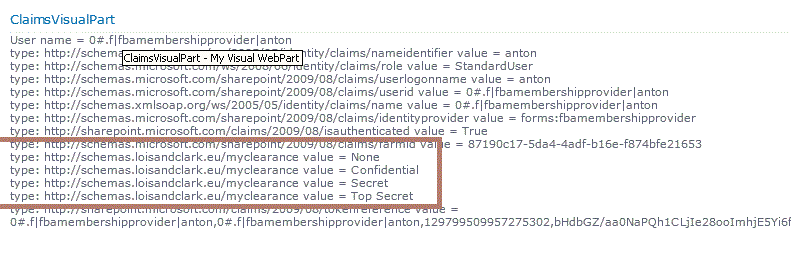
Once you deploy it and log in, you should see the new claims issued by our custom claim provider, as shown in the next Figure.

image

Two tips. One. Every time you’re changing your claim provider, deploy it and then perform an iisreset before changes are visible. Two. You can debug your custom claim provider by attaching to the w3wp process.

Assigning permissions to SharePoint objects

With all these brand new claims, the urge rises to do something useful with them. You can do this by assigning a claim to a SharePoint web site. We’ve done this twice, both for the claim values “None” and “Top Secret”. This is the code (again, we didn’t have to be very creative, we just borrowed and augmented (to use some claims terminology) the code from http://blog.mastykarz.nl/programmatically-granting-permissions-claims/):

using System;
using System.Collections.Generic;
using System.Linq;
using System.Text;
using Microsoft.SharePoint;
using Microsoft.SharePoint.Administration.Claims;

namespace ConsoleApplication4
{
    class Program
    {
        static void Main(string[] args)
        {
            //string permission = “None”;
            string permission = “Top Secret”;

            using (SPSite site = new SPSite(“http://astro:46454″))
            {
                using (SPWeb web = site.OpenWeb())
                { SPClaimProviderManager claimMgr = SPClaimProviderManager.Local;
                    if (claimMgr != null)
                    {
                        SPClaim claim = new SPClaim(
                            “http://schemas.loisandclark.eu/myclearance”,
                            permission,
                            Microsoft.IdentityModel.Claims.ClaimValueTypes.String,
                            SPOriginalIssuers.Format(SPOriginalIssuerType.ClaimProvider,
                            “LoisAndClark My Claims Provider internal name”));
                        string userName = claimMgr.EncodeClaim(claim);

                        SPUserInfo info = new SPUserInfo { LoginName = userName, Name = permission };
                        SPRoleAssignment roleAssignment = new SPRoleAssignment(info.LoginName, info.Email, info.Name, info.Notes);
                        roleAssignment.RoleDefinitionBindings.Add(web.RoleDefinitions[“Read”]);
                        web.RoleAssignments.Add(roleAssignment);
                        web.Update();
                    }
                }
            }

        }
    }
}

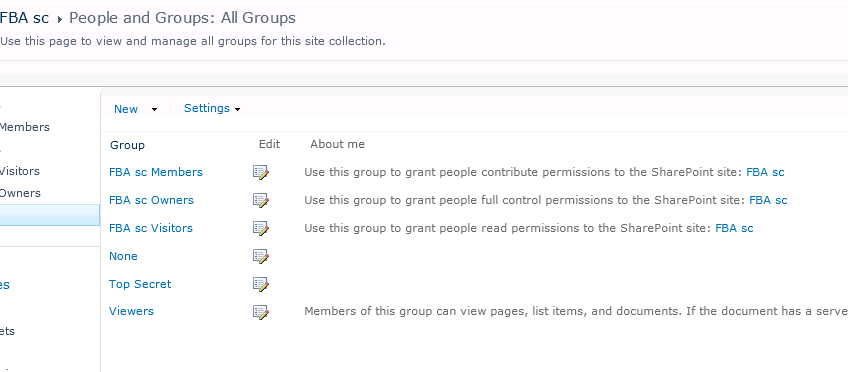
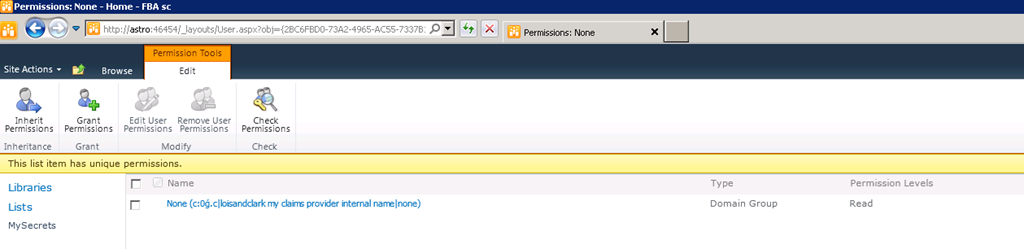
You’ll see them again in the Groups list:

image

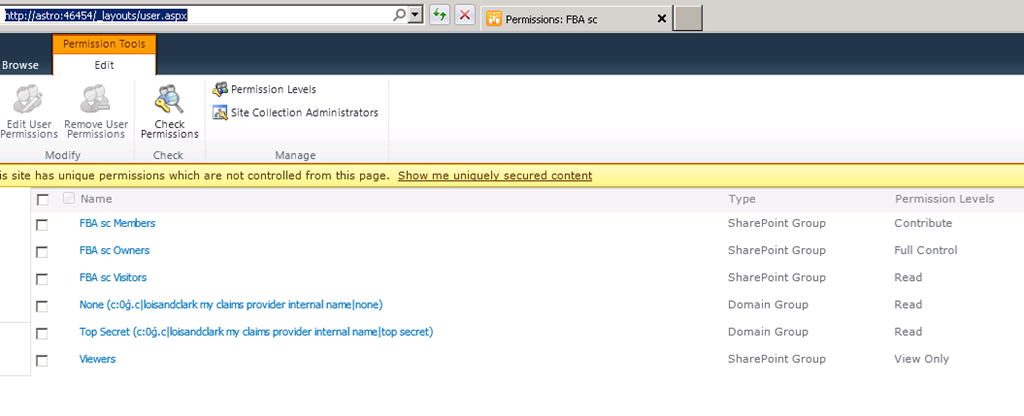
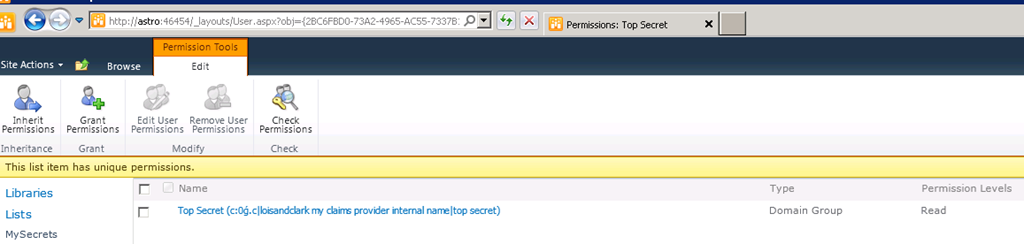
Or, in some ways, the user.aspx application page even shows it clearer:

image

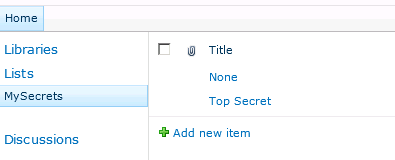
After that, we created a custom list called MySecrets containing the items None and Top Secret:

image

If you want to see the None list item , you need to either be a site collection administrator or have the None claim. This can be seen in the next Figure:

image

To see the Top Secret list item, you’ll need to have the Top Secret claim (or be an administrator):

image

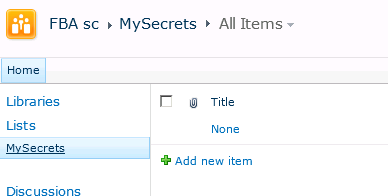
You can experiment with the custom claim provider and verify that this indeed works. Please note that in our example we’ve provided all claims for everyone. If you modify the example and only provide a None claim, you’ll see the difference. In our case, it’s poor Anton the forms user that has to suffer:

image

Conclusion

Claims are cool! But didn’t we all know this already?

Optimize with Aptimize?

A long time ago, we did a SharePoint 2001 project (yep, the first version) where we needed to support 40.000 people. Really hard to do since at that time SharePoint could not scale out and everything including the datatabase (the Exchange-based web storage system or WSS) had to be located on a single server. We used a 3rd party performance optimizer tool that really helped a lot.

We haven’t really kept track of such tools, but here’s one you can use for SharePoint 2010 today: Aptimizer ( http://www.riverbed.com/us/products/stingray/stingray_aptimizer.php ). It’s always nice to have a tool such as this as an option. Also check out http://social.technet.microsoft.com/wiki/contents/articles/7926.sharepoint-2010-tips-for-dealing-with-performance-issues-en-us.aspx it’s becoming a popular resource for checking tips about dealing performance issues. It’ll be updated if there’s any news on the 3rd party optimizer front.

The riddle of the five drop down lists with unique values

In a way, this post is a follow up of blog post https://sharepointdragons.com/2012/04/18/adding-jquery-to-a-visual-web-part-and-then-implement-parentchild-radio-buttons/. If you know your way around visual web parts or user controls, you don’t need to read it per se. If you don’t understand the contents of this post, it’s advisable to read it first.

Question: Suppose you have five drop down lists with an identical set of values (1-5 in this example), and suppose each selected value within this group of five lists needs to be unique. How do you implement that?

Answer: Well, a good way to that would be to use jQuery to handle the client-side validation, and implement a server-side version that kicks in if JavaScript is disabled or circumvented. The code below consists of a user control (.ascx) used in a visual web part and it’s code behind file.

Please note: The user control contains a CustomValidator control that doesn’t use the ControlToValidate property. This is because we’re not validating a specific control, instead we’re validating all list controls.This does mean that the Value property of the arguments parameter always contains an empty string.

Here’s the code for the user control (*.ascx):

<%@ Assembly Name=”$SharePoint.Project.AssemblyFullName$” %>
<%@ Assembly Name=”Microsoft.Web.CommandUI, Version=14.0.0.0, Culture=neutral, PublicKeyToken=71e9bce111e9429c” %>
<%@ Register TagPrefix=”SharePoint” Namespace=”Microsoft.SharePoint.WebControls”
    Assembly=”Microsoft.SharePoint, Version=14.0.0.0, Culture=neutral, PublicKeyToken=71e9bce111e9429c” %>
<%@ Register TagPrefix=”Utilities” Namespace=”Microsoft.SharePoint.Utilities” Assembly=”Microsoft.SharePoint, Version=14.0.0.0, Culture=neutral, PublicKeyToken=71e9bce111e9429c” %>
<%@ Register TagPrefix=”asp” Namespace=”System.Web.UI” Assembly=”System.Web.Extensions, Version=3.5.0.0, Culture=neutral, PublicKeyToken=31bf3856ad364e35″ %>
<%@ Import Namespace=”Microsoft.SharePoint” %>
<%@ Register TagPrefix=”WebPartPages” Namespace=”Microsoft.SharePoint.WebPartPages”
    Assembly=”Microsoft.SharePoint, Version=14.0.0.0, Culture=neutral, PublicKeyToken=71e9bce111e9429c” %>
<%@ Control Language=”C#” AutoEventWireup=”true” CodeBehind=”VisualWebPart1UserControl.ascx.cs”
    Inherits=”VisualWebPartProject1.VisualWebPart1.VisualWebPart1UserControl” %>
<asp:Label ID=”Label1″ runat=”server” Text=”Label”></asp:Label>
<SharePoint:ScriptLink ID=”ScriptLink1″ runat=”server” Name=”~sitecollection/SiteAssets/MyAssets/jquery-1.7.js” />

<script type=”text/javascript”>
    // Contains a list of priority values and the amount of occurrences.
    // E.g.: value 1 is selected 0 times, value 2 is selected 3 times.
    var _arrPrios;

    // Resets all priority values to zero occurrences.
    function Init() {
        // First is dummy entry, this makes it easier to understand the mapping between array index position and drop down list values.
        _arrPrios = [0, 0, 0, 0, 0, 0];
    }
   
    // Checks if all drop down lists contain a unique value.   
    function ValidateLists(src, args) {
        Init();
       
        // Select all priority drop down lists.
        $(“#divPrioLists select :selected”).each(function () {
            AddSelectedValue($(this).val());
        });
       
        // Skip first dummy entry (index = 0).       
        for (var i = 1; i < _arrPrios.length; i++) {
            if (_arrPrios[i] != 1) {               
                args.IsValid = false;
                return false;
            }
        }       

        args.IsValid = true;
    }

    // Count occurrences for every selected value (e.g. end user selected “1” 0 times, “2” 3 times.
    function AddSelectedValue(intValue) {
        _arrPrios[intValue] = ++_arrPrios[intValue];
    }
</script>

<asp:CustomValidator id=”CustomValidator2″ runat=”server” ErrorMessage = “All priority lists must have unique values”
ClientValidationFunction=”ValidateLists” OnServerValidate=”ValidateLists” >
</asp:CustomValidator>

<div id=”divPrioLists”>

<asp:DropDownList ID=”list1″ runat=”server”>
<asp:ListItem Text=”1″ Value=”1″ />
<asp:ListItem Text=”2″ Value=”2″ />
<asp:ListItem Text=”3″ Value=”3″ />
<asp:ListItem Text=”4″ Value=”4″ />
<asp:ListItem Text=”5″ Value=”5″ />
</asp:DropDownList>

<asp:DropDownList ID=”list2″ runat=”server”>
<asp:ListItem Text=”1″ Value=”1″ />
<asp:ListItem Text=”2″ Value=”2″ />
<asp:ListItem Text=”3″ Value=”3″ />
<asp:ListItem Text=”4″ Value=”4″ />
<asp:ListItem Text=”5″ Value=”5″ />
</asp:DropDownList>

<asp:DropDownList ID=”list3″ runat=”server”>
<asp:ListItem Text=”1″ Value=”1″ />
<asp:ListItem Text=”2″ Value=”2″ />
<asp:ListItem Text=”3″ Value=”3″ />
<asp:ListItem Text=”4″ Value=”4″ />
<asp:ListItem Text=”5″ Value=”5″ />
</asp:DropDownList>

<asp:DropDownList ID=”list4″ runat=”server”>
<asp:ListItem Text=”1″ Value=”1″ />
<asp:ListItem Text=”2″ Value=”2″ />
<asp:ListItem Text=”3″ Value=”3″ />
<asp:ListItem Text=”4″ Value=”4″ />
<asp:ListItem Text=”5″ Value=”5″ />
</asp:DropDownList>

<asp:DropDownList ID=”list5″ runat=”server”>
<asp:ListItem Text=”1″ Value=”1″ />
<asp:ListItem Text=”2″ Value=”2″ />
<asp:ListItem Text=”3″ Value=”3″ />
<asp:ListItem Text=”4″ Value=”4″ />
<asp:ListItem Text=”5″ Value=”5″ />
</asp:DropDownList>

</div>

<asp:Button ID=”btnSubmit”  runat=”server” Text=”Submit” />

Here’s the code for the code-behind file of the user control:

using System;
using System.Web.UI;
using System.Web.UI.WebControls;
using System.Web.UI.WebControls.WebParts;

namespace VisualWebPartProject1.VisualWebPart1
{
    public partial class VisualWebPart1UserControl : UserControl
    {

        protected override void OnInit(EventArgs e)
        {           
            // At this point, on a postback, the page hasn’t been validated yet.
            // You could call Page.Validate() explicitly or follow the normal flow of events.           
        }

        protected override void OnLoad(EventArgs e)
        {
            // At this point, on a postback, the page hasn’t been validated yet.
            // You could call Page.Validate() explicitly or follow the normal flow of events.           
        }

        protected override void OnPreRender(EventArgs e)
        {
            // The page has been validated on a postback.
            if (Page.IsPostBack && Page.IsValid)
            {

            }
        }

        // Contains a list of priority values and the amount of occurrences.
        // E.g.: value 1 is selected 0 times, value 2 is selected 3 times.
        private int[] _arrPrios = { 0, 0, 0, 0, 0, 0 };

        /// <summary>
        /// Server-side validation is equivalent to jQuery version, but kicks in in case end user disables JavaScript,
        /// or maliscuously tries to circumvent client-side validation.
        /// </summary>
        protected void ValidateLists(object source, ServerValidateEventArgs args)
        {
            // Register all selected values for all priority lists
            AddSelectedValue(list1, list2, list3, list4, list5);

            // Skip first dummy entry (index = 0).       
            for (int i = 1; i < _arrPrios.Length; i++)
            {
                if (_arrPrios[i] != 1)
                {
                    args.IsValid = false;
                    return;
                }
            }       

            args.IsValid = true;
        }

        /// <summary>
        /// Count occurrences for every selected value (e.g. end user selected “1” 0 times, “2” 3 times.
        /// </summary>       
        private void AddSelectedValue(params DropDownList[] args)
        {
            for (int i = 0; i < args.Length; i++)
            {
                var currentValue = Convert.ToInt32(args[i].SelectedValue);
                _arrPrios[currentValue] = ++_arrPrios[currentValue];
            }
        }
    }
}

Good link about SharePoint 2010 service accounts

When it’s time to plan your new SharePoint infrastructure, this article may come in handy: http://blog.falchionconsulting.com/index.php/2010/10/service-accounts-and-managed-service-accounts-in-sharepoint-2010/

Troubleshooting an SSRS report that times out

Just started a Wiki page that discusses what to do when you have a slow performing SSRS report. Everybody is more than welcome to contribute at http://social.technet.microsoft.com/wiki/contents/articles/9950.sharepoint-2010-best-practice-troubleshooting-an-ssrs-report-that-times-out.aspx