SharePoint Dragons

Nikander & Margriet on SharePoint

Building a Bubble chart web part

As a follow up of blog post https://sharepointdragons.com/2011/12/08/building-a-silverlight-chart-web-part-for-sharepoint-2010/, we’ll discuss building a Bubble chart. Repeat the same steps as described in the aforementioned blog post, but change this:

In MainPage.xaml, add a chart (as a twist, we’re changing the orientation, but that’s unimportant):

<toolkit:Chart Name=”chart1″>
  <toolkit:Chart.Axes>
    <toolkit:CategoryAxis Orientation=”X” />
  </toolkit:Chart.Axes>
</toolkit:Chart>

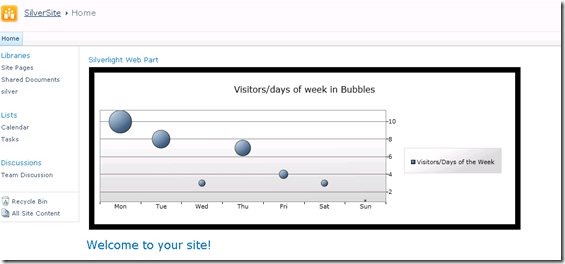
What makes this type of chart different from the regular chart is that you don’t create one or more ColumnSeries, instead you’re adding BubbleSeries:

using System;
using System.Collections.Generic;
using System.Linq;
using System.Net;
using System.Windows;
using System.Windows.Controls;
using System.Windows.Documents;
using System.Windows.Input;
using System.Windows.Media;
using System.Windows.Media.Animation;
using System.Windows.Shapes;
using System.Windows.Controls.DataVisualization.Charting;
using System.Windows.Data;

namespace Radar.Charts
{
    public partial class MainPage : UserControl
    {
        public MainPage()
        {
            InitializeComponent();

            List<DayDto> days = new List<DayDto>()
            {
                new DayDto() { Day = “Mon”, NumberOfVisitors = 10 },
                new DayDto() { Day = “Tue”, NumberOfVisitors = 8 },
                new DayDto() { Day = “Wed”, NumberOfVisitors = 3 },
                new DayDto() { Day = “Thu”, NumberOfVisitors = 7 },
                new DayDto() { Day = “Fri”, NumberOfVisitors = 4 },
                new DayDto() { Day = “Sat”, NumberOfVisitors = 3 },
                new DayDto() { Day = “Sun”, NumberOfVisitors = 1 },
            };

            chart1.Title = “Visitors/days of week in Bubbles”;
            chart1.BorderThickness = new Thickness(10);

            var b1 = new BubbleSeries();
            b1.Name = “days”;
            b1.Title = “Visitors/Days of the Week”;
            b1.IsSelectionEnabled = true;
            b1.ItemsSource = days;
            b1.IndependentValueBinding = new Binding(“Day”);
            b1.DependentValueBinding = new Binding(“NumberOfVisitors”);

            chart1.Series.Add(b1);
        }
    }

    public class DayDto
    {
        public string Day { get; set; }
        public int NumberOfVisitors { get; set; }
    }
}


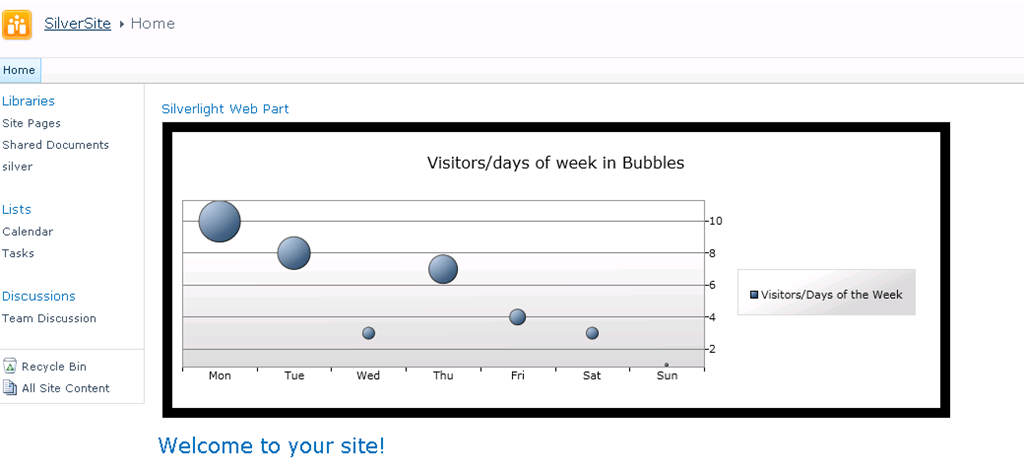
The end result is dramatically different:
image

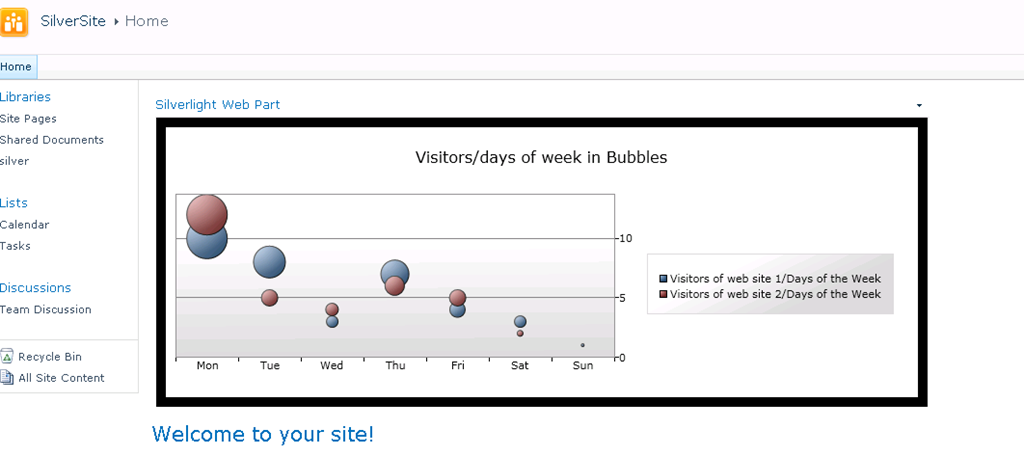
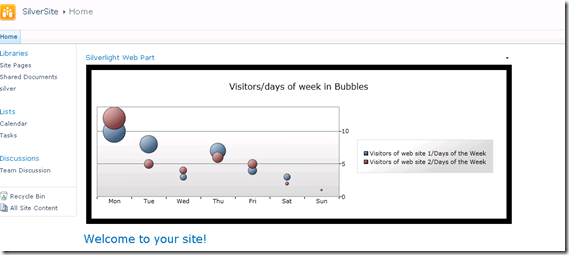
And if we want to be a little more creative, we’ll add another series in a snap:

using System;
using System.Collections.Generic;
using System.Linq;
using System.Net;
using System.Windows;
using System.Windows.Controls;
using System.Windows.Documents;
using System.Windows.Input;
using System.Windows.Media;
using System.Windows.Media.Animation;
using System.Windows.Shapes;
using System.Windows.Controls.DataVisualization.Charting;
using System.Windows.Data;

namespace Radar.Charts
{
    public partial class MainPage : UserControl
    {
        public MainPage()
        {
            InitializeComponent();

            List<DayDto> days = new List<DayDto>()
            {
                new DayDto() { Day = “Mon”, NumberOfVisitors = 10 },
                new DayDto() { Day = “Tue”, NumberOfVisitors = 8 },
                new DayDto() { Day = “Wed”, NumberOfVisitors = 3 },
                new DayDto() { Day = “Thu”, NumberOfVisitors = 7 },
                new DayDto() { Day = “Fri”, NumberOfVisitors = 4 },
                new DayDto() { Day = “Sat”, NumberOfVisitors = 3 },
                new DayDto() { Day = “Sun”, NumberOfVisitors = 1 },
            };

            List<DayDto> days2 = new List<DayDto>()
            {
                new DayDto() { Day = “Mon”, NumberOfVisitors = 12 },
                new DayDto() { Day = “Tue”, NumberOfVisitors = 5 },
                new DayDto() { Day = “Wed”, NumberOfVisitors = 4 },
                new DayDto() { Day = “Thu”, NumberOfVisitors = 6 },
                new DayDto() { Day = “Fri”, NumberOfVisitors = 5 },
                new DayDto() { Day = “Sat”, NumberOfVisitors = 2 },
                new DayDto() { Day = “Sun”, NumberOfVisitors = 0 },
            };

            chart1.Title = “Visitors/days of week in Bubbles”;
            chart1.BorderThickness = new Thickness(10);
            chart1.Axes[0].Orientation = AxisOrientation.Y;

            var b1 = new BubbleSeries();
            b1.Name = “days”;
            b1.Title = “Visitors of web site 1/Days of the Week”;
            b1.IsSelectionEnabled = true;
            b1.ItemsSource = days;
            b1.IndependentValueBinding = new Binding(“Day”);
            b1.DependentValueBinding = new Binding(“NumberOfVisitors”);

            chart1.Series.Add(b1);

            var b2 = new BubbleSeries();
            b2.Name = “days2”;
            b2.Title = “Visitors of web site 2/Days of the Week”;
            b2.IsSelectionEnabled = true;
            b2.ItemsSource = days2;
            b2.IndependentValueBinding = new Binding(“Day”);
            b2.DependentValueBinding = new Binding(“NumberOfVisitors”);

            chart1.Series.Add(b2);

        }
    }

    public class DayDto
    {
        public string Day { get; set; }
        public int NumberOfVisitors { get; set; }
    }
}

The end result tell us more about the popularity of web site 1 and 2:
image

Building a Silverlight chart web part for SharePoint 2010

In this blog post we’re discussing how to create a chart using Silverlight in SharePoint 2010. First of all, read https://sharepointdragons.com/2011/12/06/creating-a-silverlight-web-part-in-sharepoint-2010/ and download the Silverlight SharePoint web parts.

Now, you’re ready to do the following:

  1. Create an “Empty SharePoint Project” and deploy it as a sandboxed solution.

    Please note that this is an excellent opportunity to point out that you should always deploy as a sandboxed solution, unless necessary. This is a best practice. The main reason we consider it to be an excellent opportunity to drive home this point is that we’ve noticed that this advice is ranking high in the charts of cliché SharePoint development tips, the first one of course being: don’t touch the content database. Let’s see if this tip can climb the charts even higher. Btw, don’t hesitate to send us other suggestions for the top 10 SharePoint dev cliché list.

  2. Add another project, this time of type “Silverlight application”.
  3. Choose to host the Silverlight application is a new Web site. We’ve actually found that this makes development and debugging a little bit easier and speedier.
  4. In Visual Studio, add a new tab in the toolbox and call it Silverlight Toolbox 4 or something.
  5. Right-click it and select Choose Items. The Choose Toolbox Items dialog window appears.
  6. Select the Silverlight Components tab.
  7. Click the Browse button.
  8. Navigate to the .dll containing all chart controls: System.Windows.Controls.DataVisualization.Toolkit.dll.  By default, it’s located in C:\Program Files (x86)\Microsoft SDKs\Silverlight\v4.0\Toolkit\Apr10\Bin.
  9. Click OK.
  10. Drag the Chart control to the design surface of MainPage.xaml.
  11. Press F7 and modify it’s contents so that it looks something like this:
  12. using System;
    using System.Collections.Generic;
    using System.Linq;
    using System.Net;
    using System.Windows;
    using System.Windows.Controls;
    using System.Windows.Documents;
    using System.Windows.Input;
    using System.Windows.Media;
    using System.Windows.Media.Animation;
    using System.Windows.Shapes;
    using System.Windows.Controls.DataVisualization.Charting;
    using System.Windows.Data;

    namespace Radar.Charts
    {
    public partial class MainPage : UserControl
    {
    public MainPage()
    {
    InitializeComponent();

    List<DayDto> days = new List<DayDto>()
    {
    new DayDto() { Day = “Mon”, NumberOfVisitors = 10 },
    new DayDto() { Day = “Tue”, NumberOfVisitors = 8 },
    new DayDto() { Day = “Wed”, NumberOfVisitors = 3 },
    new DayDto() { Day = “Thu”, NumberOfVisitors = 7 },
    new DayDto() { Day = “Fri”, NumberOfVisitors = 4 },
    new DayDto() { Day = “Sat”, NumberOfVisitors = 3 },
    new DayDto() { Day = “Sun”, NumberOfVisitors = 1 },
    };

    chart1.Title = “My web stats chart”;
    chart1.LegendTitle = “Visitors”;

    chart1.Series.Clear();
    var c1 = new ColumnSeries();
    c1.Name = “days”;
    c1.Title = “Visitors/Days of the Week”;
    c1.IsSelectionEnabled = true;
    c1.ItemsSource = days;
    c1.IndependentValueBinding = new Binding(“Day”);
    c1.DependentValueBinding = new Binding(“NumberOfVisitors”);

    chart1.Series.Add(c1);

    }
    }

    public class DayDto
    {
    public string Day { get; set; }
    public int NumberOfVisitors { get; set; }
    }
    }

  13. Press F5 and see if the Silverlight application test page looks ok.
  14. Locate your .xap file (i.e. SilverlightApplication1) in the debug folder of your Silverlight application.
  15. Upload the .xap file to a SharePoint document library (we’ve called ours “Silver”, catchy isn’t it?).
  16. Add the Silverlight Web Part (under the Media and Content category) and point it to the uploaded .xap file.
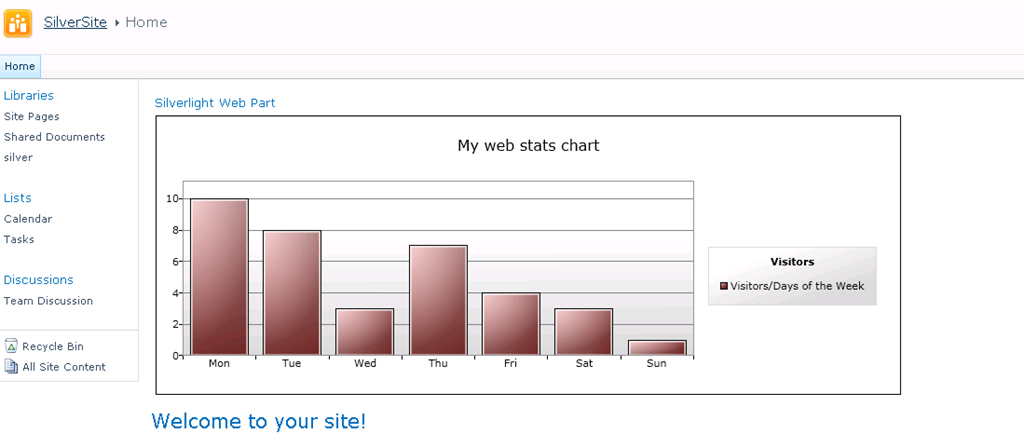
  17. Admire the results:

image

SharePoint Manager 2010

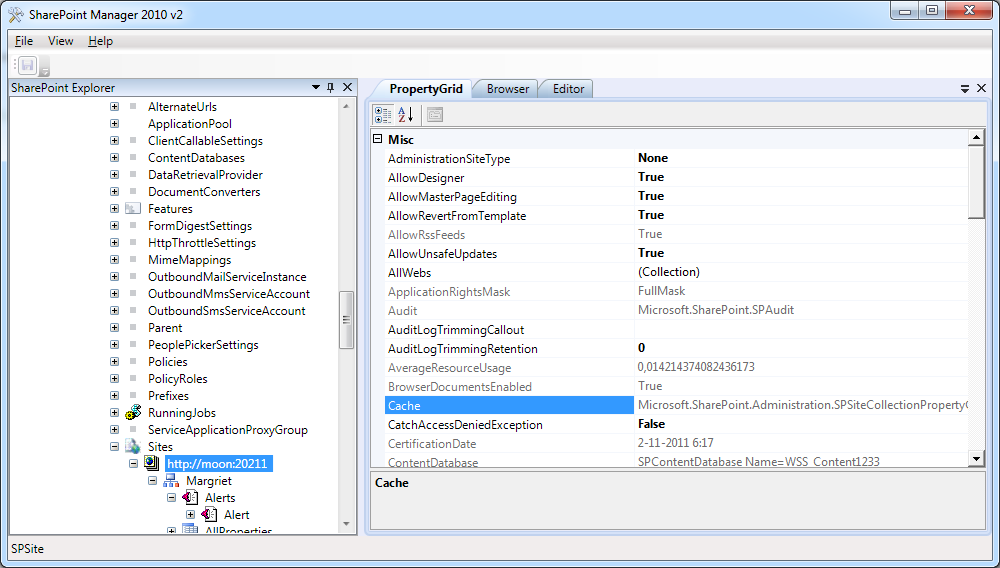
Using SharePoint Manager 2010 you can browse every site on a local farm and take a look at every property. It is an easy to use and handy tool.

image

You can download SharePoint Manager 2010 here: http://spm.codeplex.com/

SharePoint Log Investigation Tool: SPLIT

You can use the SharePoint Log Investigation Tool (SPLIT) to search SharePoint 2010 logs using a correlation ID. The SharePoint logging has been extended with a new correlation ID that is unique for each request or operation. It is easy using this  correlation ID to track down any unexpected errors because you can search for the correlation ID in the trace logs. This unique ID is also maintained between servers for instance when making a call to a service application. With SPLIT you can use this correlation ID to search logs using a Windows interface or a Web-based interface.

You can download SPLIT here: http://split.codeplex.com/

Community Kit for SharePoint: Development Tools Edition: CKSDev

The Community Kit for SharePoint: Development Tools Edition (CKSDev) extends the Visual Studio 2010 SharePoint project system with advanced templates and tools. This is a really handy tool because using these extensions you will be able to find relevant information from your SharePoint environment in Visual Studio. Useful features are added to Visual Studio to provide help while developing  or deploying SharePoint components.

You will be able to install the components via the Visual Studio Gallery from within the Extension Manager. Or you can download them via the links below.

Downloads:

Creating a Silverlight web part in SharePoint 2010

Don’t forget to install the Silverlight SharePoint web parts and Visual Studio 2010 SharePoint Power Tools when you start building Silverlight web parts. Go to http://visualstudiogallery.msdn.microsoft.com/8e602a8c-6714-4549-9e95-f3700344b0d9 for the power tools consisting of the following:

  • Sandboxed-compatible Visual Web Part
    This item template enables you to use a visual designer to create SharePoint web parts that can be deployed in a sandboxed solution for SharePoint 2010.
  • Sandboxed Compilation
    This extension displays build errors when you use types or members in a SharePoint 2010 sandboxed project which are not allowed in the SharePoint sandbox environment.

After that, find the Silverlight SharePoint web parts at: http://visualstudiogallery.msdn.microsoft.com/e8360a85-58ca-42d1-8de0-e48a1ab071c7. It contains:

  • The Silverlight Web Part is designed to be very lightweight and as a result using very little or no custom code to create the Web Part. This makes it easy for developers to understand how to use and extend their code after adding the Silverlight Web Part.
  • The Silverlight Custom Web Part takes advantage of the Sandboxed Visual Web Part that was released by the Visual Studio team. This Web Part enables developers to extend the Web Part for advanced scenarios such as adding JavaScript/JQuery and other controls in addition to the Silverlight application.

Using the entity framework to see the contents of the SharePoint logging database

In this post, we will discuss how to use entity framework 4.0 to make it really easy to take a look at the contents of the SharePoint logging database. As an example, we’ll look at the performance counters stored in them. To get everything set up and running and to see what we’re going to accomplish, first read:

https://sharepointdragons.com/2011/11/16/leveraging-the-logging-database-to-see-performance-counters/

As you’ve learned from the aforementioned post, we’re going to use the PerformanceCounter view (which combines data from the tables PerformanceCounters_Partition0 to PerformanceCounters_Partition31, each table representing a different day with a total history of 32 days) in combination with the PerformanceCountersDefinitions table to inspect the performance counters. The PerformanceCountersDefinitions table doesn’t have a primary key which, in this case, makes it impossible for the Entity Framework to add it to an Entity Data Model.

Since the WSS logging database is intended for direct use (as opposed to the SharePoint config and content databases), we’ve taken the liberty to promote the Id column in the PerformanceCountersDefinitions table to a primary key. By default, saving this change won’t be supported by the SQL Server designer, so first you have to make a change:

http://www.bidn.com/blogs/BrianKnight/ssis/52/sql-server-2008-designer-behavior-change-saving-changes-not-permitted-1

Now, in VS 2010, create a new class library (name it WSS.Logging.Model, or something) and do the following:

  1. Add > New Item.
  2. Choose ADO.NET Entity Data Model.
  3. Click Add.
  4. Choose Generate from database.
  5. Click Next.
  6. Make a connection to the WSS logging database (for us, its name is WSS_Logging).
  7. Click Next.
  8. Select the PerformanceCountersDefinitions table and the PerformanceCounter view.
  9. Click Finish.
  10. Create a new client (for example, a Windows application).
  11. Add a project reference to the WSS.Logging.Model class library.
  12. Copy the <connectionStrings> section from the WSS.Logging.Model class library and add it to the config file of your client app.
  13. Import the WSS.Logging.Model namespace in the client app and add the following code to the Main() method:

using (WSS_LoggingEntities1 ctx = new WSS_LoggingEntities1())
{
  var counters = from p in ctx.PerformanceCounters
  join d in ctx.PerformanceCountersDefinitions on p.CounterId equals d.Id
  select new
  {
    p.LogTime,
    p.MachineName,
    p.Value,
    d.Counter,
    d.Category,
    d.Instance
  };
grd.DataSource = counters;

SharePoint capacity planning

Early on, in every project, there comes a time when you need to think about the capacity you require and exact farm configuration you want. It’s the time when you need to think about the number of users that will use SharePoint, how they are going to use it, and how much they will use it. Normally for us, this process starts with the SharePoint capacity planning tool. Here are some links that we find useful during the capacity planning phase:

C# in Depth

Over the years, we’ve been technical reviewers of dozens of books. Occasionally, we like to give a thumbs up to the most interesting ones we see, because we feel they deserve the attention.

The book “C# in Depth” by Jon Skeet is definitely among this group. When we saw the first draft version it was, from the perspective of a technical reviewer, disappointing as there was so little to comment on: the book already looked very complete at an early stage. We’ll go one step further: this book currently is the de facto standard for books covering the essence of C# (such as generics, nullable types. lambda expressions, extension methods, LINQ, DLR, and code contracts). It’s the best one in it’s kind, and we feel that every C# developer should have a copy at home.

If you want to find out if we’re exaggerating, check it out for yourself: http://www.amazon.com/C-Depth-Second-Jon-Skeet/dp/1935182471/ref=sr_1_1?s=books&ie=UTF8&qid=1322814011&sr=1-1

File Migrator for SharePoint

In our experience, doing a bulk upload of files located on a file server is hard to do without a 3rd party tool. Quest’s File Migrator looks like an interesting solution for this problem: http://www.quest.com/file-migrator-for-sharepoint/