As a follow up of blog post https://sharepointdragons.com/2011/12/08/building-a-silverlight-chart-web-part-for-sharepoint-2010/, we’ll provide code examples of the various chart controls that can be found in the SilverLight 5 Toolkit. Repeat the same steps as described in the aforementioned blog post, but change this:
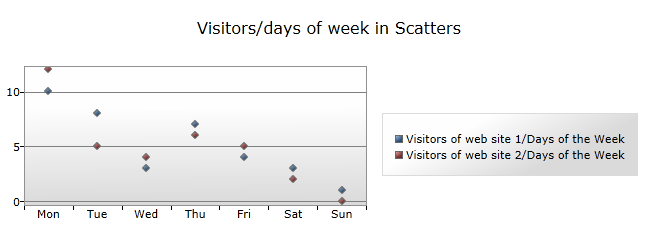
Building a Scatter chart
In MainPage.xaml, add a chart:
<toolkit:Chart HorizontalAlignment=”Left” Margin=”8,30,-295,0″ Title=”Chart Title” Name=”chart1″ VerticalAlignment=”Top” Height=”270″ Width=”687″>
</toolkit:Chart>
What makes this type of chart different from the regular chart is that you don’t create one or more ColumnSeries, instead you’re adding ScatterSeries:
using System;
using System.Collections.Generic;
using System.Linq;
using System.Net;
using System.Windows;
using System.Windows.Controls;
using System.Windows.Controls.DataVisualization.Charting;
using System.Windows.Data;
using System.Windows.Documents;
using System.Windows.Input;
using System.Windows.Media;
using System.Windows.Media.Animation;
using System.Windows.Shapes;
namespace SilverRadar
{
public partial class MainPage : UserControl
{
public MainPage()
{
InitializeComponent();
List<DayDto> days = new List<DayDto>()
{
new DayDto() { Day = “Mon”, NumberOfVisitors = 10 },
new DayDto() { Day = “Tue”, NumberOfVisitors = 8 },
new DayDto() { Day = “Wed”, NumberOfVisitors = 3 },
new DayDto() { Day = “Thu”, NumberOfVisitors = 7 },
new DayDto() { Day = “Fri”, NumberOfVisitors = 4 },
new DayDto() { Day = “Sat”, NumberOfVisitors = 3 },
new DayDto() { Day = “Sun”, NumberOfVisitors = 1 },
};
List<DayDto> days2 = new List<DayDto>()
{
new DayDto() { Day = “Mon”, NumberOfVisitors = 12 },
new DayDto() { Day = “Tue”, NumberOfVisitors = 5 },
new DayDto() { Day = “Wed”, NumberOfVisitors = 4 },
new DayDto() { Day = “Thu”, NumberOfVisitors = 6 },
new DayDto() { Day = “Fri”, NumberOfVisitors = 5 },
new DayDto() { Day = “Sat”, NumberOfVisitors = 2 },
new DayDto() { Day = “Sun”, NumberOfVisitors = 0 },
};
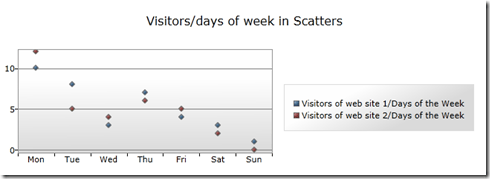
chart1.Title = “Visitors/days of week in Scatters”;
chart1.BorderThickness = new Thickness(10);
var b1 = new ScatterSeries();
b1.Name = “days”;
b1.Title = “Visitors of web site 1/Days of the Week”;
b1.IsSelectionEnabled = true;
b1.ItemsSource = days;
b1.IndependentValueBinding = new Binding(“Day”);
b1.DependentValueBinding = new Binding(“NumberOfVisitors”);
chart1.Series.Add(b1);
var b2 = new ScatterSeries();
b2.Name = “days2”;
b2.Title = “Visitors of web site 2/Days of the Week”;
b2.IsSelectionEnabled = true;
b2.ItemsSource = days2;
b2.IndependentValueBinding = new Binding(“Day”);
b2.DependentValueBinding = new Binding(“NumberOfVisitors”);
chart1.Series.Add(b2);
}
}
public class DayDto
{
public string Day { get; set; }
public int NumberOfVisitors { get; set; }
}
}
The end result:
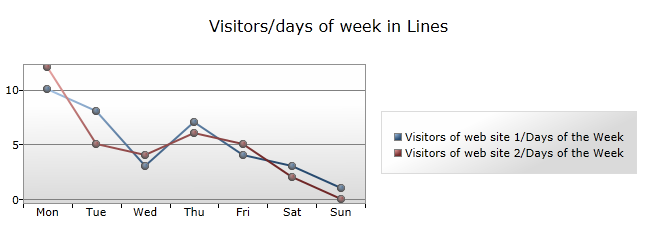
Building a Line chart
In MainPage.xaml, add a chart:
<toolkit:Chart HorizontalAlignment=”Left” Margin=”8,30,-295,0″ Title=”Chart Title” Name=”chart1″ VerticalAlignment=”Top” Height=”270″ Width=”687″>
</toolkit:Chart>
What makes this type of chart different from the regular chart is that you don’t create one or more ColumnSeries, instead you’re adding LineSeries:
using System;
using System.Collections.Generic;
using System.Linq;
using System.Net;
using System.Windows;
using System.Windows.Controls;
using System.Windows.Controls.DataVisualization.Charting;
using System.Windows.Data;
using System.Windows.Documents;
using System.Windows.Input;
using System.Windows.Media;
using System.Windows.Media.Animation;
using System.Windows.Shapes;
namespace SilverRadar
{
public partial class MainPage : UserControl
{
public MainPage()
{
InitializeComponent();
List<DayDto> days = new List<DayDto>()
{
new DayDto() { Day = “Mon”, NumberOfVisitors = 10 },
new DayDto() { Day = “Tue”, NumberOfVisitors = 8 },
new DayDto() { Day = “Wed”, NumberOfVisitors = 3 },
new DayDto() { Day = “Thu”, NumberOfVisitors = 7 },
new DayDto() { Day = “Fri”, NumberOfVisitors = 4 },
new DayDto() { Day = “Sat”, NumberOfVisitors = 3 },
new DayDto() { Day = “Sun”, NumberOfVisitors = 1 },
};
List<DayDto> days2 = new List<DayDto>()
{
new DayDto() { Day = “Mon”, NumberOfVisitors = 12 },
new DayDto() { Day = “Tue”, NumberOfVisitors = 5 },
new DayDto() { Day = “Wed”, NumberOfVisitors = 4 },
new DayDto() { Day = “Thu”, NumberOfVisitors = 6 },
new DayDto() { Day = “Fri”, NumberOfVisitors = 5 },
new DayDto() { Day = “Sat”, NumberOfVisitors = 2 },
new DayDto() { Day = “Sun”, NumberOfVisitors = 0 },
};
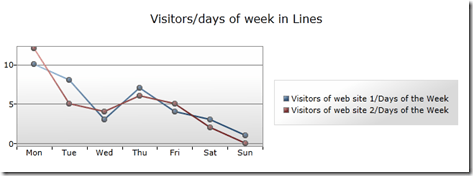
chart1.Title = “Visitors/days of week in Lines”;
chart1.BorderThickness = new Thickness(10);
var b1 = new LineSeries();
b1.Name = “days”;
b1.Title = “Visitors of web site 1/Days of the Week”;
b1.IsSelectionEnabled = true;
b1.ItemsSource = days;
b1.IndependentValueBinding = new Binding(“Day”);
b1.DependentValueBinding = new Binding(“NumberOfVisitors”);
chart1.Series.Add(b1);
var b2 = new LineSeries();
b2.Name = “days2”;
b2.Title = “Visitors of web site 2/Days of the Week”;
b2.IsSelectionEnabled = true;
b2.ItemsSource = days2;
b2.IndependentValueBinding = new Binding(“Day”);
b2.DependentValueBinding = new Binding(“NumberOfVisitors”);
chart1.Series.Add(b2);
}
}
public class DayDto
{
public string Day { get; set; }
public int NumberOfVisitors { get; set; }
}
}
The end result:
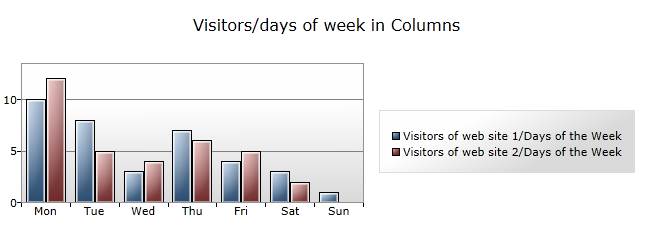
Building a Column chart
In MainPage.xaml, add a chart:
<toolkit:Chart HorizontalAlignment=”Left” Margin=”8,30,-295,0″ Title=”Chart Title” Name=”chart1″ VerticalAlignment=”Top” Height=”270″ Width=”687″>
</toolkit:Chart>
The regular chart: you have to create one or more ColumnSeries:
using System;
using System.Collections.Generic;
using System.Linq;
using System.Net;
using System.Windows;
using System.Windows.Controls;
using System.Windows.Controls.DataVisualization.Charting;
using System.Windows.Data;
using System.Windows.Documents;
using System.Windows.Input;
using System.Windows.Media;
using System.Windows.Media.Animation;
using System.Windows.Shapes;
namespace SilverRadar
{
public partial class MainPage : UserControl
{
public MainPage()
{
InitializeComponent();
List<DayDto> days = new List<DayDto>()
{
new DayDto() { Day = “Mon”, NumberOfVisitors = 10 },
new DayDto() { Day = “Tue”, NumberOfVisitors = 8 },
new DayDto() { Day = “Wed”, NumberOfVisitors = 3 },
new DayDto() { Day = “Thu”, NumberOfVisitors = 7 },
new DayDto() { Day = “Fri”, NumberOfVisitors = 4 },
new DayDto() { Day = “Sat”, NumberOfVisitors = 3 },
new DayDto() { Day = “Sun”, NumberOfVisitors = 1 },
};
List<DayDto> days2 = new List<DayDto>()
{
new DayDto() { Day = “Mon”, NumberOfVisitors = 12 },
new DayDto() { Day = “Tue”, NumberOfVisitors = 5 },
new DayDto() { Day = “Wed”, NumberOfVisitors = 4 },
new DayDto() { Day = “Thu”, NumberOfVisitors = 6 },
new DayDto() { Day = “Fri”, NumberOfVisitors = 5 },
new DayDto() { Day = “Sat”, NumberOfVisitors = 2 },
new DayDto() { Day = “Sun”, NumberOfVisitors = 0 },
};
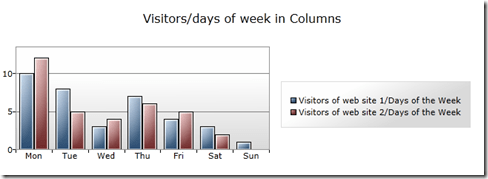
chart1.Title = “Visitors/days of week in Columns”;
chart1.BorderThickness = new Thickness(10);
var b1 = new ColumnSeries();
b1.Name = “days”;
b1.Title = “Visitors of web site 1/Days of the Week”;
b1.IsSelectionEnabled = true;
b1.ItemsSource = days;
b1.IndependentValueBinding = new Binding(“Day”);
b1.DependentValueBinding = new Binding(“NumberOfVisitors”);
chart1.Series.Add(b1);
var b2 = new ColumnSeries();
b2.Name = “days2”;
b2.Title = “Visitors of web site 2/Days of the Week”;
b2.IsSelectionEnabled = true;
b2.ItemsSource = days2;
b2.IndependentValueBinding = new Binding(“Day”);
b2.DependentValueBinding = new Binding(“NumberOfVisitors”);
chart1.Series.Add(b2);
}
}
public class DayDto
{
public string Day { get; set; }
public int NumberOfVisitors { get; set; }
}
}
The end result:
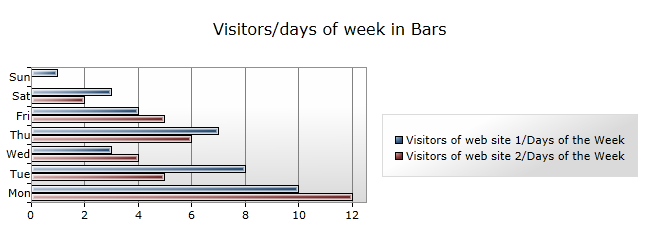
Building a Bar chart
In MainPage.xaml, add a chart:
<toolkit:Chart HorizontalAlignment=”Left” Margin=”8,30,-295,0″ Title=”Chart Title” Name=”chart1″ VerticalAlignment=”Top” Height=”270″ Width=”687″>
</toolkit:Chart>
What makes this type of chart different from the regular chart is that you don’t create one or more ColumnSeries, instead you’re adding BarSeries:
using System;
using System.Collections.Generic;
using System.Linq;
using System.Net;
using System.Windows;
using System.Windows.Controls;
using System.Windows.Controls.DataVisualization.Charting;
using System.Windows.Data;
using System.Windows.Documents;
using System.Windows.Input;
using System.Windows.Media;
using System.Windows.Media.Animation;
using System.Windows.Shapes;
namespace SilverRadar
{
public partial class MainPage : UserControl
{
public MainPage()
{
InitializeComponent();
List<DayDto> days = new List<DayDto>()
{
new DayDto() { Day = “Mon”, NumberOfVisitors = 10 },
new DayDto() { Day = “Tue”, NumberOfVisitors = 8 },
new DayDto() { Day = “Wed”, NumberOfVisitors = 3 },
new DayDto() { Day = “Thu”, NumberOfVisitors = 7 },
new DayDto() { Day = “Fri”, NumberOfVisitors = 4 },
new DayDto() { Day = “Sat”, NumberOfVisitors = 3 },
new DayDto() { Day = “Sun”, NumberOfVisitors = 1 },
};
List<DayDto> days2 = new List<DayDto>()
{
new DayDto() { Day = “Mon”, NumberOfVisitors = 12 },
new DayDto() { Day = “Tue”, NumberOfVisitors = 5 },
new DayDto() { Day = “Wed”, NumberOfVisitors = 4 },
new DayDto() { Day = “Thu”, NumberOfVisitors = 6 },
new DayDto() { Day = “Fri”, NumberOfVisitors = 5 },
new DayDto() { Day = “Sat”, NumberOfVisitors = 2 },
new DayDto() { Day = “Sun”, NumberOfVisitors = 0 },
};
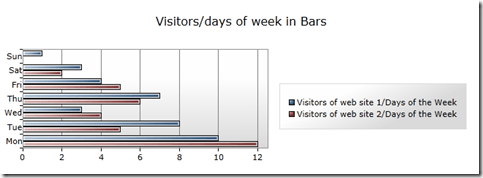
chart1.Title = “Visitors/days of week in Bars”;
chart1.BorderThickness = new Thickness(10);
var b1 = new BarSeries();
b1.Name = “days”;
b1.Title = “Visitors of web site 1/Days of the Week”;
b1.IsSelectionEnabled = true;
b1.ItemsSource = days;
b1.IndependentValueBinding = new Binding(“Day”);
b1.DependentValueBinding = new Binding(“NumberOfVisitors”);
chart1.Series.Add(b1);
var b2 = new BarSeries();
b2.Name = “days2”;
b2.Title = “Visitors of web site 2/Days of the Week”;
b2.IsSelectionEnabled = true;
b2.ItemsSource = days2;
b2.IndependentValueBinding = new Binding(“Day”);
b2.DependentValueBinding = new Binding(“NumberOfVisitors”);
chart1.Series.Add(b2);
}
}
public class DayDto
{
public string Day { get; set; }
public int NumberOfVisitors { get; set; }
}
}
The end result:
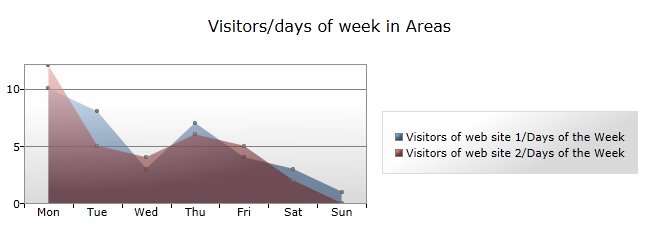
Building a Area chart
In MainPage.xaml, add a chart:
<toolkit:Chart HorizontalAlignment=”Left” Margin=”8,30,-295,0″ Title=”Chart Title” Name=”chart1″ VerticalAlignment=”Top” Height=”270″ Width=”687″>
</toolkit:Chart>
What makes this type of chart different from the regular chart is that you don’t create one or more ColumnSeries, instead you’re adding AreaSeries:
using System;
using System.Collections.Generic;
using System.Linq;
using System.Net;
using System.Windows;
using System.Windows.Controls;
using System.Windows.Controls.DataVisualization.Charting;
using System.Windows.Data;
using System.Windows.Documents;
using System.Windows.Input;
using System.Windows.Media;
using System.Windows.Media.Animation;
using System.Windows.Shapes;
namespace SilverRadar
{
public partial class MainPage : UserControl
{
public MainPage()
{
InitializeComponent();
List<DayDto> days = new List<DayDto>()
{
new DayDto() { Day = “Mon”, NumberOfVisitors = 10 },
new DayDto() { Day = “Tue”, NumberOfVisitors = 8 },
new DayDto() { Day = “Wed”, NumberOfVisitors = 3 },
new DayDto() { Day = “Thu”, NumberOfVisitors = 7 },
new DayDto() { Day = “Fri”, NumberOfVisitors = 4 },
new DayDto() { Day = “Sat”, NumberOfVisitors = 3 },
new DayDto() { Day = “Sun”, NumberOfVisitors = 1 },
};
List<DayDto> days2 = new List<DayDto>()
{
new DayDto() { Day = “Mon”, NumberOfVisitors = 12 },
new DayDto() { Day = “Tue”, NumberOfVisitors = 5 },
new DayDto() { Day = “Wed”, NumberOfVisitors = 4 },
new DayDto() { Day = “Thu”, NumberOfVisitors = 6 },
new DayDto() { Day = “Fri”, NumberOfVisitors = 5 },
new DayDto() { Day = “Sat”, NumberOfVisitors = 2 },
new DayDto() { Day = “Sun”, NumberOfVisitors = 0 },
};
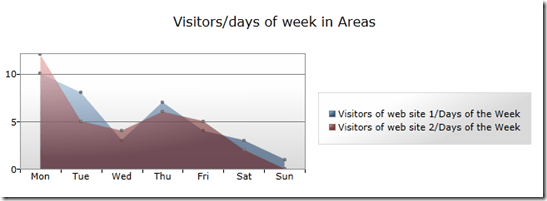
chart1.Title = “Visitors/days of week in Areas”;
chart1.BorderThickness = new Thickness(10);
var b1 = new AreaSeries();
b1.Name = “days”;
b1.Title = “Visitors of web site 1/Days of the Week”;
b1.IsSelectionEnabled = true;
b1.ItemsSource = days;
b1.IndependentValueBinding = new Binding(“Day”);
b1.DependentValueBinding = new Binding(“NumberOfVisitors”);
chart1.Series.Add(b1);
var b2 = new AreaSeries();
b2.Name = “days2”;
b2.Title = “Visitors of web site 2/Days of the Week”;
b2.IsSelectionEnabled = true;
b2.ItemsSource = days2;
b2.IndependentValueBinding = new Binding(“Day”);
b2.DependentValueBinding = new Binding(“NumberOfVisitors”);
chart1.Series.Add(b2);
}
}
public class DayDto
{
public string Day { get; set; }
public int NumberOfVisitors { get; set; }
}
}
The end result:
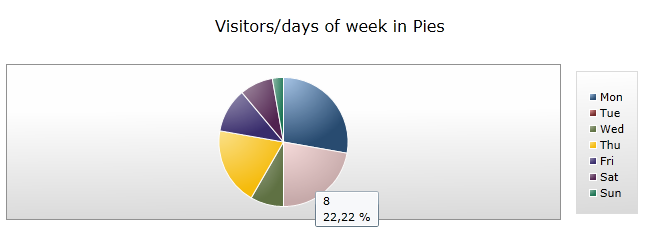
Building a Pie chart
In MainPage.xaml, add a chart:
<toolkit:Chart HorizontalAlignment=”Left” Margin=”8,30,-295,0″ Title=”Chart Title” Name=”chart1″ VerticalAlignment=”Top” Height=”270″ Width=”687″>
</toolkit:Chart>
What makes this type of chart different from the regular chart is that you don’t create one or more ColumnSeries, instead you’re adding PieSeries:
using System;
using System.Collections.Generic;
using System.Linq;
using System.Net;
using System.Windows;
using System.Windows.Controls;
using System.Windows.Controls.DataVisualization.Charting;
using System.Windows.Data;
using System.Windows.Documents;
using System.Windows.Input;
using System.Windows.Media;
using System.Windows.Media.Animation;
using System.Windows.Shapes;
namespace SilverRadar
{
public partial class MainPage : UserControl
{
public MainPage()
{
InitializeComponent();
List<DayDto> days = new List<DayDto>()
{
new DayDto() { Day = “Mon”, NumberOfVisitors = 10 },
new DayDto() { Day = “Tue”, NumberOfVisitors = 8 },
new DayDto() { Day = “Wed”, NumberOfVisitors = 3 },
new DayDto() { Day = “Thu”, NumberOfVisitors = 7 },
new DayDto() { Day = “Fri”, NumberOfVisitors = 4 },
new DayDto() { Day = “Sat”, NumberOfVisitors = 3 },
new DayDto() { Day = “Sun”, NumberOfVisitors = 1 },
};
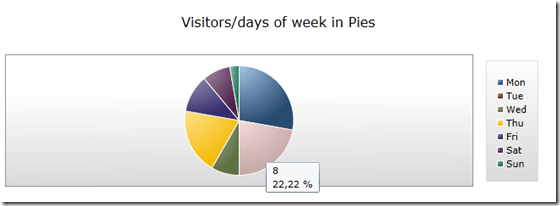
chart1.Title = “Visitors/days of week in Pies”;
chart1.BorderThickness = new Thickness(10);
var b1 = new PieSeries();
b1.Name = “days”;
b1.Title = “Visitors of web site 1/Days of the Week”;
b1.IsSelectionEnabled = true;
b1.ItemsSource = days;
b1.IndependentValueBinding = new Binding(“Day”);
b1.DependentValueBinding = new Binding(“NumberOfVisitors”);
chart1.Series.Add(b1);
}
}
public class DayDto
{
public string Day { get; set; }
public int NumberOfVisitors { get; set; }
}
}
The end result:
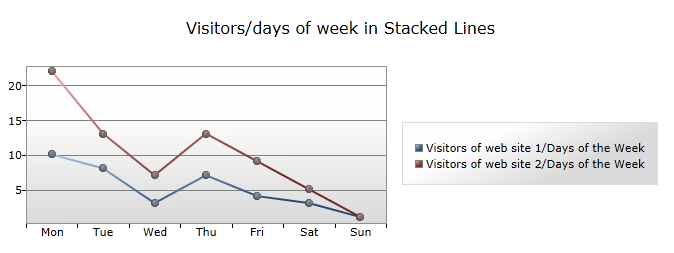
Building a Stacked Line chart
In MainPage.xaml, add a chart:
<toolkit:Chart HorizontalAlignment=”Left” Margin=”8,30,-295,0″ Title=”Chart Title” Name=”chart1″ VerticalAlignment=”Top” Height=”270″ Width=”687″>
</toolkit:Chart>
What makes this type of chart different from the regular chart is that you don’t create one or more ColumnSeries, instead you’re adding SeriesDefinitions:
using System;
using System.Collections.Generic;
using System.Linq;
using System.Net;
using System.Windows;
using System.Windows.Controls;
using System.Windows.Controls.DataVisualization.Charting;
using System.Windows.Data;
using System.Windows.Documents;
using System.Windows.Input;
using System.Windows.Media;
using System.Windows.Media.Animation;
using System.Windows.Shapes;
namespace SilverRadar
{
public partial class MainPage : UserControl
{
public MainPage()
{
InitializeComponent();
List<DayDto> days = new List<DayDto>()
{
new DayDto() { Day = “Mon”, NumberOfVisitors = 10 },
new DayDto() { Day = “Tue”, NumberOfVisitors = 8 },
new DayDto() { Day = “Wed”, NumberOfVisitors = 3 },
new DayDto() { Day = “Thu”, NumberOfVisitors = 7 },
new DayDto() { Day = “Fri”, NumberOfVisitors = 4 },
new DayDto() { Day = “Sat”, NumberOfVisitors = 3 },
new DayDto() { Day = “Sun”, NumberOfVisitors = 1 },
};
List<DayDto> days2 = new List<DayDto>()
{
new DayDto() { Day = “Mon”, NumberOfVisitors = 12 },
new DayDto() { Day = “Tue”, NumberOfVisitors = 5 },
new DayDto() { Day = “Wed”, NumberOfVisitors = 4 },
new DayDto() { Day = “Thu”, NumberOfVisitors = 6 },
new DayDto() { Day = “Fri”, NumberOfVisitors = 5 },
new DayDto() { Day = “Sat”, NumberOfVisitors = 2 },
new DayDto() { Day = “Sun”, NumberOfVisitors = 0 },
};
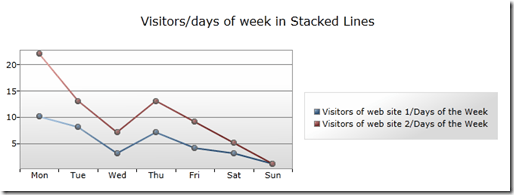
chart1.Title = “Visitors/days of week in Stacked Lines”;
var b1 = new StackedLineSeries();
b1.Name = “days”;
var s1 = new SeriesDefinition();
b1.SeriesDefinitions.Add(s1);
s1.Title = “Visitors of web site 1/Days of the Week”;
s1.ItemsSource = days;
s1.IndependentValueBinding = new Binding(“Day”);
s1.DependentValueBinding = new Binding(“NumberOfVisitors”);
var s2 = new SeriesDefinition();
b1.SeriesDefinitions.Add(s2);
s2.Title = “Visitors of web site 2/Days of the Week”;
s2.ItemsSource = days2;
s2.IndependentValueBinding = new Binding(“Day”);
s2.DependentValueBinding = new Binding(“NumberOfVisitors”);
chart1.Series.Add(b1);
}
}
public class DayDto
{
public string Day { get; set; }
public int NumberOfVisitors { get; set; }
}
}
The end result:
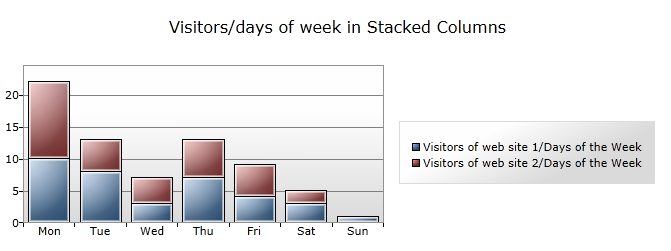
Building a Stacked Column chart
In MainPage.xaml, add a chart:
<toolkit:Chart HorizontalAlignment=”Left” Margin=”8,30,-295,0″ Title=”Chart Title” Name=”chart1″ VerticalAlignment=”Top” Height=”270″ Width=”687″>
</toolkit:Chart>
What makes this type of chart different from the regular chart is that you don’t create one or more ColumnSeries, instead you’re adding SeriesDefinitions:
using System;
using System.Collections.Generic;
using System.Linq;
using System.Net;
using System.Windows;
using System.Windows.Controls;
using System.Windows.Controls.DataVisualization.Charting;
using System.Windows.Data;
using System.Windows.Documents;
using System.Windows.Input;
using System.Windows.Media;
using System.Windows.Media.Animation;
using System.Windows.Shapes;
namespace SilverRadar
{
public partial class MainPage : UserControl
{
public MainPage()
{
InitializeComponent();
List<DayDto> days = new List<DayDto>()
{
new DayDto() { Day = “Mon”, NumberOfVisitors = 10 },
new DayDto() { Day = “Tue”, NumberOfVisitors = 8 },
new DayDto() { Day = “Wed”, NumberOfVisitors = 3 },
new DayDto() { Day = “Thu”, NumberOfVisitors = 7 },
new DayDto() { Day = “Fri”, NumberOfVisitors = 4 },
new DayDto() { Day = “Sat”, NumberOfVisitors = 3 },
new DayDto() { Day = “Sun”, NumberOfVisitors = 1 },
};
List<DayDto> days2 = new List<DayDto>()
{
new DayDto() { Day = “Mon”, NumberOfVisitors = 12 },
new DayDto() { Day = “Tue”, NumberOfVisitors = 5 },
new DayDto() { Day = “Wed”, NumberOfVisitors = 4 },
new DayDto() { Day = “Thu”, NumberOfVisitors = 6 },
new DayDto() { Day = “Fri”, NumberOfVisitors = 5 },
new DayDto() { Day = “Sat”, NumberOfVisitors = 2 },
new DayDto() { Day = “Sun”, NumberOfVisitors = 0 },
};
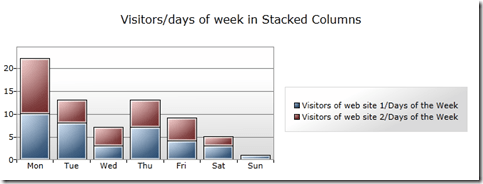
chart1.Title = “Visitors/days of week in Stacked Columns”;
var b1 = new StackedColumnSeries();
b1.Name = “days”;
var s1 = new SeriesDefinition();
b1.SeriesDefinitions.Add(s1);
s1.Title = “Visitors of web site 1/Days of the Week”;
s1.ItemsSource = days;
s1.IndependentValueBinding = new Binding(“Day”);
s1.DependentValueBinding = new Binding(“NumberOfVisitors”);
var s2 = new SeriesDefinition();
b1.SeriesDefinitions.Add(s2);
s2.Title = “Visitors of web site 2/Days of the Week”;
s2.ItemsSource = days2;
s2.IndependentValueBinding = new Binding(“Day”);
s2.DependentValueBinding = new Binding(“NumberOfVisitors”);
chart1.Series.Add(b1);
}
}
public class DayDto
{
public string Day { get; set; }
public int NumberOfVisitors { get; set; }
}
}
The end result:
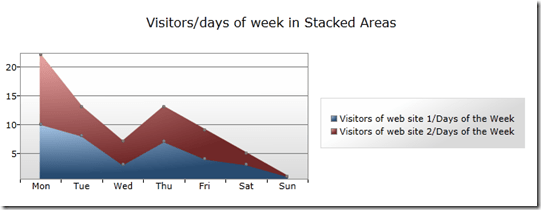
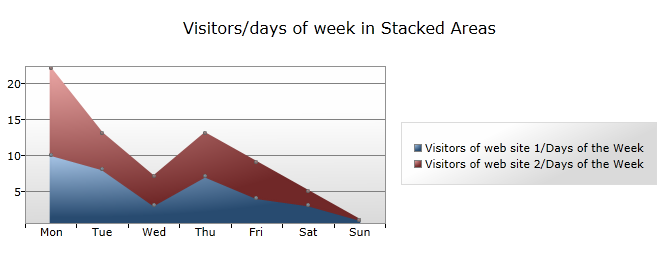
Building a Stacked Area chart
In MainPage.xaml, add a chart:
<toolkit:Chart HorizontalAlignment=”Left” Margin=”8,30,-295,0″ Title=”Chart Title” Name=”chart1″ VerticalAlignment=”Top” Height=”270″ Width=”687″>
</toolkit:Chart>
What makes this type of chart different from the regular chart is that you don’t create one or more ColumnSeries, instead you’re adding SeriesDefinitions:
using System;
using System.Collections.Generic;
using System.Linq;
using System.Net;
using System.Windows;
using System.Windows.Controls;
using System.Windows.Controls.DataVisualization.Charting;
using System.Windows.Data;
using System.Windows.Documents;
using System.Windows.Input;
using System.Windows.Media;
using System.Windows.Media.Animation;
using System.Windows.Shapes;
namespace SilverRadar
{
public partial class MainPage : UserControl
{
public MainPage()
{
InitializeComponent();
List<DayDto> days = new List<DayDto>()
{
new DayDto() { Day = “Mon”, NumberOfVisitors = 10 },
new DayDto() { Day = “Tue”, NumberOfVisitors = 8 },
new DayDto() { Day = “Wed”, NumberOfVisitors = 3 },
new DayDto() { Day = “Thu”, NumberOfVisitors = 7 },
new DayDto() { Day = “Fri”, NumberOfVisitors = 4 },
new DayDto() { Day = “Sat”, NumberOfVisitors = 3 },
new DayDto() { Day = “Sun”, NumberOfVisitors = 1 },
};
List<DayDto> days2 = new List<DayDto>()
{
new DayDto() { Day = “Mon”, NumberOfVisitors = 12 },
new DayDto() { Day = “Tue”, NumberOfVisitors = 5 },
new DayDto() { Day = “Wed”, NumberOfVisitors = 4 },
new DayDto() { Day = “Thu”, NumberOfVisitors = 6 },
new DayDto() { Day = “Fri”, NumberOfVisitors = 5 },
new DayDto() { Day = “Sat”, NumberOfVisitors = 2 },
new DayDto() { Day = “Sun”, NumberOfVisitors = 0 },
};
chart1.Title = “Visitors/days of week in Stacked Areas”;
var b1 = new StackedAreaSeries();
b1.Name = “days”;
var s1 = new SeriesDefinition();
b1.SeriesDefinitions.Add(s1);
s1.Title = “Visitors of web site 1/Days of the Week”;
s1.ItemsSource = days;
s1.IndependentValueBinding = new Binding(“Day”);
s1.DependentValueBinding = new Binding(“NumberOfVisitors”);
var s2 = new SeriesDefinition();
b1.SeriesDefinitions.Add(s2);
s2.Title = “Visitors of web site 2/Days of the Week”;
s2.ItemsSource = days2;
s2.IndependentValueBinding = new Binding(“Day”);
s2.DependentValueBinding = new Binding(“NumberOfVisitors”);
chart1.Series.Add(b1);
}
}
public class DayDto
{
public string Day { get; set; }
public int NumberOfVisitors { get; set; }
}
}
The end result:
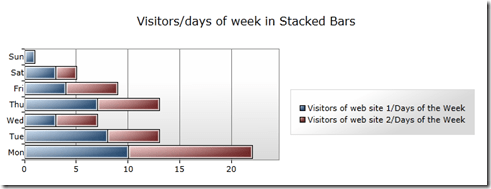
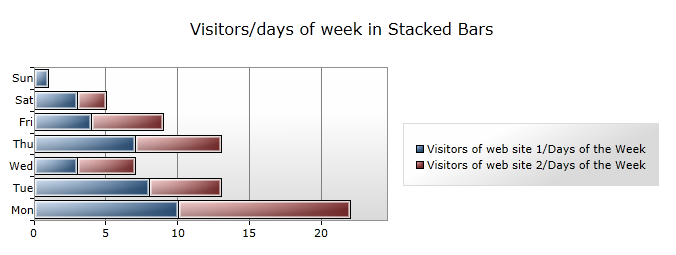
Building a Stacked Bar chart
In MainPage.xaml, add a chart:
<toolkit:Chart HorizontalAlignment=”Left” Margin=”8,30,-295,0″ Title=”Chart Title” Name=”chart1″ VerticalAlignment=”Top” Height=”270″ Width=”687″>
</toolkit:Chart>
What makes this type of chart different from the regular chart is that you don’t create one or more ColumnSeries, instead you’re adding SeriesDefinitions:
using System;
using System.Collections.Generic;
using System.Linq;
using System.Net;
using System.Windows;
using System.Windows.Controls;
using System.Windows.Controls.DataVisualization.Charting;
using System.Windows.Data;
using System.Windows.Documents;
using System.Windows.Input;
using System.Windows.Media;
using System.Windows.Media.Animation;
using System.Windows.Shapes;
namespace SilverRadar
{
public partial class MainPage : UserControl
{
public MainPage()
{
InitializeComponent();
List<DayDto> days = new List<DayDto>()
{
new DayDto() { Day = “Mon”, NumberOfVisitors = 10 },
new DayDto() { Day = “Tue”, NumberOfVisitors = 8 },
new DayDto() { Day = “Wed”, NumberOfVisitors = 3 },
new DayDto() { Day = “Thu”, NumberOfVisitors = 7 },
new DayDto() { Day = “Fri”, NumberOfVisitors = 4 },
new DayDto() { Day = “Sat”, NumberOfVisitors = 3 },
new DayDto() { Day = “Sun”, NumberOfVisitors = 1 },
};
List<DayDto> days2 = new List<DayDto>()
{
new DayDto() { Day = “Mon”, NumberOfVisitors = 12 },
new DayDto() { Day = “Tue”, NumberOfVisitors = 5 },
new DayDto() { Day = “Wed”, NumberOfVisitors = 4 },
new DayDto() { Day = “Thu”, NumberOfVisitors = 6 },
new DayDto() { Day = “Fri”, NumberOfVisitors = 5 },
new DayDto() { Day = “Sat”, NumberOfVisitors = 2 },
new DayDto() { Day = “Sun”, NumberOfVisitors = 0 },
};
chart1.Title = “Visitors/days of week in Stacked Bars”;
var b1 = new StackedBarSeries();
b1.Name = “days”;
var s1 = new SeriesDefinition();
b1.SeriesDefinitions.Add(s1);
s1.Title = “Visitors of web site 1/Days of the Week”;
s1.ItemsSource = days;
s1.IndependentValueBinding = new Binding(“Day”);
s1.DependentValueBinding = new Binding(“NumberOfVisitors”);
var s2 = new SeriesDefinition();
b1.SeriesDefinitions.Add(s2);
s2.Title = “Visitors of web site 2/Days of the Week”;
s2.ItemsSource = days2;
s2.IndependentValueBinding = new Binding(“Day”);
s2.DependentValueBinding = new Binding(“NumberOfVisitors”);
chart1.Series.Add(b1);
}
}
public class DayDto
{
public string Day { get; set; }
public int NumberOfVisitors { get; set; }
}
}
The end result:
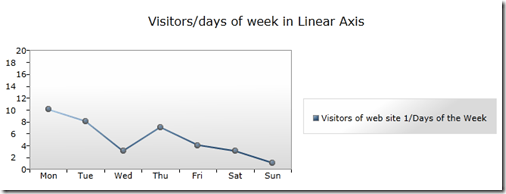
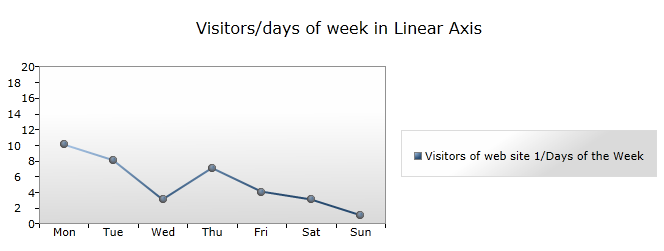
Building a Line chart with custom linear axis
In MainPage.xaml, add a chart:
<toolkit:Chart HorizontalAlignment=”Left” Margin=”8,30,-295,0″ Title=”Chart Title” Name=”chart1″ VerticalAlignment=”Top” Height=”270″ Width=”687″>
</toolkit:Chart>
What makes this type of chart different from the regular chart is that you’re adding a LinearAxis:
using System;
using System.Collections.Generic;
using System.Linq;
using System.Net;
using System.Windows;
using System.Windows.Controls;
using System.Windows.Controls.DataVisualization.Charting;
using System.Windows.Data;
using System.Windows.Documents;
using System.Windows.Input;
using System.Windows.Media;
using System.Windows.Media.Animation;
using System.Windows.Shapes;
namespace SilverRadar
{
public partial class MainPage : UserControl
{
public MainPage()
{
InitializeComponent();
List<DayDto> days = new List<DayDto>()
{
new DayDto() { Day = “Mon”, NumberOfVisitors = 10 },
new DayDto() { Day = “Tue”, NumberOfVisitors = 8 },
new DayDto() { Day = “Wed”, NumberOfVisitors = 3 },
new DayDto() { Day = “Thu”, NumberOfVisitors = 7 },
new DayDto() { Day = “Fri”, NumberOfVisitors = 4 },
new DayDto() { Day = “Sat”, NumberOfVisitors = 3 },
new DayDto() { Day = “Sun”, NumberOfVisitors = 1 },
};
chart1.Title = “Visitors/days of week in Linear Axis”;
var b1 = new LineSeries();
b1.Name = “days”;
b1.Title = “Visitors of web site 1/Days of the Week”;
b1.ItemsSource = days;
b1.IndependentValueBinding = new Binding(“Day”);
b1.DependentValueBinding = new Binding(“NumberOfVisitors”);
chart1.Series.Add(b1);
var la1 = new LinearAxis();
la1.Orientation = AxisOrientation.Y;
la1.Minimum = 0;
la1.Maximum = 20;
la1.Interval = 2;
chart1.Axes.Add(la1);
}
}
public class DayDto
{
public string Day { get; set; }
public int NumberOfVisitors { get; set; }
}
}
The end result:
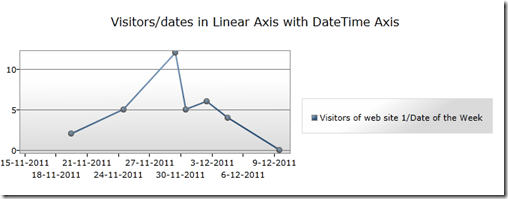
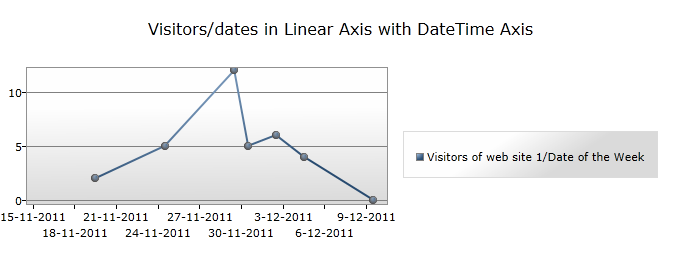
Building a Line chart with custom datetime axis
In MainPage.xaml, add a chart:
<toolkit:Chart HorizontalAlignment=”Left” Margin=”8,30,-295,0″ Title=”Chart Title” Name=”chart1″ VerticalAlignment=”Top” Height=”270″ Width=”687″>
</toolkit:Chart>
What makes this type of chart different from the regular chart is that you’re adding a DateTimeAxis:
using System;
using System.Collections.Generic;
using System.Linq;
using System.Net;
using System.Windows;
using System.Windows.Controls;
using System.Windows.Controls.DataVisualization.Charting;
using System.Windows.Data;
using System.Windows.Documents;
using System.Windows.Input;
using System.Windows.Media;
using System.Windows.Media.Animation;
using System.Windows.Shapes;
namespace SilverRadar
{
public partial class MainPage : UserControl
{
public MainPage()
{
InitializeComponent();
List<DayDto> days3 = new List<DayDto>()
{
new DayDto() { Date = DateTime.Now.AddDays(-10), NumberOfVisitors = 12 },
new DayDto() { Date = DateTime.Now.AddDays(-15), NumberOfVisitors = 5 },
new DayDto() { Date = DateTime.Now.AddDays(-5), NumberOfVisitors = 4 },
new DayDto() { Date = DateTime.Now.AddDays(-7), NumberOfVisitors = 6 },
new DayDto() { Date = DateTime.Now.AddDays(-9), NumberOfVisitors = 5 },
new DayDto() { Date = DateTime.Now.AddDays(-20), NumberOfVisitors = 2 },
new DayDto() { Date = DateTime.Now, NumberOfVisitors = 0 },
};
chart1.Title = “Visitors/dates in Linear Axis with DateTime Axis”;
var b1 = new LineSeries();
b1.Name = “days”;
b1.Title = “Visitors of web site 1/Date of the Week”;
b1.ItemsSource = days3;
b1.IndependentValueBinding = new Binding(“Date”);
b1.DependentValueBinding = new Binding(“NumberOfVisitors”);
chart1.Series.Add(b1);
var la1 = new DateTimeAxis();
la1.Orientation = AxisOrientation.X;
la1.Minimum = DateTime.Now.AddDays(-25);
la1.Maximum = DateTime.Now.AddDays(1);
chart1.Axes.Add(la1);
}
}
public class DayDto
{
public string Day { get; set; }
public int NumberOfVisitors { get; set; }
public DateTime Date { get; set; }
}
}
The end result:
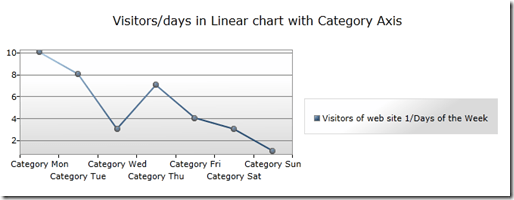
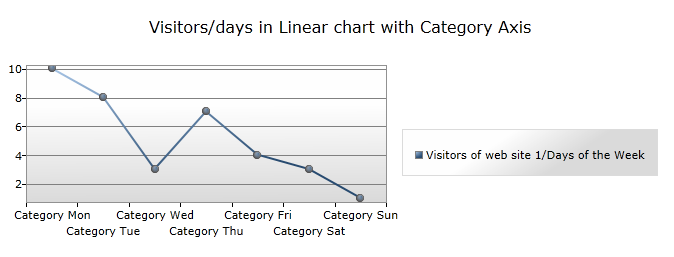
Building a Line chart with custom category axis
In MainPage.xaml, add a chart:
<toolkit:Chart HorizontalAlignment=”Left” Margin=”8,30,-295,0″ Title=”Chart Title” Name=”chart1″ VerticalAlignment=”Top” Height=”270″ Width=”687″>
</toolkit:Chart>
What makes this type of chart different from the regular chart is that you’re adding a CategoryAxis:
using System;
using System.Collections.Generic;
using System.Linq;
using System.Net;
using System.Windows;
using System.Windows.Controls;
using System.Windows.Controls.DataVisualization.Charting;
using System.Windows.Data;
using System.Windows.Documents;
using System.Windows.Input;
using System.Windows.Media;
using System.Windows.Media.Animation;
using System.Windows.Shapes;
namespace SilverRadar
{
public partial class MainPage : UserControl
{
public MainPage()
{
InitializeComponent();
List<DayDto> days = new List<DayDto>()
{
new DayDto() { Day = “Mon”, NumberOfVisitors = 10 },
new DayDto() { Day = “Tue”, NumberOfVisitors = 8 },
new DayDto() { Day = “Wed”, NumberOfVisitors = 3 },
new DayDto() { Day = “Thu”, NumberOfVisitors = 7 },
new DayDto() { Day = “Fri”, NumberOfVisitors = 4 },
new DayDto() { Day = “Sat”, NumberOfVisitors = 3 },
new DayDto() { Day = “Sun”, NumberOfVisitors = 1 },
};
chart1.Title = “Visitors/days in Linear chart with Category Axis”;
var labelStyle = new Style(typeof(AxisLabel));
labelStyle.Setters.Add(new Setter(AxisLabel.StringFormatProperty, “Category {0}”));
var b1 = new LineSeries();
b1.Name = “days”;
b1.Title = “Visitors of web site 1/Days of the Week”;
b1.ItemsSource = days;
b1.IndependentValueBinding = new Binding(“Day”);
b1.DependentValueBinding = new Binding(“NumberOfVisitors”);
b1.IndependentAxis = new CategoryAxis
{
Orientation = AxisOrientation.X,
AxisLabelStyle = labelStyle
};
chart1.Series.Add(b1);
}
}
public class DayDto
{
public string Day { get; set; }
public int NumberOfVisitors { get; set; }
public DateTime Date { get; set; }
}
}
The end result:
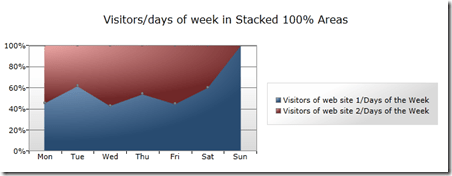
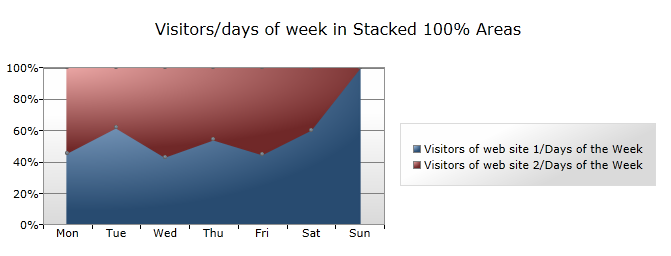
Building a Stacked 100% Area chart
In MainPage.xaml, add a chart:
<toolkit:Chart HorizontalAlignment=”Left” Margin=”8,30,-295,0″ Title=”Chart Title” Name=”chart1″ VerticalAlignment=”Top” Height=”270″ Width=”687″>
</toolkit:Chart>
What makes this type of chart different from the regular chart is that you don’t create one or more ColumnSeries, instead you’re adding SeriesDefinitions:
using System;
using System.Collections.Generic;
using System.Linq;
using System.Net;
using System.Windows;
using System.Windows.Controls;
using System.Windows.Controls.DataVisualization.Charting;
using System.Windows.Data;
using System.Windows.Documents;
using System.Windows.Input;
using System.Windows.Media;
using System.Windows.Media.Animation;
using System.Windows.Shapes;
namespace SilverRadar
{
public partial class MainPage : UserControl
{
public MainPage()
{
InitializeComponent();
List<DayDto> days = new List<DayDto>()
{
new DayDto() { Day = “Mon”, NumberOfVisitors = 10 },
new DayDto() { Day = “Tue”, NumberOfVisitors = 8 },
new DayDto() { Day = “Wed”, NumberOfVisitors = 3 },
new DayDto() { Day = “Thu”, NumberOfVisitors = 7 },
new DayDto() { Day = “Fri”, NumberOfVisitors = 4 },
new DayDto() { Day = “Sat”, NumberOfVisitors = 3 },
new DayDto() { Day = “Sun”, NumberOfVisitors = 1 },
};
List<DayDto> days2 = new List<DayDto>()
{
new DayDto() { Day = “Mon”, NumberOfVisitors = 12 },
new DayDto() { Day = “Tue”, NumberOfVisitors = 5 },
new DayDto() { Day = “Wed”, NumberOfVisitors = 4 },
new DayDto() { Day = “Thu”, NumberOfVisitors = 6 },
new DayDto() { Day = “Fri”, NumberOfVisitors = 5 },
new DayDto() { Day = “Sat”, NumberOfVisitors = 2 },
new DayDto() { Day = “Sun”, NumberOfVisitors = 0 },
};
chart1.Title = “Visitors/days of week in Stacked 100% Areas”;
var b1 = new Stacked100AreaSeries();
b1.Name = “days”;
var s1 = new SeriesDefinition();
b1.SeriesDefinitions.Add(s1);
s1.Title = “Visitors of web site 1/Days of the Week”;
s1.ItemsSource = days;
s1.IndependentValuePath = “Day”;
s1.DependentValuePath = “NumberOfVisitors”;
var s2 = new SeriesDefinition();
b1.SeriesDefinitions.Add(s2);
s2.Title = “Visitors of web site 2/Days of the Week”;
s2.ItemsSource = days2;
s2.IndependentValuePath = “Day”;
s2.DependentValuePath = “NumberOfVisitors”;
chart1.Series.Add(b1);
}
}
public class DayDto
{
public string Day { get; set; }
public int NumberOfVisitors { get; set; }
}
}
The end result:
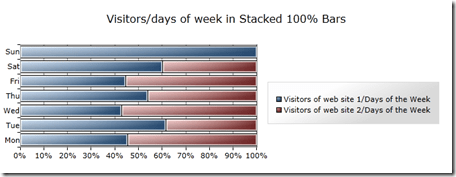
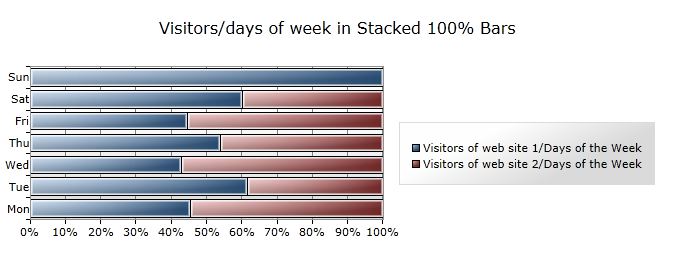
Building a Stacked 100% Bar chart
In MainPage.xaml, add a chart:
<toolkit:Chart HorizontalAlignment=”Left” Margin=”8,30,-295,0″ Title=”Chart Title” Name=”chart1″ VerticalAlignment=”Top” Height=”270″ Width=”687″>
</toolkit:Chart>
What makes this type of chart different from the regular chart is that you don’t create one or more ColumnSeries, instead you’re adding SeriesDefinitions:
using System;
using System.Collections.Generic;
using System.Linq;
using System.Net;
using System.Windows;
using System.Windows.Controls;
using System.Windows.Controls.DataVisualization.Charting;
using System.Windows.Data;
using System.Windows.Documents;
using System.Windows.Input;
using System.Windows.Media;
using System.Windows.Media.Animation;
using System.Windows.Shapes;
namespace SilverRadar
{
public partial class MainPage : UserControl
{
public MainPage()
{
InitializeComponent();
List<DayDto> days = new List<DayDto>()
{
new DayDto() { Day = “Mon”, NumberOfVisitors = 10 },
new DayDto() { Day = “Tue”, NumberOfVisitors = 8 },
new DayDto() { Day = “Wed”, NumberOfVisitors = 3 },
new DayDto() { Day = “Thu”, NumberOfVisitors = 7 },
new DayDto() { Day = “Fri”, NumberOfVisitors = 4 },
new DayDto() { Day = “Sat”, NumberOfVisitors = 3 },
new DayDto() { Day = “Sun”, NumberOfVisitors = 1 },
};
List<DayDto> days2 = new List<DayDto>()
{
new DayDto() { Day = “Mon”, NumberOfVisitors = 12 },
new DayDto() { Day = “Tue”, NumberOfVisitors = 5 },
new DayDto() { Day = “Wed”, NumberOfVisitors = 4 },
new DayDto() { Day = “Thu”, NumberOfVisitors = 6 },
new DayDto() { Day = “Fri”, NumberOfVisitors = 5 },
new DayDto() { Day = “Sat”, NumberOfVisitors = 2 },
new DayDto() { Day = “Sun”, NumberOfVisitors = 0 },
};
chart1.Title = “Visitors/days of week in Stacked 100% Bars”;
var b1 = new Stacked100BarSeries();
b1.Name = “days”;
var s1 = new SeriesDefinition();
b1.SeriesDefinitions.Add(s1);
s1.Title = “Visitors of web site 1/Days of the Week”;
s1.ItemsSource = days;
s1.IndependentValuePath = “Day”;
s1.DependentValuePath = “NumberOfVisitors”;
var s2 = new SeriesDefinition();
b1.SeriesDefinitions.Add(s2);
s2.Title = “Visitors of web site 2/Days of the Week”;
s2.ItemsSource = days2;
s2.IndependentValuePath = “Day”;
s2.DependentValuePath = “NumberOfVisitors”;
chart1.Series.Add(b1);
}
}
public class DayDto
{
public string Day { get; set; }
public int NumberOfVisitors { get; set; }
}
}
The end result:
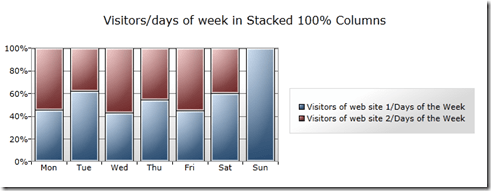
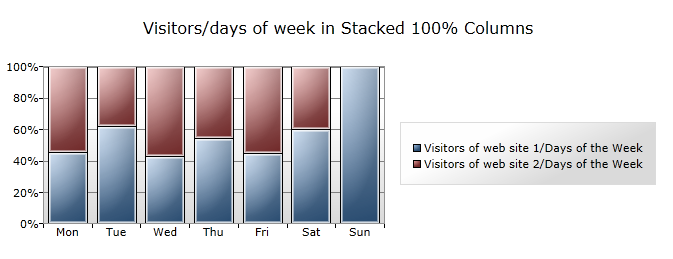
Building a Stacked 100% Column chart
In MainPage.xaml, add a chart:
<toolkit:Chart HorizontalAlignment=”Left” Margin=”8,30,-295,0″ Title=”Chart Title” Name=”chart1″ VerticalAlignment=”Top” Height=”270″ Width=”687″>
</toolkit:Chart>
What makes this type of chart different from the regular chart is that you don’t create one or more ColumnSeries, instead you’re adding SeriesDefinitions:
using System;
using System.Collections.Generic;
using System.Linq;
using System.Net;
using System.Windows;
using System.Windows.Controls;
using System.Windows.Controls.DataVisualization.Charting;
using System.Windows.Data;
using System.Windows.Documents;
using System.Windows.Input;
using System.Windows.Media;
using System.Windows.Media.Animation;
using System.Windows.Shapes;
namespace SilverRadar
{
public partial class MainPage : UserControl
{
public MainPage()
{
InitializeComponent();
List<DayDto> days = new List<DayDto>()
{
new DayDto() { Day = “Mon”, NumberOfVisitors = 10 },
new DayDto() { Day = “Tue”, NumberOfVisitors = 8 },
new DayDto() { Day = “Wed”, NumberOfVisitors = 3 },
new DayDto() { Day = “Thu”, NumberOfVisitors = 7 },
new DayDto() { Day = “Fri”, NumberOfVisitors = 4 },
new DayDto() { Day = “Sat”, NumberOfVisitors = 3 },
new DayDto() { Day = “Sun”, NumberOfVisitors = 1 },
};
List<DayDto> days2 = new List<DayDto>()
{
new DayDto() { Day = “Mon”, NumberOfVisitors = 12 },
new DayDto() { Day = “Tue”, NumberOfVisitors = 5 },
new DayDto() { Day = “Wed”, NumberOfVisitors = 4 },
new DayDto() { Day = “Thu”, NumberOfVisitors = 6 },
new DayDto() { Day = “Fri”, NumberOfVisitors = 5 },
new DayDto() { Day = “Sat”, NumberOfVisitors = 2 },
new DayDto() { Day = “Sun”, NumberOfVisitors = 0 },
};
chart1.Title = “Visitors/days of week in Stacked 100% Columns”;
var b1 = new Stacked100ColumnSeries();
b1.Name = “days”;
var s1 = new SeriesDefinition();
b1.SeriesDefinitions.Add(s1);
s1.Title = “Visitors of web site 1/Days of the Week”;
s1.ItemsSource = days;
s1.IndependentValuePath = “Day”;
s1.DependentValuePath = “NumberOfVisitors”;
var s2 = new SeriesDefinition();
b1.SeriesDefinitions.Add(s2);
s2.Title = “Visitors of web site 2/Days of the Week”;
s2.ItemsSource = days2;
s2.IndependentValuePath = “Day”;
s2.DependentValuePath = “NumberOfVisitors”;
chart1.Series.Add(b1);
}
}
public class DayDto
{
public string Day { get; set; }
public int NumberOfVisitors { get; set; }
}
}
The end result:
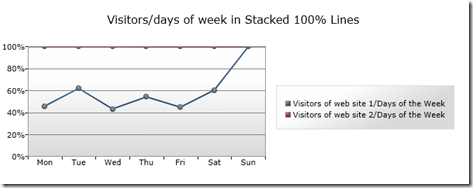
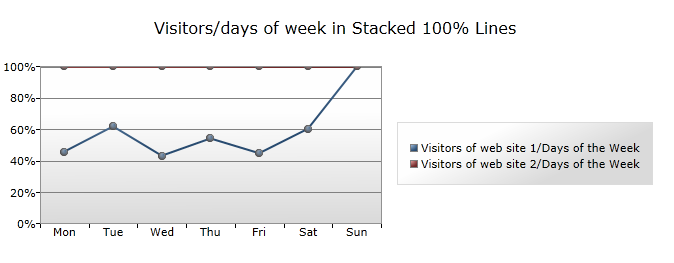
Building a Stacked 100% Line chart
In MainPage.xaml, add a chart:
<toolkit:Chart HorizontalAlignment=”Left” Margin=”8,30,-295,0″ Title=”Chart Title” Name=”chart1″ VerticalAlignment=”Top” Height=”270″ Width=”687″>
</toolkit:Chart>
What makes this type of chart different from the regular chart is that you don’t create one or more ColumnSeries, instead you’re adding SeriesDefinitions:
using System;
using System.Collections.Generic;
using System.Linq;
using System.Net;
using System.Windows;
using System.Windows.Controls;
using System.Windows.Controls.DataVisualization.Charting;
using System.Windows.Data;
using System.Windows.Documents;
using System.Windows.Input;
using System.Windows.Media;
using System.Windows.Media.Animation;
using System.Windows.Shapes;
namespace SilverRadar
{
public partial class MainPage : UserControl
{
public MainPage()
{
InitializeComponent();
List<DayDto> days = new List<DayDto>()
{
new DayDto() { Day = “Mon”, NumberOfVisitors = 10 },
new DayDto() { Day = “Tue”, NumberOfVisitors = 8 },
new DayDto() { Day = “Wed”, NumberOfVisitors = 3 },
new DayDto() { Day = “Thu”, NumberOfVisitors = 7 },
new DayDto() { Day = “Fri”, NumberOfVisitors = 4 },
new DayDto() { Day = “Sat”, NumberOfVisitors = 3 },
new DayDto() { Day = “Sun”, NumberOfVisitors = 1 },
};
List<DayDto> days2 = new List<DayDto>()
{
new DayDto() { Day = “Mon”, NumberOfVisitors = 12 },
new DayDto() { Day = “Tue”, NumberOfVisitors = 5 },
new DayDto() { Day = “Wed”, NumberOfVisitors = 4 },
new DayDto() { Day = “Thu”, NumberOfVisitors = 6 },
new DayDto() { Day = “Fri”, NumberOfVisitors = 5 },
new DayDto() { Day = “Sat”, NumberOfVisitors = 2 },
new DayDto() { Day = “Sun”, NumberOfVisitors = 0 },
};
chart1.Title = “Visitors/days of week in Stacked 100% Lines”;
var b1 = new Stacked100LineSeries();
b1.Name = “days”;
var s1 = new SeriesDefinition();
b1.SeriesDefinitions.Add(s1);
s1.Title = “Visitors of web site 1/Days of the Week”;
s1.ItemsSource = days;
s1.IndependentValuePath = “Day”;
s1.DependentValuePath = “NumberOfVisitors”;
var s2 = new SeriesDefinition();
b1.SeriesDefinitions.Add(s2);
s2.Title = “Visitors of web site 2/Days of the Week”;
s2.ItemsSource = days2;
s2.IndependentValuePath = “Day”;
s2.DependentValuePath = “NumberOfVisitors”;
chart1.Series.Add(b1);
}
}
public class DayDto
{
public string Day { get; set; }
public int NumberOfVisitors { get; set; }
}
}
The end result:
 !
!



 SharePoint Dragons