When we set out to write a blog post we had the intention of documenting the process of setting up a claims aware SharePoint web application. After consulting numerable resources, we’ve found out that it’s not needed at all.
First off, if you want to read more about claims authentication, go to http://technet.microsoft.com/en-us/library/hh487289.aspx and read the claims-based authentication white paper.
If you want to set up claims authentication in SharePoint Server 2010 we found that the following post is the best resource: http://donalconlon.wordpress.com/2010/02/23/configuring-forms-base-authentication-for-sharepoint-2010-using-iis7/ This post describes a visual way to set it up, and since it’s so easy to make tiny mistakes, it’s better to execute the process aided by visual tools.
We have three comments about the post that might help you though:
- You can also use the MembershipSeeder tool to set up test accounts, we feel it’s the best way to set up a larger number of test accounts. The MembershipSeeder tool can be found on CodePlex: http://cks.codeplex.com/releases/view/7450.
- Be sure to create a new SQL Server user account as specified in the blog post.
- Adjust the People Picker when you’re done following the steps in the blog post.
1. Setting up users via the MembershipSeeder tool
The MembershipSeeder tool is a client dedicated to communicating with the Membership database. It’s the best way for adding larger amounts of test users to the Membership database.
Please note: Don’t get too excited about the comment that the MembershipSeeder tool has been superseded by CKS: FBA. If you follow that path, it will actually be more work for you. We like the fact that the MembershipSeeder tool directly accesses the membership database and works in a simple, no bells and whistles kinda way.
Before you’re able to use the MembershipSeeder tool, you need to download it (duh!) and change some configuration data:
- Download the MembershipSeeder tool, extract it, and go to the Debug folder.
- Locate the <connectionStrings> element.
Notice that the connection string is pointing to the wrong direction: server=o12; database=aspnetdb; Trusted_Connection=True. Replace it, in our case it looks like this:
<connectionStrings>
<add name=”AspNetSqlMembershipProvider” connectionString=”Data Source=moon;Initial Catalog=MyAccounts;User ID=administrator;Password=*****” />
</connectionStrings>
Please note that we’re using SQL Server authentication, as specified in the blog post, so while your data source and user credentials may differ, don’t change that aspect. It’s a great way to test if the SQL Server user account has sufficient permissions. Now, let’s add some roles and users:
- Double-click MembershipSeeder.exe. This opens the ASP.NET Membership Form window.
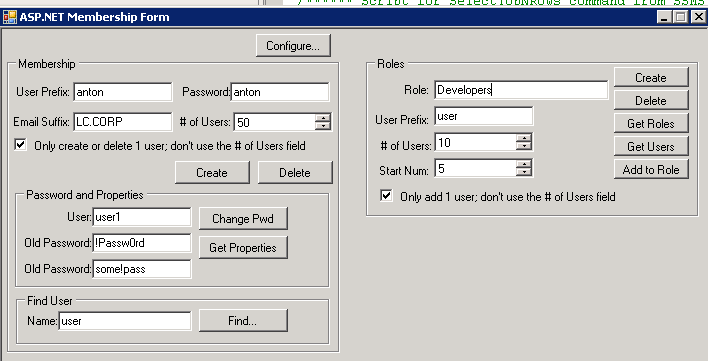
- We feel the UI is a bit messy (we’re not criticizing, we feel this is a very handy tool), so be careful. Check out the next Figure to get the idea.
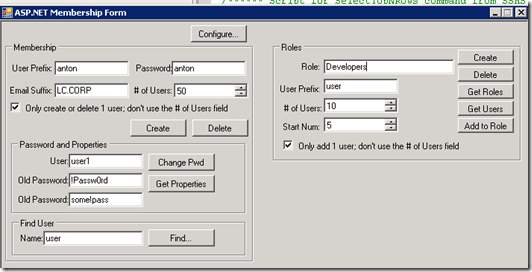
- First, check the two checkboxes about adding, creating or deleting only 1 user.
- The upper right part allows you to create new roles. Create two new roles: Developers and Managers.
- Then, click the Get Roles button to verify this has succeeded.
- The upper left part allows you to add new users. Create three new users: anton (with the password: anton), bill (pwd: bill), and daisy (pwd: daisy).
- After you’ve done that, add the users to roles in the upper right part by typing a role name in the Role textbox and typing the user name in the User Prefix textbox.
- Then, click the Add to Role button. Add anton and daisy to the Managers role. Click the Get Users button to verify this has succeeded.
- Now, add bill and daisy to the Developers role.
At this point we’ve created a Developers role with the members Bill and Daisy, and a Managers role with the members Anton and Daisy. This will give us some users to test with later.
2. Create a new SQL Server user account
At first we used a SQL Server user account that we’ve created during installation. Apparently this is a special kind of user account that can’t be used when connecting to the membership database. When you’re doing direct manual configuration of the web.config files, this mistake is hard to detect. We liked the approach of creating a fresh SQL Server user account, even for development purposes.
3. Configure People Picker
If you want to be able to type parts of user names and want the People Picker to autocomplete those names add the following line to the web.config file of every web application where you want to use People Picker autocompletion:
<add key=”fbamembershipprovider” value=”%” />
So that it looks like:
<PeoplePickerWildcards>
<clear />
<add key=”AspNetSqlMembershipProvider” value=”%” />
<add key=”fbamembershipprovider” value=”%” />
</PeoplePickerWildcards>
What now?
If everything goes well, you should be able to log in both using Windows accounts and form accounts. To check out what claims are associated to each user, first download and install the Windows Identity Foundation SDK at http://www.microsoft.com/download/en/details.aspx?displaylang=en&id=4451. We’ll be using it within a web part, so you’ll need install the SDK 3.5 version because SPS 2010 doesn’t support .NET 4.
Now, create an empty SharePoint project in Visual Studio.NET 2010, add a visual web part and add a label on it. Add the following code to it, deploy the package to SPS 2010 and add the web part to a page:
using System;
using System.Web.UI;
using System.Web.UI.WebControls;
using System.Web.UI.WebControls.WebParts;
using Microsoft.IdentityModel.Claims;
namespace LCWebParts.ClaimsVisualPart
{
public partial class ClaimsVisualPartUserControl : UserControl
{
protected void Page_Load(object sender, EventArgs e)
{
IClaimsIdentity cidentity = (IClaimsIdentity) Page.User.Identity;
Label1.Text = String.Format(“User name = {0}<br/>”, cidentity.Name);
foreach (Claim claim in cidentity.Claims)
{
Label1.Text += String.Format(“type: {0} value = {1}<br/>”, claim.ClaimType, claim.Value);
}
}
}
}
It’s interesting to see the different set of claims associated to different user accounts, and this allows you to make programmatic authorization decisions based on claims.




 SharePoint Dragons