SharePoint Dragons

Nikander & Margriet on SharePoint

Tag Archives: sharepoint2010

Convert SPMetal Linq query to CAML

As a follow up to article https://sharepointdragons.com/2012/04/21/how-to-check-if-the-current-user-has-already-created-a-list-item-of-a-certain-content-type/ , based on a reader’s question. This is a slightly updated version of the code that writes the underlying CAML to the console output window, like so:

astro.Log = Console.Out;

By explicitly calling it like so you’re exporting the CAML to a text file:

myconsole.exe > caml.txt

The complete code looks like this:
using System;
using System.Collections.Generic;
using System.Linq;
using System.Text;

namespace ConsoleApplication4
{
    class Program
    {
        static void Main(string[] args)
        {
            // Open entities context generated by spmetal
            // if a sharepoint context is available, use new AstroDataContext(SPContext.Current.Web.Url) instead.
            using (var astro = new AstroDataContext(“http://astro”))
            {
                var timeItems = (from item in astro.MyMetalList
                                                                        where item.GetType() == typeof(Timecard)
                                                                        select (Timecard) item);

                // Call it like this: myconsole.exe > caml.txt
                astro.Log = Console.Out;               

                // Enter specific user name in lambda expression below, for example using: SPContext.Current.Web.CurrentUser.LoginName
                int occurrences = timeItems.Where(item => item.UserName.ToLower() == “loisandclark\\administrator”).Count();
                if (occurrences == 0)
                {
                    Console.WriteLine(“it’s ok to add a request”);
                }
                else if (occurrences == 1)
                {
                    Console.WriteLine(“a request has already been submitted”);
                }
                else
                {
                    Console.WriteLine(“There are duplicate requests. This is an error, contact the administrator”);
                }

                foreach (var item in timeItems)
                {
                    Console.WriteLine(item.Title);
                }
            }
        }
    }
}


The resulting CAML looks like this:

<View><Query><Where><BeginsWith><FieldRef Name=”ContentTypeId” /><Value Type=”ContentTypeId”>0x01</Value></BeginsWith></Where></Query><ViewFields><FieldRef Name=”ID” /><FieldRef Name=”owshiddenversion” /><FieldRef Name=”FileDirRef” /><FieldRef Name=”Title” /><FieldRef Name=”ContentTypeId” /><FieldRef Name=”CustomerName_x003a__x0020_Compan” /><FieldRef Name=”CustomerName_x003a__x0020_FirstN” /><FieldRef Name=”CustomerName_x003a__x0020_LastNa” /><FieldRef Name=”MyCustWF” /><FieldRef Name=”URL” /><FieldRef Name=”Comments” /><FieldRef Name=”URLwMenu” /><FieldRef Name=”URLNoMenu” /><FieldRef Name=”Date” /><FieldRef Name=”DayOfWeek” /><FieldRef Name=”Start” /><FieldRef Name=”End” /><FieldRef Name=”In” /><FieldRef Name=”Out” /><FieldRef Name=”Break” /><FieldRef Name=”ScheduledWork” /><FieldRef Name=”Overtime” /><FieldRef Name=”NightWork” /><FieldRef Name=”HolidayNightWork” /><FieldRef Name=”Late” /><FieldRef Name=”LeaveEarly” /><FieldRef Name=”Oof” /><FieldRef Name=”ShortComment” /><FieldRef Name=”Vacation” /><FieldRef Name=”NumberOfVacation” /><FieldRef Name=”UserName” /><FieldRef Name=”PercentComplete” /><FieldRef Name=”Body” /><FieldRef Name=”StartDate” /><FieldRef Name=”TaskDueDate” /><FieldRef Name=”Priority” /><FieldRef Name=”TaskStatus” /><FieldRef Name=”AssignedTo” /><FieldRef Name=”DueDate” /><FieldRef Name=”Status” /><FieldRef Name=”Predecessors” LookupId=”TRUE” /><FieldRef Name=”FileLeafRef” /><FieldRef Name=”ItemChildCount” /><FieldRef Name=”FolderChildCount” /><FieldRef Name=”DocumentSetDescription” /><FieldRef Name=”Modified_x0020_By” /><FieldRef Name=”Created_x0020_By” /><FieldRef Name=”WikiField” /><FieldRef Name=”_vti_RoutingExistingProperties” /><FieldRef Name=”PreviewOnForm” /><FieldRef Name=”FileType” /><FieldRef Name=”ImageSize” /><FieldRef Name=”ImageWidth” /><FieldRef Name=”ImageHeight” /><FieldRef Name=”ImageCreateDate” /><FieldRef Name=”SelectedFlag” /><FieldRef Name=”NameOrTitle” /><FieldRef Name=”RequiredField” /><FieldRef Name=”Keywords” /><FieldRef Name=”Thumbnail” /><FieldRef Name=”Preview” /><FieldRef Name=”AlternateThumbnailUrl” /><FieldRef Name=”Description” /><FieldRef Name=”MyBcsName_x003a__x0020_FirstName” /><FieldRef Name=”MyySingleLineOfText” /><FieldRef Name=”MyMultiLines” /><FieldRef Name=”MyNumber” /><FieldRef Name=”MyCurrency” /><FieldRef Name=”MyDatTime” /><FieldRef Name=”MyLookup_x003a__x0020_LastName” /><FieldRef Name=”MyLookup_x003a__x0020_Company” /><FieldRef Name=”MyLookup_x003a__x0020_Phone” /><FieldRef Name=”MyYesNo” /><FieldRef Name=”MyLinkOrPic” /><FieldRef Name=”MyCalc” /><FieldRef Name=”MyExtDaa_x003a__x0020_LastName” /><FieldRef Name=”MyExtDaa_x003a__x0020_Phone” /><FieldRef Name=”MyChoice” /><FieldRef Name=”MyPersonOrGroup” /><FieldRef Name=”MySText” /><FieldRef Name=”MyMText” /><FieldRef Name=”ReviewStatus” /><FieldRef Name=”MyPeople” /><FieldRef Name=”MyYesNo0″ /></ViewFields><RowLimit Paged=”TRUE”>2147483647</RowLimit></View>

How to check if the current user has already created a list item of a certain content type?

This probably would have been a bit of a hassle before SPMetal existed, right now it’s quite easy to do. Here’s what we didi:

  • We created a custom list.
  • In advanced settings, we’ve enabled content types and added the ootb content type TimeCard.
  • Then, we added two list items: one of the default type, and one of the TimeCard type.

Having our test list set up and ready to go, we’ve used SPMetal to create entities representing, among other, this custom list. We did this by issuing the following command at the command prompt (assuming 14/bin is in your environment path variables):

spmetal /web:http://astro /code Astro.cs

Add the generated Astro.cs file to a VS.NET SharePoint project (in this case, we’ve used a simple console application).

using System;
using System.Collections.Generic;
using System.Linq;
using System.Text;

namespace ConsoleApplication4
{
    class Program
    {
        static void Main(string[] args)
        {
            // Open entities context generated by spmetal
            // if a sharepoint context is available, use new AstroDataContext(SPContext.Current.Web.Url) instead.
            using (var astro = new AstroDataContext(“http://astro”))
            {
                var timeItems = (from item in astro.MyMetalList
                                                                        where item.GetType() == typeof(Timecard)
                                                                        select (Timecard) item);

                // Enter specific user name in lambda expression below, for example using: SPContext.Current.Web.CurrentUser.LoginName
                int occurrences = timeItems.Where(item => item.UserName.ToLower() == “loisandclark\\administrator”).Count();
                if (occurrences == 0)
                {
                    Console.WriteLine(“it’s ok to add a request”);
                }
                else if (occurrences == 1)
                {
                    Console.WriteLine(“a request has already been submitted”);
                }
                else
                {
                    Console.WriteLine(“There are duplicate requests. This is an error, contact the administrator”);
                }

                foreach (var item in timeItems)
                {
                    Console.WriteLine(item.Title);
                }
            }
        }
    }
}

Authentication when using the SharePoint client object model

Normally, when you need to log in using a specific credential set in the SharePoint client object model, you’ll have to provide the correct credentials to authenticate to the SharePoint site collection, like so:

NetworkCredential credentials = new NetworkCredential(“username”, “pwd”, “domain”);

ClientContext context = new ClientContext(“http://thesitecollection”);

context.Credentials = credentials;

This won’t work if you have a claims based site set up supporting both Windows and forms authentication. See https://sharepointdragons.com/2012/01/30/claims-in-sharepoint-2010/ for more about setting that up. Instead, you need to set up the appropriate HTTP headers to disable Forms authentication, and it’ll work again:

ClientContext clientContext = new ClientContext(“http://thesitecollection“);clientContext.ExecutingWebRequest += new EventHandler<WebRequestEventArgs>(clientContext_ExecutingWebRequest);

Web site = clientContext.Web;

clientContext.Load(site);

clientContext.ExecuteQuery();


static void clientContext_ExecutingWebRequest(object sender, WebRequestEventArgs e){

    e.WebRequestExecutor.WebRequest.Headers.Add(“X-FORMS_BASED_AUTH_ACCEPTED”, “f”);

}

See http://social.technet.microsoft.com/Forums/en-US/sharepoint2010programming/thread/16cd0e26-8f3b-4ef2-bac4-c2c59849ab96 for more info.

How to set the people picker field to the current user?

An elegant way to do it is to use a bit of server side code with jQuery:

<script type=”text/javascript”> $(document).ready(function() {

$(‘div.ms-inputuserfield’).text($().SPServices.SPGetCurrentUser({fieldName: “Title”,debug: false}));

</script>

Looking for a sneaky way to prevent email notifications from being sent?

http://social.technet.microsoft.com/Forums/en-US/sharepoint2010programming/thread/4a42b080-3a59-45ae-a90e-2bce3d88657e provides the answer: just change the outgoing SMTP server to something else and switch it back 10-15 mins. Gotta love the simplicity of the idea.

So your mom threw away your Active Directory User…

What happens if a person leaves your organization and, as a consequence of that, somebody throws away the Active Directory user account, only to found out later that it still lingers on in SharePoint? You won’t be able to recreate the user because it’ll have a different SID, so what to do?

Use ol’ stsadm to the rescue: http://technet.microsoft.com/library/2a090c60-696f-4b68-8b6c-a19b763c60d3.aspx It allows you to migrate a user account to a new login name, optionally ignoring the SID meta data history.

Batch check in

A regular question that pops up is: how do I do a batch check in in SPS and SPF 2010? Not possible ootb, but there’s a 3rd party solution for it called Batch Metadata Edit and Check In: https://store.qipoint.com/product-p/sp14-01-batch.htm

Adding jQuery to a visual web part and then implement parent/child radio buttons

In this blog post we’ll discuss how to use jQuery in a visual web part to help implementing parent/child radio buttons. To accomplish this, we’ve borrowed ideas from other places, we’ll mention them as we go along.

First, create a new SharePoint project and add a visual web part to it. Then, download the latest version of the jQuery library. We’ll be using jquery-1.7.js.

Please note: This is the developer version, which we’ll be using throughout this example. In a production environment, you should use the minified version instead (called jquery-1.7.min.js, or the equivalent of the version you are using).

SPS 2010 contains a new type of library called Site Assets. It can be used to store resource files such as images, style sheets, and JavaScript files. We’ll use it as a new home for jquery-1.7.js. Later, we’ll discuss how to do this automatically, but the next procedure explains how to add the jQuery library manually:

  1. Open a site collection SharePoint Designer 2010 (SPD).
  2. Click the Site Assets node.
  3. Open Windows explorer and browse to jquery-1.7.js.
  4. Drag and drop it within the Site Assets node.

Since we’ve made the jQuery library available within SharePoint, we’ll be able to leverage it. We’ll do this by adding a link to it in our user control (*.ascx), like so:

<SharePoint:ScriptLink ID=”ScriptLink1″ runat=”server”

Name=”~sitecollection/SiteAssets/jquery-1.7.js” />

Please note: You shouldn’t use the ondemand=true attribute, as we want the jQuery library to be available right away.

To test if this has worked, we’re borrowing some ideas from http://blogs.msdn.com/b/yojoshi/archive/2010/06/17/using-jquery-with-sharepoint-2010.aspx :

  1. Press F5 to open MSIE (we’re assuming you’ll be able to add the visual web part to the web part page).
  2. Press F12 to bring up “Developer Tools”  (for MSIE 8 and higher).
  3. Click the Script tab and verify jQuery is getting loaded. You know this to be true if you find this entry:

    document.write(‘<script src=”/siteassets/jquery-1.7.js”></’ + ‘script>’);

  4. In the right console window, add the following jQuery command:

    $(“#MSO_ContentTable”).css(“background-color”,”cyan”);

  5. Click the Run Script button.

If the page background turns cyan, you’ll know that it works and that jQuery did it for you.

(From: http://blogs.msdn.com/b/yojoshi/archive/2010/06/17/using-jquery-with-

At this point, jQuery can be used for client-side scripting.  At this point, the code of the user control of the visual web part looks like this:
<%@ Assembly

Name=”$SharePoint.Project.AssemblyFullName$” %>
<%@ Assembly Name=”Microsoft.Web.CommandUI, Version=14.0.0.0, Culture=neutral,

PublicKeyToken=71e9bce111e9429c” %>
<%@ Register TagPrefix=”SharePoint” Namespace=”Microsoft.SharePoint.WebControls”
    Assembly=”Microsoft.SharePoint, Version=14.0.0.0, Culture=neutral,

PublicKeyToken=71e9bce111e9429c” %>
<%@ Register TagPrefix=”Utilities” Namespace=”Microsoft.SharePoint.Utilities”

Assembly=”Microsoft.SharePoint, Version=14.0.0.0, Culture=neutral,

PublicKeyToken=71e9bce111e9429c” %>
<%@ Register TagPrefix=”asp” Namespace=”System.Web.UI”

Assembly=”System.Web.Extensions, Version=3.5.0.0, Culture=neutral,

PublicKeyToken=31bf3856ad364e35″ %>
<%@ Import Namespace=”Microsoft.SharePoint” %>
<%@ Register TagPrefix=”WebPartPages”

Namespace=”Microsoft.SharePoint.WebPartPages”
    Assembly=”Microsoft.SharePoint, Version=14.0.0.0, Culture=neutral,

PublicKeyToken=71e9bce111e9429c” %>
<%@ Control Language=”C#” AutoEventWireup=”true”

CodeBehind=”VisualWebPart1UserControl.ascx.cs”
    Inherits=”VisualWebPartProject1.VisualWebPart1.VisualWebPart1UserControl” %>
<asp:Label ID=”Label1″ runat=”server” Text=”Label”></asp:Label>
<SharePoint:ScriptLink ID=”ScriptLink1″ runat=”server”

Name=”~sitecollection/SiteAssets/jquery-1.7.js” />

It only contains a reference to the jQuery library. Now, add the code to it that creates a parent/child radio button list. This idea was taken from: http://www.billsternberger.net/jquery/using-jquery-to-enable-and-disable-radio-buttons-onclick/ and it looks like this:

<script>
    $(function () {

        //init Texas
        $(‘#DivTexas :input’).attr(‘checked’, false);
        $(‘#DivTexas :input’).attr(‘disabled’, true);

        //init Virginia
        $(‘#DivVirginia :input’).attr(‘checked’, false);
        $(‘#DivVirginia :input’).attr(‘disabled’, true);
    });

    function EnableTexas() {
        //disable Virginia options
        $(‘#DivVirginia :input’).attr(‘checked’, false);
        $(‘#DivVirginia :input’).attr(‘disabled’, true);

        //enable Texas options
        $(‘#DivTexas :input’).removeAttr(‘disabled’);
    }

    function EnableVirginia() {
        //disable Texas options
        $(‘#DivTexas :input’).attr(‘checked’, false);
        $(‘#DivTexas :input’).attr(‘disabled’, true);

        //enable Virginia options
        $(‘#DivVirginia :input’).removeAttr(‘disabled’);
    }
</script>

<asp:RadioButton Value=”A” Text=”A” runat=”server” GroupName=”ParentGroup” ID=”parent1″ onclick=”EnableTexas()” />
<div id=”DivTexas”>
    &nbsp;&nbsp;&nbsp;&nbsp;&nbsp;&nbsp;
    <asp:RadioButton Value=”AA” Text=”AA” runat=”server” GroupName=”ChildGroupA” ID=”child1″ /><br />
    &nbsp;&nbsp;&nbsp;&nbsp;&nbsp;&nbsp;
    <asp:RadioButton Value=”AB” Text=”AB” runat=”server” GroupName=”ChildGroupA” ID=”child2″ /><br />
</div>
<asp:RadioButton Value=”B” Text=”B” runat=”server” GroupName=”ParentGroup” ID=”parent2″ onclick=”EnableVirginia()” />
<div id=”DivVirginia”>
    &nbsp;&nbsp;&nbsp;&nbsp;&nbsp;&nbsp;
    <asp:RadioButton Value=”BA” Text=”BA” runat=”server” GroupName=”ChildGroupB” ID=”child3″ /><br />
</div>


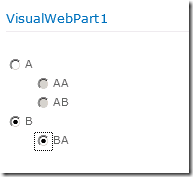
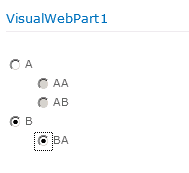
The result is that you can only check a child radio button if the parent radio button is checked. It looks like this:
image

Since we don’t want to add the jQuery library manually once we start deploying it, we’re taking an idea from http://www.lightningtools.com/blog/archive/2009/12/06/add-javascript-files-once-to-a-page—sharepoint-sandbox.aspx We’ll add the jQuery library as a module to our SharePoint project, and deploy it to a subfolder in the Site Assets library.

  1. Right-click SharePoint project and choose Add > New Item.
  2. Choose Module and call it MyAssets.
  3. Within the MyAssets folder, delete Sample.txt.
  4. Right-click the MyAssets folder and choose Add.
  5. Locate jquery-1.7.js (or better yet: locate the minified version) and add jquery-1.7.js.
  6. Open up Elements.xml, and add the following attribute: Url=”SiteAssets” to the Module element.

Now, the Module XML should look like this:

<?xml version=”1.0″ encoding=”utf-8″?>
<Elements xmlns=”http://schemas.microsoft.com/sharepoint/”>
  <Module Name=”MyAssets” Url=”SiteAssets”>
  <File Path=”MyAssets\jquery-1.7.js” Url=”MyAssets/jquery-1.7.js” />
</Module>
</Elements>

Pressing F5 causes jquery-1.7.js to be deployed to the Site Assets library, in the My Assets folder. This means you should update the link in the user control like so:

<SharePoint:ScriptLink ID=”ScriptLink1″ runat=”server”

Name=”~sitecollection/SiteAssets/MyAssets/jquery-1.7.js” />

And there you have it!
Difference between a link and a title

Sometimes you come across a useful piece of information, only to find out that it was provided by ourselves: http://social.technet.microsoft.com/Forums/en-US/sharepoint2010general/thread/50d5c123-8540-4e4d-90d5-b150d2e0f4d6 Still find it useful to share.

Anyways, the difference between a Title and title (linked to item) column is none. They are the same in SharePoint 2010. In SharePoint 2007, there was a difference. After clicking a value in a lookup column with a Title column and then click close, you would return to the target list. If you would click a value in a lookup column with a title (linked to item) column and then click close, you would return to the source list.

Display specific date format in column