SharePoint Dragons

Nikander & Margriet on SharePoint

Batch check in

A regular question that pops up is: how do I do a batch check in in SPS and SPF 2010? Not possible ootb, but there’s a 3rd party solution for it called Batch Metadata Edit and Check In: https://store.qipoint.com/product-p/sp14-01-batch.htm

Websites Like

Jeffrey Carter of Yahoo asked us if we’d like to review a new web site called WebsitesLike.org. It helps to find similar, related or alternative websites. We’ve taken a look and weren’t thrilled with the results. We couldn’t find our own web sites and names (we call this the intake test: every time a company is considering to hire you, they will search using your name and it’s best that they find something positive real soon) and when we looked for information about SharePoint we had to wade thru large numbers of commercial offererings without finding quality information. In case you want to check it out, here’s the address:  http://www.websiteslike.org .

Tool for detecting dangerous web sites

A tip by Mark Miller of End Users SharePoint (thanks btw): the http://urlvoid.com web site is a free service that allows users to scan a given website address to determine whether it’s potentially dangerous. To determine this, it uses various virus scanning tools. So, if you’d go to http://urlvoid.com/scan/sharepointdragons.com/ you’ll find we’re safe:

image

Adding jQuery to a visual web part and then implement parent/child radio buttons

In this blog post we’ll discuss how to use jQuery in a visual web part to help implementing parent/child radio buttons. To accomplish this, we’ve borrowed ideas from other places, we’ll mention them as we go along.

First, create a new SharePoint project and add a visual web part to it. Then, download the latest version of the jQuery library. We’ll be using jquery-1.7.js.

Please note: This is the developer version, which we’ll be using throughout this example. In a production environment, you should use the minified version instead (called jquery-1.7.min.js, or the equivalent of the version you are using).

SPS 2010 contains a new type of library called Site Assets. It can be used to store resource files such as images, style sheets, and JavaScript files. We’ll use it as a new home for jquery-1.7.js. Later, we’ll discuss how to do this automatically, but the next procedure explains how to add the jQuery library manually:

  1. Open a site collection SharePoint Designer 2010 (SPD).
  2. Click the Site Assets node.
  3. Open Windows explorer and browse to jquery-1.7.js.
  4. Drag and drop it within the Site Assets node.

Since we’ve made the jQuery library available within SharePoint, we’ll be able to leverage it. We’ll do this by adding a link to it in our user control (*.ascx), like so:

<SharePoint:ScriptLink ID=”ScriptLink1″ runat=”server”

Name=”~sitecollection/SiteAssets/jquery-1.7.js” />

Please note: You shouldn’t use the ondemand=true attribute, as we want the jQuery library to be available right away.

To test if this has worked, we’re borrowing some ideas from http://blogs.msdn.com/b/yojoshi/archive/2010/06/17/using-jquery-with-sharepoint-2010.aspx :

  1. Press F5 to open MSIE (we’re assuming you’ll be able to add the visual web part to the web part page).
  2. Press F12 to bring up “Developer Tools”  (for MSIE 8 and higher).
  3. Click the Script tab and verify jQuery is getting loaded. You know this to be true if you find this entry:

    document.write(‘<script src=”/siteassets/jquery-1.7.js”></’ + ‘script>’);

  4. In the right console window, add the following jQuery command:

    $(“#MSO_ContentTable”).css(“background-color”,”cyan”);

  5. Click the Run Script button.

If the page background turns cyan, you’ll know that it works and that jQuery did it for you.

(From: http://blogs.msdn.com/b/yojoshi/archive/2010/06/17/using-jquery-with-

At this point, jQuery can be used for client-side scripting.  At this point, the code of the user control of the visual web part looks like this:
<%@ Assembly

Name=”$SharePoint.Project.AssemblyFullName$” %>
<%@ Assembly Name=”Microsoft.Web.CommandUI, Version=14.0.0.0, Culture=neutral,

PublicKeyToken=71e9bce111e9429c” %>
<%@ Register TagPrefix=”SharePoint” Namespace=”Microsoft.SharePoint.WebControls”
    Assembly=”Microsoft.SharePoint, Version=14.0.0.0, Culture=neutral,

PublicKeyToken=71e9bce111e9429c” %>
<%@ Register TagPrefix=”Utilities” Namespace=”Microsoft.SharePoint.Utilities”

Assembly=”Microsoft.SharePoint, Version=14.0.0.0, Culture=neutral,

PublicKeyToken=71e9bce111e9429c” %>
<%@ Register TagPrefix=”asp” Namespace=”System.Web.UI”

Assembly=”System.Web.Extensions, Version=3.5.0.0, Culture=neutral,

PublicKeyToken=31bf3856ad364e35″ %>
<%@ Import Namespace=”Microsoft.SharePoint” %>
<%@ Register TagPrefix=”WebPartPages”

Namespace=”Microsoft.SharePoint.WebPartPages”
    Assembly=”Microsoft.SharePoint, Version=14.0.0.0, Culture=neutral,

PublicKeyToken=71e9bce111e9429c” %>
<%@ Control Language=”C#” AutoEventWireup=”true”

CodeBehind=”VisualWebPart1UserControl.ascx.cs”
    Inherits=”VisualWebPartProject1.VisualWebPart1.VisualWebPart1UserControl” %>
<asp:Label ID=”Label1″ runat=”server” Text=”Label”></asp:Label>
<SharePoint:ScriptLink ID=”ScriptLink1″ runat=”server”

Name=”~sitecollection/SiteAssets/jquery-1.7.js” />

It only contains a reference to the jQuery library. Now, add the code to it that creates a parent/child radio button list. This idea was taken from: http://www.billsternberger.net/jquery/using-jquery-to-enable-and-disable-radio-buttons-onclick/ and it looks like this:

<script>
    $(function () {

        //init Texas
        $(‘#DivTexas :input’).attr(‘checked’, false);
        $(‘#DivTexas :input’).attr(‘disabled’, true);

        //init Virginia
        $(‘#DivVirginia :input’).attr(‘checked’, false);
        $(‘#DivVirginia :input’).attr(‘disabled’, true);
    });

    function EnableTexas() {
        //disable Virginia options
        $(‘#DivVirginia :input’).attr(‘checked’, false);
        $(‘#DivVirginia :input’).attr(‘disabled’, true);

        //enable Texas options
        $(‘#DivTexas :input’).removeAttr(‘disabled’);
    }

    function EnableVirginia() {
        //disable Texas options
        $(‘#DivTexas :input’).attr(‘checked’, false);
        $(‘#DivTexas :input’).attr(‘disabled’, true);

        //enable Virginia options
        $(‘#DivVirginia :input’).removeAttr(‘disabled’);
    }
</script>

<asp:RadioButton Value=”A” Text=”A” runat=”server” GroupName=”ParentGroup” ID=”parent1″ onclick=”EnableTexas()” />
<div id=”DivTexas”>
    &nbsp;&nbsp;&nbsp;&nbsp;&nbsp;&nbsp;
    <asp:RadioButton Value=”AA” Text=”AA” runat=”server” GroupName=”ChildGroupA” ID=”child1″ /><br />
    &nbsp;&nbsp;&nbsp;&nbsp;&nbsp;&nbsp;
    <asp:RadioButton Value=”AB” Text=”AB” runat=”server” GroupName=”ChildGroupA” ID=”child2″ /><br />
</div>
<asp:RadioButton Value=”B” Text=”B” runat=”server” GroupName=”ParentGroup” ID=”parent2″ onclick=”EnableVirginia()” />
<div id=”DivVirginia”>
    &nbsp;&nbsp;&nbsp;&nbsp;&nbsp;&nbsp;
    <asp:RadioButton Value=”BA” Text=”BA” runat=”server” GroupName=”ChildGroupB” ID=”child3″ /><br />
</div>


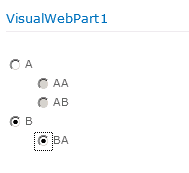
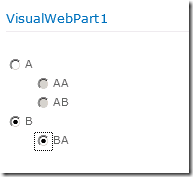
The result is that you can only check a child radio button if the parent radio button is checked. It looks like this:
image

Since we don’t want to add the jQuery library manually once we start deploying it, we’re taking an idea from http://www.lightningtools.com/blog/archive/2009/12/06/add-javascript-files-once-to-a-page—sharepoint-sandbox.aspx We’ll add the jQuery library as a module to our SharePoint project, and deploy it to a subfolder in the Site Assets library.

  1. Right-click SharePoint project and choose Add > New Item.
  2. Choose Module and call it MyAssets.
  3. Within the MyAssets folder, delete Sample.txt.
  4. Right-click the MyAssets folder and choose Add.
  5. Locate jquery-1.7.js (or better yet: locate the minified version) and add jquery-1.7.js.
  6. Open up Elements.xml, and add the following attribute: Url=”SiteAssets” to the Module element.

Now, the Module XML should look like this:

<?xml version=”1.0″ encoding=”utf-8″?>
<Elements xmlns=”http://schemas.microsoft.com/sharepoint/”>
  <Module Name=”MyAssets” Url=”SiteAssets”>
  <File Path=”MyAssets\jquery-1.7.js” Url=”MyAssets/jquery-1.7.js” />
</Module>
</Elements>

Pressing F5 causes jquery-1.7.js to be deployed to the Site Assets library, in the My Assets folder. This means you should update the link in the user control like so:

<SharePoint:ScriptLink ID=”ScriptLink1″ runat=”server”

Name=”~sitecollection/SiteAssets/MyAssets/jquery-1.7.js” />

And there you have it!

Difference between a link and a title

Sometimes you come across a useful piece of information, only to find out that it was provided by ourselves: http://social.technet.microsoft.com/Forums/en-US/sharepoint2010general/thread/50d5c123-8540-4e4d-90d5-b150d2e0f4d6 Still find it useful to share.

Anyways, the difference between a Title and title (linked to item) column is none. They are the same in SharePoint 2010. In SharePoint 2007, there was a difference. After clicking a value in a lookup column with a Title column and then click close, you would return to the target list. If you would click a value in a lookup column with a title (linked to item) column and then click close, you would return to the source list.

Display specific date format in column

Accessing a WCF service that is SharePoint context aware using the WCF channel factory

As discussed in forum thread http://social.technet.microsoft.com/Forums/en-US/sharepoint2010programming/thread/42f01511-3083-4d19-9058-00cf56af0fb7 , this is in fact an elegant way to reference a WCF service in the context of a given SharePoint web site without needing to change the web.config file of the SharePoint web application (this minimizing the overhead of managing custom software):

//Access WCF service Centre Detail Endpoint

WSHttpBinding binding = new WSHttpBinding();

EndpointAddress address = new EndpointAddress(SPContext.Current.Web.Url + “/_vti_bin/MyService/MyService.svc”);

ChannelFactory<IService> factory = new ChannelFactory<IService>(binding, address); IGetCentreNames client = factory.CreateChannel();

Keep relational data in a database or migrate it into a custom list

It’s an interesting question: should you keep relational data in a database or migrate it into a custom list? We’d love our readers to contribute to the discussion at the TechNet Wiki page at http://social.technet.microsoft.com/wiki/contents/articles/9638.sharepoint-2010-best-practice-keep-relational-data-in-a-database-or-migrate-it-into-a-custom-list.aspx

The discussion as it stands so far:

If you need relational database capabilities (transactionality, triggers, real constraints (not the approximation of that in SharePoint)): use the existing database (and create a BCS external list to access the data).

– Are there existing apps using the current relational database? If yes, create a BCS external list to access the data.

– If no reasons prevent it, migrate the data into a custom list as this makes the solution less complex.

You need to make sure you play nicely and keep the data within the limits of capacity planning (https://sharepointdragons.com/2011/12/05/sharepoint-capacity-planning/ ). If there is absolutely no way that you can’t, keep the data where it is.

Best practices regarding row limits in external lists

When working with external lists, a functionality of Business Connectivity Services (BCS), you’ve got to keep an eye on row limits.

Keep in mind two important limits:

  1. The default Max is 2,000 items
  2. The absolute Max is 25,000 items

Please see this link for more information: http://msdn.microsoft.com/en-us/library/hh144965.aspx

You should always define filters (it can be limit/comparison/wildcard filter) so that you can narrow your search and overcome others restrictions regarding a count of rows in the database. Especially when working with high volume of items, there might be cases in which you may have millions of items to pick, the bcs picker will show up to 200 items (this is a SharePoint restriction).

Please take a look at these articles about filter creation:

Also you may implement paging. Please take a look at these articles:

This info was taken from forum discussion: http://social.technet.microsoft.com/Forums/en-US/sharepoint2010general/thread/9dba356c-65f3-49be-a452-6934baee7216

For ongoing work on this topic, check out the latest version of Wiki page http://social.technet.microsoft.com/wiki/contents/articles/9628.sharepoint-2010-best-practice-row-limits-in-external-lists.aspx

An editor part for a visual web part

This is a follow up to blog post https://sharepointdragons.com/2012/04/06/a-web-part-editor-part-containing-a-drop-down-list/ . Here, we’ll create the same thing, but this time for a visual web part. The differences are minor, but still…

First, we’ve created a user control containing a simple label, just so we’ll be able to show something:

<%@ Assembly Name=”$SharePoint.Project.AssemblyFullName$” %>
<%@ Assembly Name=”Microsoft.Web.CommandUI, Version=14.0.0.0, Culture=neutral, PublicKeyToken=71e9bce111e9429c” %>
<%@ Register Tagprefix=”SharePoint” Namespace=”Microsoft.SharePoint.WebControls” Assembly=”Microsoft.SharePoint, Version=14.0.0.0, Culture=neutral, PublicKeyToken=71e9bce111e9429c” %>
<%@ Register Tagprefix=”Utilities” Namespace=”Microsoft.SharePoint.Utilities” Assembly=”Microsoft.SharePoint, Version=14.0.0.0, Culture=neutral, PublicKeyToken=71e9bce111e9429c” %>
<%@ Register Tagprefix=”asp” Namespace=”System.Web.UI” Assembly=”System.Web.Extensions, Version=3.5.0.0, Culture=neutral, PublicKeyToken=31bf3856ad364e35″ %>
<%@ Import Namespace=”Microsoft.SharePoint” %>
<%@ Register Tagprefix=”WebPartPages” Namespace=”Microsoft.SharePoint.WebPartPages” Assembly=”Microsoft.SharePoint, Version=14.0.0.0, Culture=neutral, PublicKeyToken=71e9bce111e9429c” %>
<%@ Control Language=”C#” AutoEventWireup=”true” CodeBehind=”VisualWebPart1UserControl.ascx.cs” Inherits=”VisualWebPartProject1.VisualWebPart1.VisualWebPart1UserControl” %>
<asp:Label ID=”Label1″ runat=”server” Text=”Label”></asp:Label>

The code behind for this user control contains a public string property. All the control does is display the value of this property in the label:

using System;
using System.Web.UI;
using System.Web.UI.WebControls;
using System.Web.UI.WebControls.WebParts;

namespace VisualWebPartProject1.VisualWebPart1
{
    public partial class VisualWebPart1UserControl : UserControl
    {
        public string MyLabelText { get; set; }

        protected void Page_Load(object sender, EventArgs e)
        {
            Label1.Text = MyLabelText;
        }
    }
}

The editor part remains exactly as it was:

using System;
using System.Collections.Generic;
using System.Linq;
using System.Text;
using System.Web.UI.WebControls.WebParts;
using System.Web.UI.WebControls;

namespace VisualWebPartProject1.VisualWebPart1
{
    public class WebPart1EditorPart : EditorPart
    {
        // Reference to the web part that uses this editor part, the parent web part needs to implement the IWebEditable interface to support custom editing controls
        protected VisualWebPart1 ParentWebPart { get; set; }
        protected DropDownList EditorChoices { get; set; }

        /// <summary>
        /// Does editor part init settings
        /// </summary>
        public WebPart1EditorPart()
        {
            Title = “Make a choice – good name here”;
        }

        /// <summary>
        /// Creates the dll
        /// </summary>
        protected override void CreateChildControls()
        {
            EditorChoices = new DropDownList();
            EditorChoices.Items.Add(new ListItem(“AAA”, “1”));
            EditorChoices.Items.Add(new ListItem(“BBB”, “2”));
            EditorChoices.Items.Add(new ListItem(“CCC”, “3”));
            Controls.Add(EditorChoices);

            base.CreateChildControls();
            ChildControlsCreated = true;
        }

        /// <summary>
        /// Reads current value from parent web part and show that in the ddl
        /// </summary>
        public override void SyncChanges()
        {
            EnsureChildControls();
            ParentWebPart = WebPartToEdit as VisualWebPart1;

            if (ParentWebPart != null && WebPartManager.Personalization.Scope == PersonalizationScope.Shared)
            {
                ListItem item = EditorChoices.Items.FindByValue(ParentWebPart.MyEditorPartChoice);
                if (item != null) item.Selected = true;
            }
        }

        /// <summary>
        /// Applies change in editor part ddl to the parent web part
        /// </summary>
        /// <returns></returns>
        public override bool ApplyChanges()
        {
            try
            {
                EnsureChildControls();
                ParentWebPart = WebPartToEdit as VisualWebPart1;

                if (ParentWebPart != null && WebPartManager.Personalization.Scope == PersonalizationScope.Shared)
                {
                    ParentWebPart.MyEditorPartChoice = EditorChoices.SelectedValue;
                }

                // The operation was succesful
                return true;
            }
            catch
            {
                // Because an error has occurred, the SyncChanges() method won’t be invoked.
                return false;
            }
        }
    }
}

The web part (ours is called VisualWebPart1.cs) that is responsible for loading the user control is a little different from what it was. Now, it has to cast the user control to our specific type and set our custom string property to the value that was retrieved from our editor part:

Control control = Page.LoadControl(_ascxPath);

var myVisualControl = control as VisualWebPart1UserControl;
if (MyEditorPartChoice == null)
myVisualControl.MyLabelText = “Make a choice first”;
else
myVisualControl.MyLabelText = “The value from the editor part choice: ” + MyEditorPartChoice;

Controls.Add(control);

The complete code for VisualWebPart1.cs looks like this:

using System;
using System.ComponentModel;
using System.Web;
using System.Web.UI;
using System.Web.UI.WebControls;
using System.Web.UI.WebControls.WebParts;
using Microsoft.SharePoint;
using Microsoft.SharePoint.WebControls;
using System.Collections.Generic;

namespace VisualWebPartProject1.VisualWebPart1
{
    [ToolboxItemAttribute(false)]
    public class VisualWebPart1 : WebPart, IWebEditable
    {
        // Visual Studio might automatically update this path when you change the Visual Web Part project item.
        private const string _ascxPath = @”~/_CONTROLTEMPLATES/VisualWebPartProject1/VisualWebPart1/VisualWebPart1UserControl.ascx”;

        protected override void CreateChildControls()
        {
            Control control = Page.LoadControl(_ascxPath);

            var myVisualControl = control as VisualWebPart1UserControl;
            if (MyEditorPartChoice == null)
                myVisualControl.MyLabelText = “Make a choice first”;
            else
                myVisualControl.MyLabelText = “The value from the editor part choice: ” + MyEditorPartChoice;

            Controls.Add(control);
        }

        /// <summary>
        /// Contains the value of the choice in the editor part drop down list
        ///
        /// Set the Personalizable attribute to true,
        /// to allow for personalization of tabs by users.
        /// This causes  this property to be shown in the web part tool pane and lets SharePoint take care of the storage/retrieval of this property in the SharePoint content database.
        /// </summary>
        [Personalizable(true)]
        public string MyEditorPartChoice { get; set; }

        /// <summary>
        /// Creates custom editor parts here and assigns a unique id to each part
        /// </summary>
        /// <returns>All custom editor parts used by this web part</returns>
        EditorPartCollection IWebEditable.CreateEditorParts()
        {
            var editors = new List<EditorPart>();
            var editorPart = new WebPart1EditorPart();
            editorPart.ID = ID + “_editorPart”;
            editors.Add(editorPart);

            return new EditorPartCollection(editors);
        }

        /// <summary>
        /// Returns parent web part to editor part
        /// </summary>
        object IWebEditable.WebBrowsableObject
        {
            get { return this; }
        }

    }
}