SharePoint Dragons

Nikander & Margriet on SharePoint

SPMetal looses spaces in choice field

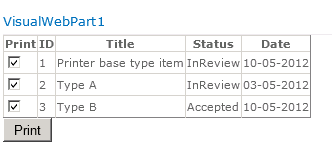
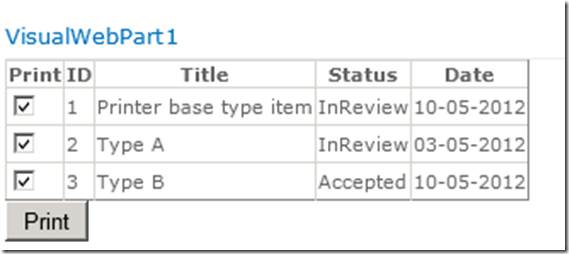
Recently, we were creating a web part that displays entities generated with SPMetal. One of the columns is a status field called MyStatus of type Choice. In the display, it just shows “InReview”, when the actual value is “In Review”.

The code does something similar to this:

using System;
using System.Web.UI;
using System.Web.UI.WebControls;
using System.Web.UI.WebControls.WebParts;
using Microsoft.SharePoint;
using System.Linq;

namespace VisualWebPartProject1.VisualWebPart1
{
    public partial class VisualWebPart1UserControl : UserControl
    {
        AstroDataContext dc = new AstroDataContext(SPContext.Current.Web.Url);
        protected override void OnPreRender(EventArgs e)
        {
            var query = (from item in dc.MyPrintList
                                     select item).ToList<MyPrintBaseType>();

            gvOverview.AutoGenerateColumns = false;
            gvOverview.DataSource = query;
            gvOverview.DataBind();
        }
    }
}

The declarative part looks something like this:

<asp:GridView runat=”server” ID=”gvOverview” AllowPaging=”False”>
    <Columns>
        <asp:TemplateField HeaderText=”Print”>
            <ItemTemplate>
                <input type=”checkbox” id=’chkAvail<%#DataBinder.Eval(Container.DataItem, “Id”)%>’
                    value='<%#DataBinder.Eval(Container.DataItem, “Id”)%>’ checked />
            </ItemTemplate>
        </asp:TemplateField>
        <asp:BoundField HeaderText=”ID” DataField=”ID” />
        <asp:BoundField HeaderText=”Title” DataField=”Title” />           
        <asp:TemplateField HeaderText=”Status”>
            <ItemTemplate>
                <div id=”divStatus<%#DataBinder.Eval(Container.DataItem, “Id”)%>”>
                <%#DataBinder.Eval(Container.DataItem, “MyStatus”)%>                   
                </div>
            </ItemTemplate>
        </asp:TemplateField>

        <asp:TemplateField HeaderText=”Date”>
            <ItemTemplate>
                <asp:Label ID=”Label1″ Text='<%#DataBinder.Eval(Container.DataItem, “MyDate”,”{0:dd-MM-yyyy}”)%>’
                    runat=”server” />
            </ItemTemplate>
        </asp:TemplateField>
    </Columns>
</asp:GridView>

This result be seen in the next figure.
image

So, somebody stole our spaces! Our immediate response to this brutal case of space theft was to find the bandit responsible for this. We had one main suspect…

SPMetal! When we took a look at the code generated by SPMetal, it’s quite clear why the spaces are missing. The original, full-blown, values are stored as attributes in the MyStatus enumeration. However, the actual names within the enumeration, as generated by SPMetal, are used when displayed in the SPGridView:

public enum MyStatus : int {

None = 0,

Invalid = 1,

[Microsoft.SharePoint.Linq.ChoiceAttribute(Value=”Unread”)]
Unread = 2,

[Microsoft.SharePoint.Linq.ChoiceAttribute(Value=”In Review”)]
InReview = 4,

[Microsoft.SharePoint.Linq.ChoiceAttribute(Value=”Accepted”)]
Accepted = 8,

[Microsoft.SharePoint.Linq.ChoiceAttribute(Value=”Denied”)]
Denied = 16,

[Microsoft.SharePoint.Linq.ChoiceAttribute(Value=”Remark”)]
Remark = 32,
}


As is explained in http://msdn.microsoft.com/en-us/library/ee537010.aspx , this is normal behavior. Since SPMetal generates partial classes, one way to get around it is to create a partial class for the entity representing your content type that provides a method or property that returns the attribute associated with a given enumeration value. Another way would be to generate an extension method that does the same. The implementation of such an extension method is shown in the answer in thread http://sharepoint.stackexchange.com/questions/21750/frustrated-linq-to-sharepoint-choice-values-losing-spaces .

Another way, and we guess the cleanest way if you’re only reading data, is to override the SPMetal defaults by using a Parameters XML file. See http://msdn.microsoft.com/en-us/library/ee535056.aspx for details.

In our case, we’ve saved the following XML in a file called params.xml:

<?xml version=”1.0″ encoding=”utf-8″?>
<Web xmlns=”http://schemas.microsoft.com/SharePoint/2009/spmetal”>
  <ContentType Name=”MyPrintBaseType” Class=”MyPrintBaseType”>
    <Column Name=”MyStatus” Member=”MyStatus” Type=”String” />
  </ContentType>
</Web>

This XML file says that we want to convert our MyStatus field to the type of String, which causes the original values to be included. See http://blogs.msdn.com/b/sharepointdev/archive/2011/05/03/using-linq-to-sharepoint-with-choice-fields.aspx , it also discusses a scenario where you want to write to a choice field too.

Then, we’ve generated our entities anew using the parameters XML file:

spmetal /web:http://astro /code:Astro.cs /parameters:params.xml

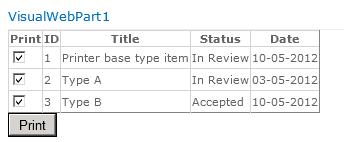
The end result meets our needs:
image

Print friendly list items addition

Instead of the ultimate print function listed in https://sharepointdragons.com/2012/05/05/print-friendly-list-items/ :

<script type=”text/javascript”>
jQuery(function () {
//alert(‘print’);
window.print();
});
</script>

It’s better to do it like this to print the actual contents of the dialog window:

$(window).load(function () {

window.focus();

window.print();

});

Cosmic and SharePoint

It can be hard to estimate how much time it will take to complete a SharePoint project. The usual approach is to do an “expert count”, in other words, have an expert (or more) estimate how long it will take to complete a project. Depending on the quality of the expert(s) and his/her team members, this can be a fine approach. It has one disadvantage though: it’ll make it really hard to do benchmarking and try to compare one project to another.
A more formalized way to go about it is to use a standard methodology for establishing the functional size of a SharePoint project expressed in function points. Although there are other methodologies, we’ll use the COSMIC Full Function Points methodology as the basis for analysis of the functional size of the project, as it focuses on the bare essentials. This is a difference from the more well known FPA methodology, but rest assured, COSMIC is also one of the 5 recognized ISO standards for functionality sizing software: http://en.wikipedia.org/wiki/Function_point .
After establishing the project functional size (and the great thing is, even if you apply COSMIC wrong, as long as you do it consistently, it’s still useful), the problem remains how to map these function points to a realistic amount of implementation hours. This knowledge can only be gained the hard way, based on experience. That’s where this Wiki page comes in, it relies on the feedback of SharePoint community members and offers an overview of what the community thinks is realistic.

Brief introduction of COSMIC

COSMIC breaks functional processes down to data movements. Each data movement corresponds to 1 COSMIC Functional Size Unit (CFSU). Each CFSU corresponds to a number of hours, i.e. it might take 8 hours to implement 1 CFSU. COSMIC discerns 4 different types of data movements:

  • E, Entry, a data movement that moves a data group/moves from a user/moves across a software boundary/moves into the functional process.
  • X, eXit, a data movement that moves a data group/moves from a functional process/moves across a software boundary/moves to the user that requires it
  • R, Read, a data movement that moves a data group from persistent storage (i.e. a database) to a functional process.
  • W, Write, a data movement that moves a data group from a functional process to persistent storage.

E and X data movements include formatting, presentation manipulations, simple validation, and processing required for routing. R and W data movements include simple processing, computations and other manipulations.
For more information, please refer to:

Learn by example

It’s probably unnecessary to point out that you’re not reading a comprehensive learning guide about Cosmic FFP. But still, let’s see how it works by learning from a simple example.

Suppose you have the following requirement: You need to build a visual web part that allows end users to enter an employee id. After that, the web part will look up all information it has related to this specific employee. Further suppose 1 CFSU for a visual web part takes 2 hours to implement. How much time will it take to implement this specific visual web part?

– Entering the employee id counts as an E (Entry): +1 CFSU.
– Retrieving employee data counts as an R (Read): +1 CFSU.
– Displaying employee data counts as an X (Exit): +1 CFSU.
– And probably you didn’t see this one coming: there’s also an X (Exit) for displaying any error and/or confirmation messages regarding the entire process.

This totals to 4 CFSU, which, in this example, leads us to believe that an estimation of 8 hours to implement this web part is reasonable.

Please note: As said before, no worries if you get a different answer. Even if you’re calculating it wrong, just as long as you do that consistently (meaning: you have your own approach to counting CFSU’s) Cosmic will still be useful to you.

What now?

The information in this article is based on the ongoing efforts of the following Wiki page: http://social.technet.microsoft.com/wiki/contents/articles/10590.sharepoint-2010-best-practices-to-estimating-and-benchmarking-project-efforts.aspx . Check it regularly for the most recent views on development times for specific SharePoint artifacts.

Missing SharePoint 2010 Project Templates

What to do when you can’t find the SharePoint 2010 project templates in Visual Studio.NET 2010? This link http://social.technet.microsoft.com/Forums/en-US/sharepoint2010programming/thread/a1f7631b-d901-430c-9777-ab67747678d3/ discusses what you can do.

The SharePoint Flavored Weblog Reader v1.1

In a previous post, we’ve talked about a tool we’ve created, the SharePoint Flavored WebLog Reader: https://sharepointdragons.com/2012/02/17/the-sharepoint-flavored-weblog-readersfwr/. It’s a free tool that analyzes the IIS logs of SharePoint farms and generates several textual reports about them. We’ve just released an update to it (v1.1) and based on community feedback, two new features were incorporated:

  • An overview was added that displays the number of searches executed per user.
  • An overview was added of the top slowest requests for a specific user.

You can get it here: http://gallery.technet.microsoft.com/The-SharePoint-Flavored-5b03f323

Web.config modifications

This is a nice blog post that explains how to make web.config modificatons via a SharePoint feature: http://smartrider.wordpress.com/2011/03/03/how-to-add-and-remove-entries-from-web-config-using-spwebconfigmodification/

Estimating and Benchmarking SharePoint projects

Potentially, this is the most interesting and exciting Wiki page we’ve ever worked on: http://social.technet.microsoft.com/wiki/contents/articles/10590.sharepoint-2010-best-practices-estimating-and-benchmarking-project-efforts.aspx On the other hand, it may well turn out to be a waste of our time. We’ll let you decide, we’ve taken the first steps. We very much want to encourage you to read it, appreciate it, contribute to it, or ignore it (hah, just when you thought you didn’t fit in any of the groups we went in for the kill!). Depending on what happens, it can become something quite special or we’ll just have to let go. We realize it can be near impossible (and admittedly, utterly useless) to give an ultimatum to a community, but we guess we just did!

Martin Luther putting 95 theses on the door of a church.

The JavaScript client OM

Developing solutions in the JavaScript client object model can be tedious and error prone. As a preferred way, it’s easier to start building a project using the managed client object model as it supports IntelliSense and debugging. When you’re finished, you can then port that version to the JavaScript OM. Alternatively, you can get some IntelliSense support for JavaScript by including the following line in an application page/site page/visual web part:

<% #if DEBUG %>
<script type=”text/javascript” src=”/_layouts/MicrosoftAjax.js” ></script> <script type=”text/javascript” src=”/_layouts/SP.debug.js”></script>
<% #endif %>

This is described in more detail here: http://sharepointinfoit.wordpress.com/2011/12/29/how-to-enable-ecma-client-object-model-intellisense-in-visual-studio-2010/

<% #if DEBUG %>
<script type=”text/javascript” src=”/_layouts/MicrosoftAjax.js” ></script> <script type=”text/javascript” src=”/_layouts/SP.debug.js”></script>
<% #endif %>

In, for example, a visual web part, the JavaScript OM js files have already been imported for you, so the following code is to wet your appetite and it updates a status field for a specific set of list items:

<script type=”text/javascript”>
    function onSucceeded(sender, args) {

        var itemEnum = listItems.getEnumerator();
        while (itemEnum.moveNext()) {
            var item = itemEnum.get_current();
            //alert(item.get_item(“Title”) + ” status:” + item.get_item(“MyStatus”) + ” : id ” + item.get_id());
                item.set_item(‘MyStatus’, ‘my new value’);
                item.update();
                context.load(item);

            }
        }

        context.executeQueryAsync(onSucceededStatusUpdate, onFailed);
    }
    function onSucceededStatusUpdate(sender, args) {
        alert(“status updated”);
    }

    var context;
    var web;
    var list;

    var listItems;
    var listItem;

    function InitClientOmContext() {
        context = new SP.ClientContext.get_current();
        web = context.get_web();
        list = web.get_lists().getByTitle(“MyPrintList”);
        listItem = list.getItemById(1);
    }

    function UpdateStatus(arrItems) {
        try {
            InitClientOmContext();

            // Note: Make sure that all fields are indeed part of the content type.
            // Dynamically create CAML query:
            var caml = “<View><ViewFields><FieldRef Name=’Id’/><FieldRef Name=’Title’/><FieldRef Name=’MyStatus’/></ViewFields><Query><Where><In><FieldRef Name=’ID’/><Values>”;

// arrItems is not included, but is a JavaScript array containing id’s
            for (i in arrItems) {
                caml += “<Value Type=’Number’>” + arrItems[i] + “</Value>”
            }
            caml += “</Values></In></Where></Query></View>”;
            //alert(caml);
            //var caml = “<View><Query><Where><Eq><FieldRef Name=’ID’/><Value Type=’Number’>2</Value></Eq></Where></Query></View>”;
            //var caml = “<View><ViewFields><FieldRef Name=’Title’/></ViewFields><RowLimit>5</RowLimit></View>”;
            //(<Where><FieldRef Name=”ID”/><Value>xx</Value></Where>)
            var camlQuery = new SP.CamlQuery();
            camlQuery.set_viewXml(caml);
            listItems = list.getItems(camlQuery);

            context.load(web);
            context.load(list);
            context.load(listItems);
            context.load(listItem, ‘Title’);
            context.executeQueryAsync(onSucceeded, onFailed);
        }
        catch (err) {
            alert(“error in update status ” + err.Message);
        }
    }

    function onFailed(sender, args) {
        alert(“fail: ” + args.get_message() + “\n” + args.get_stackTrace());
    }

</script>

Auditing in SharePoint Foundation?

Yes, you can, though it’s not supported via the GUI, see http://social.msdn.microsoft.com/Forums/en/sharepoint2010general/thread/53e79142-88c9-48f1-b5a5-a6259c9f6f97 for details:

. Go to Start -> All Programs -> Microsoft SharePoint 2010 Products -> SharePoint 2010 Management Shell

2. When it is loaded you then run the following command to get your site collection object:

$site = Get-SPSite http://site_URL

3. If you don’t get errors then execute the following commands one by one to set audit options and update it:

$site.Audit.AuditFlags = [Microsoft.SharePoint.SPAuditMaskType]::Update

$site.Audit.Update()

4. [Microsoft.SharePoint.SPAuditMaskType]::Update is a enum value of type SPAuditMaskType. You can have a look here for all possible values: http://msdn.microsoft.com/en-us/library/microsoft.sharepoint.spauditmasktype.aspx

If you want to combine them then use -bxor in your script. Example for Delete and Update:

[Microsoft.SharePoint.SPAuditMaskType]::Update -bxor [Microsoft.SharePoint.SPAuditMaskType]::Delete

The GUI also doesn’t offer the option to show the audit logs, so you need to do that like so:

$site.Audit.GetEntries()

Or check out the audit log enabler at http://auditlogsp.codeplex.com/ which apparently needs to be enhanced, like so (because it by default shows the results to all site members):

<CustomAction
Id=”ItemAuditing.ECBItemMenu”
RegistrationType=”ContentType”
RegistrationId=”0x01″
ImageUrl=”/_layouts/images/GORTL.GIF”
Location=”EditControlBlock”
Sequence=”300″
Title=”View Audit History”
Rights=”AddListItems”>
<UrlAction Url=”~site/_layouts/AuditingLog/ItemAudit.aspx?ItemId={ItemId}&amp;ListId={ListId}”/>
</CustomAction>

Tipsy

Let’s start our day with a nice little tip about a jQuery plugin called Tipsy: http://onehackoranother.com/projects/jquery/tipsy/ , it provides Facebook-like tooltips effects and is quite nice.