Nowadays, compliancy rules dictate companies to keep a track on what’s happening within their SharePoint environment. And if it’s not compliancy rules, sheer curiosity can be a sufficient driver for the need for knowledge as well. If we would get a penny for every time somebody asks a question in the SharePoint forums like: “How do I know who read document X?” (the answer being: check the audit trail), well uhm, we probably could buy us a Happy Meal or something. Whatever the reason may be, SharePoint provides the ability to introspect itself via its Audit Trail mechanism, check out http://technet.microsoft.com/en-us/library/cc824909.aspx for more details. However, based on our experience, customers find the Audit Trail useful/essential, but lacking in several ways:
- Power users find that reports are quite unreadable. And guess what? We totally agree.
- Power users find it a disadvantage that reports are only available in the form of Excel files. Some browser based reports or the ability to export those to XML would be nice.
- Power users find that after time passes by, it takes a long time to generate reports. Of course this is caused by the fact that the audit trail log is growing rapidly, more on that later.
- Administrators are not sure where the audit logs are stored. When they do find out, usually they find that storing audit trail data in the SharePoint content database doesn’t make sense.
- Administrators are not sure if and when audit log data is purged.
- We’ve found that the rapidly growing AuditData table (the database table that houses the audit trail data), stored in the SharePoint content database, can become a management liability. Interestingly enough, a blog post ( http://blogs.msdn.com/b/subhajitc/archive/2009/05/20/tip-the-untold-story-of-audit-logs-in-sharepoint.aspx ) mentions that an average of 10,000 hits/day can lead to a monthly increase of the SharePoint content database of 15 GB.
For an important feature, these are too many drawbacks. Are these problems solvable? Of course. Are these problems solvable in a generic way at a reasonable cost? Well, in fact, that’s the reason we’re writing this blog post. We came upon the commercial tool LOGbinder SP ( http://www.logbinder.com/ ) and it solved our Audit Trail problems. Let’s take a closer look at some of the features of the LOGbinder SP tool:
- Creates easy to read reports.
- Allows audit trail data to be exported to other data sources, such as the Windows Event Viewer.
- Allows you to configure audit trail settings for multiple site collections.
- Allows you to purge the audit log automatically.
- Leverages existing SIEM/Log Management solutions.
Tour of the Tool
Let’s conclude the blog post with a quick tour of the tool (please refer to the product documentation for a detailed overview, if interested). Installing it and configuring is easy. LOGBinder SP consists of a UI tool and runs a separate service that collects (and optionally purges) audit trail data without affecting anything in the SharePoint installation, running in lower priority mode than SharePoint services, therefore conserving server resources when they’re needed. The only drawback we’ve found is that it’s a bit hard to change the user account under which LOGbinder SP runs.
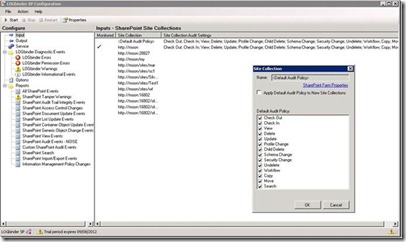
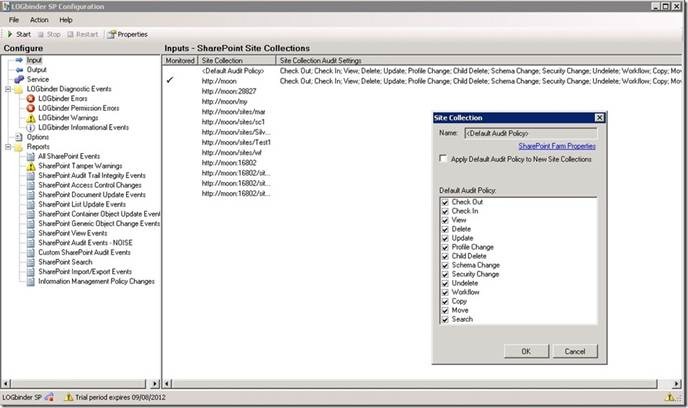
After installing LOGbinder SP, you need to configure a thing called the Input. Here, you can specify a Default Audit Policy that can be reused and defines which events should be tracked in the audit trail. Alternatively, you can define specific audit settings for a specific site collection. This is shown in the next Figure.
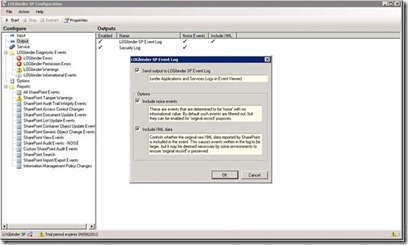
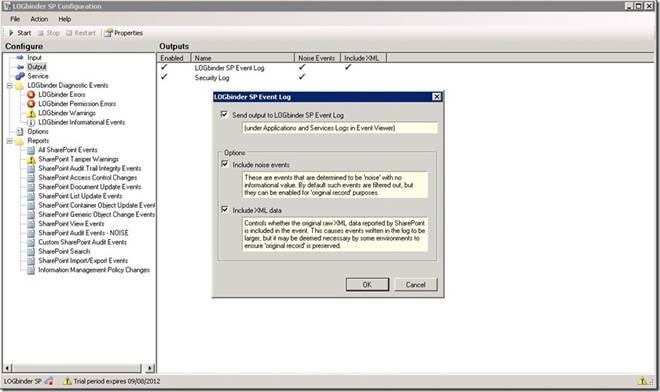
After that, you’ll also need to configure Output. This basically decides where audit trail information should be redirected to (for example, the Windows Event Viewer) and what data will be included. This can be seen in the next Figure:
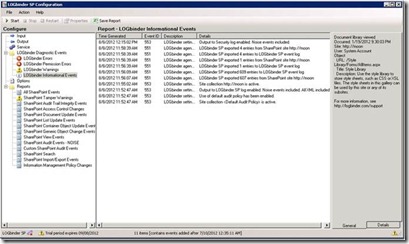
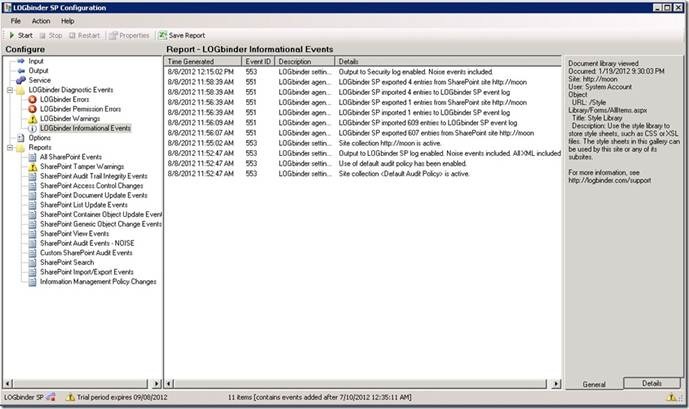
There’s a Service section that allows you to configure and start the service responsible for collecting (and optionally purging) audit trail data. It’s real easy to configure, but we’ve skipped a screenshot. The LOGbinder Diagnostics Events section makes it very easy to get insight into the activities of its service:
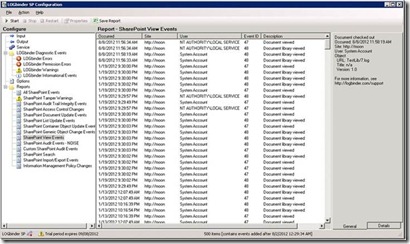
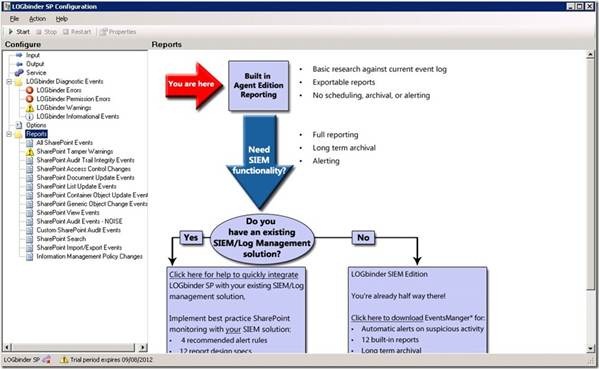
Finally, the most satisfying part of the tool, there’s a wide range of ootb reports available, check the following Figure:
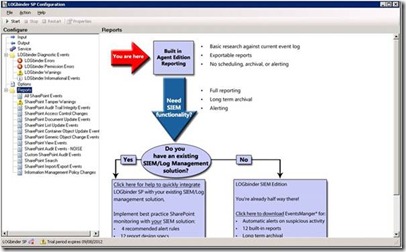
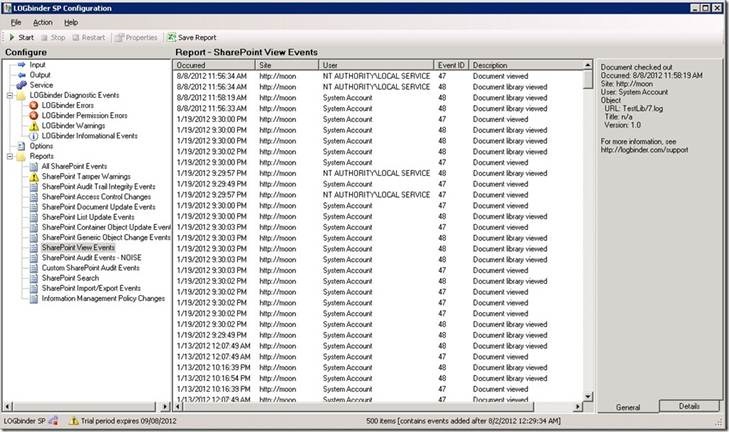
For example, this report provides an overview of View events:
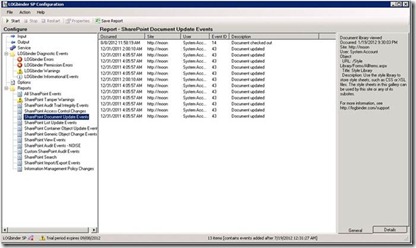
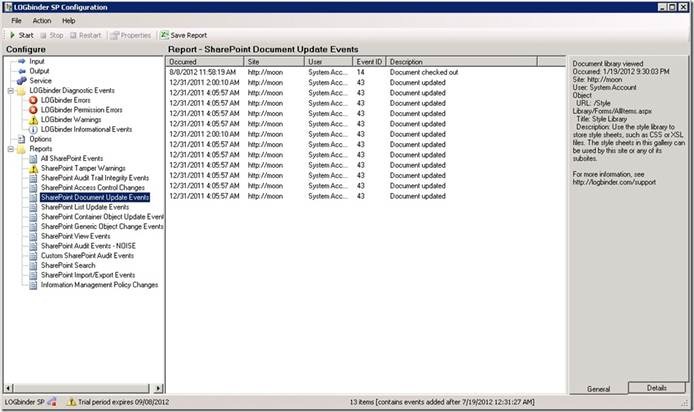
And here’s another one that concerns itself with document update events:
Conclusion
The audit trail mechanism in SharePoint is without a doubt an important and powerful feature of the product. Especially when doing implementations for large companies, legal firms or legal departments, we’ve found that the lack of an adequate audit trail can be a deal breaker. However, the current version of the audit trail is lacking in some ways. This can be solved by adding custom work, but that will be costly. A far better option is the LOGbinder SP tool, which currently is our favorite way of making the audit trail feature mature and complete.


 SharePoint Dragons